
Session 19 — Your First Web Page
Duration: 60 min · Format: live online
What you'll learn: by the end, you can explain that a web page is built from HTML "building blocks," write headings, paragraphs, an image, and a link, and see your own page come alive in the browser.
Soft skill focus — Curiosity
Today you'll also grow Curiosity. Every website you've ever visited is secretly made of HTML, and today you get to peek behind it and find out how.
Try this: guess what the "secret code" behind YouTube or a game site is — then, in CodePen, change a tag just to see what happens. The best questions start with "I wonder what this does…"
Think about: What is one thing about how web pages work that you're now curious to find out?
What you'll need
- Open CodePen in a tab and start a new Pen (top-left Create → Pen). You'll type code in the HTML box and the result shows on the right.
- One kid-safe image link to paste (for example a picture of a planet, a puppy, or a pizza). A safe one to use is
https://picsum.photos/300/200. - Paper and a pencil to sketch your page.
Hook
Think about these questions:
- Every website you've ever visited — YouTube, a game site, your school page — is made of a secret code. Any guesses what it's called?
- If a web page is like a house, what do you think the bricks are?
Here's the big idea: the bricks are called HTML, and today you'll stack your own bricks and build a real web page you can see in the browser.
Teach — What is HTML? Headings and paragraphs
Here are the key words:
- HTML = HyperText Markup Language. It's the code that tells the browser what goes on a page.
- HTML is made of tags. A tag is a word inside angle brackets, like
<h1>. - Most tags come in a pair: an opening tag
<h1>and a closing tag</h1>(the closing one has a slash/). Your text goes in between.
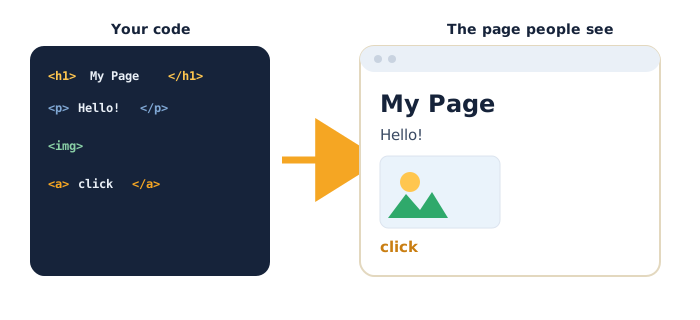
Use this diagram to see how the HTML tags you write turn into the finished web page people see in the browser:
Type this in CodePen (in the HTML box):
<h1>My Amazing Page</h1>
<p>Hello! This is my very first web page.</p>
Look at what appears on the right: <h1> makes a big heading, <p> makes a normal paragraph of text.
⚠ Watch for the #1 beginner mistake: forgetting the closing tag or the slash in it.
<h1>Hi<h1>is wrong; it must be<h1>Hi</h1>. Try leaving the slash out and see what breaks, then fix it.
Add a few more so you can see the pattern:
<h1>My Amazing Page</h1>
<h2>About Me</h2>
<p>I am 9 years old and I love drawing.</p>
<p>My favourite food is pizza.</p>
Quick question: what's the difference between <h1> and <h2>? (<h1> is the biggest title; <h2> is a smaller sub-heading.)
Teach — Images and links
Two of the most fun tags let you add a picture and a clickable link.
Type this in CodePen:
<img src="https://picsum.photos/300/200" alt="A random photo">
Here's each part:
<img>is the image tag. It's special — it has no closing tag.srcis the web address of the picture (where it lives on the internet).altis a short description, in case the picture can't load or is read aloud.
⚠ Watch for: the
srcmust be a real link wrapped in quotation marks. If the picture doesn't show, check for a typo in the link or a missing quote".
Now a link — type this in CodePen:
<a href="https://www.nasa.gov">Visit NASA</a>
<a>is the link (anchor) tag.hrefis the address it jumps to.- The words between
<a>and</a>are what the reader clicks.
Quick question: what would you change to make the link go to a different website? (Answer: change the address inside the href="..." quotes.)
Activity — Build your own page
Build your own page (≈20 min). Open your own new Pen at CodePen. Your page must include all four building blocks:
- One
<h1>title — the name of your page (e.g. "All About Me"). - At least two
<p>paragraphs — facts about yourself or a favourite topic. - One
<img>— paste an image link (a safe one:https://picsum.photos/300/200). - One
<a>link — to a website you like.
If a tag looks broken, read it out loud as "open… close" to spot a missing partner.
Remember: you just wrote real HTML — the same kind of code used on every website in the world.
Check yourself
Try these — answers are after the arrow.
- What does HTML do? → It's the code that tells the browser what to put on a web page.
- What is missing here:
<p>Hello? → The closing tag</p>. It should be<p>Hello</p>. - Which tag makes a big heading, and which makes a clickable link? →
<h1>makes a heading;<a>makes a link.
Wrap-up
- Name the four building blocks you used today (heading, paragraph, image, link).
- Try this at home — Plan Your Page: on paper, sketch a web page about yourself or a topic you love. Write a title, two facts, and pick one website to link to. Bring the sketch to Session 20 — you'll add colours and style to it.
Tips & extra challenges
- Watch out: it's easy to think "the picture and words live inside my code file." Actually, the
<img>only holds a link to a picture that lives somewhere else on the internet; your HTML points to it. - Want more? Try this: three more tags —
<ul>and<li>to make a bullet list, and<br>to force a line break. Add a "My Top 3" list to your page:
<h2>My Top 3 Foods</h2>
<ul>
  <li>Pizza</li>
  <li>Mango</li>
  <li>Ice cream</li>
</ul>
Then see if you can explain why <li> items sit inside <ul>.
Vocabulary
| Term | Meaning |
|---|---|
| HTML | The code that builds a web page |
| Tag | A code word in angle brackets, like <p> |
| Opening / closing tag | The pair that starts and ends, like <p> and </p> |
| Heading | Big title text, made with <h1> or <h2> |
| Paragraph | Normal block of text, made with <p> |
| Image | A picture on the page, made with <img> |
| Link | Clickable text that jumps to another page, made with <a> |
Resources
- CodePen — write HTML and see it instantly (main tool).
- MDN — HTML basics — friendly reference if you want more tags.
- Lorem Picsum — free placeholder photos; use
https://picsum.photos/300/200for a quick image. - W3Schools — HTML Tags — a simple list of every tag, for the curious.
Practice set
Practise on your own. Answers are after the arrow.
- What do the letters HTML stand for, roughly, and what is it for? → HyperText Markup Language — the code that tells the browser what to show on a page.
- Write the HTML for a big heading that says "My Pets." →
<h1>My Pets</h1> - Fix this broken tag:
<p>I like football<p>→ The closing tag needs a slash:<p>I like football</p> - Which tag adds a picture, and what does its
srcpart hold? → The<img>tag;srcholds the web address of the picture. - Write a link with the words "Play a game" that goes to
https://scratch.mit.edu. →<a href="https://scratch.mit.edu">Play a game</a> - Your image won't show up. Name two things you'd check. → The
srclink is spelled correctly and is a real address; the quotation marks"around the link are both there.
Going deeper (optional)
- Why tags come in pairs. The opening tag says "start treating text this way" and the closing tag says "stop here." Try a paragraph without its closing
</p>and watch how the browser sometimes "guesses" — then remember: closing your tags keeps the page tidy and predictable, especially once pages get big. - What "alt text" really does.
altis read aloud to people who can't see the picture, and shows up if the internet is slow. Write goodalttext for a photo of your pet — not "image" but something useful like "my brown dog asleep on the sofa." Good web pages work for everyone.
Common mistakes & fixes
If it's not working, check these common mix-ups:
- Mistake: forgetting the closing tag, e.g.
<h1>Title. → Fix: every pair needs its partner —<h1>Title</h1>. Read tags out loud as "open… close." - Mistake: leaving the slash out of the closing tag, e.g.
<p>Hi<p>. → Fix: the closing tag always has a slash:</p>. Point at the slash and say "this one turns it off." - Mistake: putting an image link without quotation marks, e.g.
<img src=https://...>. → Fix: the address must sit inside quotes:<img src="https://...">. - Mistake: adding a closing tag to an image, e.g.
<img>...</img>. → Fix:<img>is a lonely tag with no closing partner — write it just once. - Mistake: typing text before the opening tag, e.g.
Hello<p>there</p>. → Fix: put the text you want styled between the tags:<p>Hello there</p>.
What's next
Session 20 — Make It Yours: you'll learn CSS to add colours, fonts, backgrounds, and spacing, and give your page its own style.