
Session 16 — Score & Loops
Duration: 60 min · Format: live online
What you'll learn: by the end, you can create a score variable, use a forever loop to keep the game alive, and use broadcasts so sprites can talk to each other.
Soft skill focus — Critical thinking
Today you'll also grow Critical thinking. Good makers test their guesses instead of assuming — like whether set or change is the right block for a growing score.
Try this: before you run your score code, predict what will happen if you use set Score to 1 on every press. Then run it, watch it stick at 1, and compare to your guess. A "wrong" prediction is the most useful kind — it teaches you something.
Think about: What did you predict set would do, and what actually happened?
What you'll need
- Open Scratch and click Create — or open your project from Session 15 to build on. Either works.
- An idea to aim for: a "catch the apple" game — an apple sprite that keeps falling with a forever loop, and a Score that goes up when you press the space bar (you'll make it react to catching next session).
Hook
Think about these questions:
- In your favourite game, where does the score show up, and what makes it go up?
- The game keeps checking things over and over without stopping. How do you think it does that?
- How does one part of a game tell another part "hey, the player scored!"?
Here's the big idea: today you learn three superpowers — a variable to remember the score, a loop to keep the game running forever, and a broadcast so your sprites can send each other messages.
Teach — Variables hold a number
Here's how variables work:
- A variable is a box that remembers a number for you. A score is just a number that keeps changing.
- Go to the Variables section (orange), click Make a Variable, and name it Score. A
Scorebox appears on the stage.
Build this in Scratch:
- Drag
set [Score] to 0and snap it underwhen green flag clicked. Every game starts the score at zero. - Drag
change [Score] by 1underwhen [space] key pressed. Press space a few times — the score climbs.
⚠ Watch for the mix-up between
setandchange:set Score to 0replaces the number;change Score by 1adds to it. If you useset Score to 1every press, the score gets stuck at 1. Try it once so you can see the difference.
Quick question: at the start of a game, should you set Score to 0 or change Score by 0? Why? (Answer: set to 0 — you want it to become zero, not just add nothing.)
Teach — Forever loops and broadcasts
A game never stops checking things — it does the same job over and over. That's a loop. The forever block (yellow, Control) repeats everything inside it, endlessly.
Use this diagram to picture the game loop — when the flag is clicked, a forever loop keeps moving sprites, checking collisions, and updating the score:
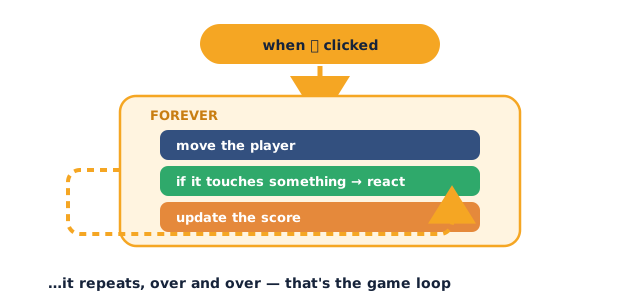
Build this in Scratch:
- Add a second sprite (an apple or ball). Give it
when green flag clicked→forever→ inside:change y by -5. - Click the green flag. The apple falls, and falls, and falls — the loop keeps running. Without
forever, it would move once and stop. - Add
if on edge, bounceor reset withset y to 150inside the loop so it keeps coming back (either works — you'll polish it next session).
Now try broadcasts — how sprites talk to each other:
- A broadcast is like shouting a message across the room. One sprite broadcasts, any sprite can listen with
when I receive. - On the cat, add
when [space] key pressed→broadcast [caught]. On the apple, addwhen I receive [caught]→play sound [Pop]andgo to x: 0 y: 150(jump back to the top). - Press space — the message fires, the apple pops and resets.
Key idea: a variable remembers, a loop repeats, and a broadcast lets sprites send messages to each other.
Try it: if you take the
change y by -5out of the forever loop and just leave it on its own, how many times does the apple move? (Answer: once.)
Activity
Now build your own "catch" starter.
Build this, step by step:
- Make a variable called Score (Variables → Make a Variable).
- On the main sprite:
when green flag clicked→set [Score] to 0. - Add a second sprite (apple, ball, star).
- On the second sprite:
when green flag clicked→forever→change y by -5. - Inside the same forever loop, add
if y < -150 then→set y to 150(so it loops back to the top). Ifif/thenis new, just useset y to 150after a few seconds for now. - On the main sprite:
when [space] key pressed→change [Score] by 1andbroadcast [caught]. - On the second sprite:
when I receive [caught]→go to x: 0 y: 150andplay sound [Pop]. - Click the green flag and test: the apple falls, space adds to the score and resets the apple.
If something's not working, check:
- A score that jumps straight to 1 and sticks — you used
set Score to 1instead ofchange Score by 1. - A forever loop that "freezes" the editor — usually there's a
foreverwith nothing that lets the screen update; adding await 0.1 secondsinside helps, or you simply need to click the flag to start it. - Broadcasts that don't fire — the message name in
broadcastandwhen I receivemust match exactly (check the dropdown).
Tip: change the falling speed (change y by -5 → -8) and notice the game gets harder.
Check yourself
Try these — answers are after the arrow.
- What is a variable, and what would you use one for in a game? → A box that remembers a number; use it for a score, a timer, lives, or a level number.
- What does a
foreverloop do? → It repeats the blocks inside it endlessly, so the game keeps checking or moving without stopping. - How can one sprite tell another sprite that something happened? → With a broadcast — one sprite
broadcasts a message, another runswhen I receivethat message.
Wrap-up
- In your own words, what is the difference between
setandchange? - Try this at home — Level Up the Score: make the score go up by a different amount for a special action (for example,
change Score by 5on a rare key), or add a second variable likeLives. Bring it to Session 17.
Tips & extra challenges
- Watch out: it's easy to think "a
foreverloop is broken because it never ends." That's the point — games are meant to keep running. What you usually want is a loop that repeats but still lets other things happen; a tinywaitinside keeps it smooth. - Want more? Try this: add a timer using a second variable —
set Time to 30at the start, then a separate loop that doeswait 1 seconds→change Time by -1. Challenge: whenTimehits 0,broadcast [game over]and have a sprite say "Time's up!" This is a sneak peek at the win/lose logic of Session 17.
Vocabulary
| Term | Meaning |
|---|---|
| Variable | A box that remembers a number, like a score |
| Set | Put an exact value into a variable (replaces it) |
| Change | Add to (or subtract from) a variable |
| Loop | Blocks that repeat; forever repeats endlessly |
| Broadcast | A message one sprite sends and others can receive |
Resources
- Scratch — free, in your browser, no install (main tool).
- Scratch Ideas: Make It Fly / catch games — starter guides that use variables and loops.
- Scratch Wiki: Variables — friendly reference on what variables do.
- Scratch Wiki: Broadcast — how sprites send and receive messages.
Practice set
Practise on your own. Answers are after the arrow.
- Make a variable called Score and set it to 0 when the green flag is clicked. → Variables → Make a Variable → name it
Score; thenwhen green flag clicked→set [Score] to 0. - Make the score go up by 1 every time you press the space bar. →
when [space] key pressed→change [Score] by 1. (Use change, not set.) - Make a sprite fall down the screen forever. →
when green flag clicked→forever→change y by -5. - When the falling sprite reaches the bottom, send it back to the top. → Inside the loop:
if y < -150 then→set y to 150(orgo to x: 0 y: 150). - Make one sprite send a message and another sprite react to it. → Sprite A:
broadcast [caught]. Sprite B:when I receive [caught]→ do something (play a sound, hide, reset position). - Add a second variable called Lives, start it at 3, and lower it by 1 on a key press. → Make
Lives;set [Lives] to 3at start;when [key] pressed→change [Lives] by -1.
Going deeper (optional)
- Show the variable live on stage. Tick the checkbox next to a variable to show it, and use the display options (right-click the box) to make it a slider or a large readout. Think about where a real game shows its score, then place yours in a matching spot. This connects the code to how games actually look.
- Why broadcasts beat "just doing it in one script." In a real game, catching an apple has to do several things at once — add score, play a sound, reset the apple, maybe speed things up. A single broadcast can wake up many sprites at the same time, each doing its own job. Add a second
when I receive [caught]on a different sprite (say, a cheering sprite) to feel this power.
Common mistakes & fixes
If it's not working, check these common mix-ups:
- Mistake: using
set Score to 1on every press, so the score never grows past 1. → Fix: switch tochange Score by 1;setreplaces,changeadds. - Mistake: forgetting to
set Score to 0at the start, so scores from the last play carry over. → Fix: always start withwhen green flag clicked→set [Score] to 0. - Mistake: the broadcast name and the "when I receive" name don't match, so nothing happens. → Fix: pick the same message from both dropdowns; if unsure, make a new message with a clear name like
caught. - Mistake: a
foreverloop with nowaitmakes the sprite move too fast or the editor feel stuck. → Fix: add a smallwait 0.1 secondsinside the loop, or lower the movement number. - Mistake: putting the score-change inside the forever loop by accident, so it counts up thousands of times per second. → Fix: keep
change Score by 1under the key-press event, not inside the falling loop.
What's next
Session 17 — Levels & Challenge: you'll add if/then decisions, detect when sprites are touching, and build real win and lose conditions to make the game harder.