
Session 3 — Teach the Computer
Duration: 60 min · Format: live online
What you'll learn: by the end, you can train your own AI to tell two things apart, test it and read its confidence, and explain why more examples make it smarter.
Soft skill focus — Problem-solving
Today you'll also grow Problem-solving. When a model keeps guessing wrong, the fun part is figuring out why and fixing it — that is exactly what an AI builder does.
Try this: after you try to trick your model, don't rush to a fix — ask yourself "what changed when it got confused?" and decide whether to add angles, backgrounds, or lighting before you re-train.
Think about: What was going wrong with your model, and what did you try to fix it?
What you'll need
- A computer with a webcam (and a grown-up nearby for your first go).
- Teachable Machine open in a web browser.
- Two poses you can hold for the demo (e.g. thumbs up and thumbs down).
Hook
Remember the learning recipe from Session 1: Examples → Learn → Guess.
Here's the twist: today you stop using AI and start making it. You'll do all three steps yourself with a free tool called Teachable Machine — you are the teacher now.
Teach — How you train an AI
You teach an AI the same way you'd teach a puppy — with lots of examples and clear labels.
Look at this diagram:
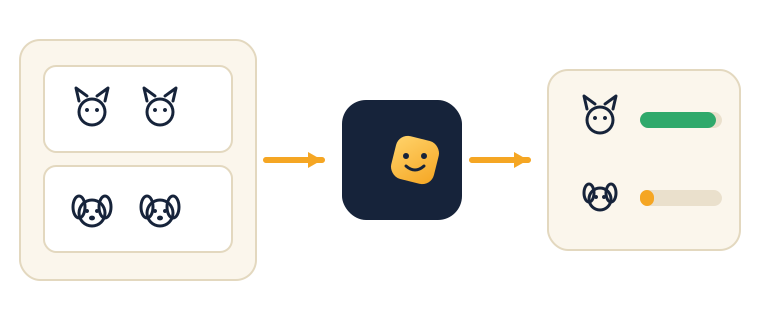
Here are the three steps:
- Collect examples — show the AI many pictures of each class (for example, "thumbs up" and "thumbs down").
- Train — press one button. The AI studies the examples and finds the patterns.
- Predict — show something new. The AI guesses and tells you how sure it is with a bar (like "thumbs up: 92%").
The big idea — confidence: the bar shows how sure the AI is. A short bar means it's not sure. More and clearer examples make the bars taller and the guesses better.
⚠ Watch out: it's tempting to think more examples of one class is enough. Each class needs plenty of varied examples, or the model just learns the background instead of the pose.
If your model keeps guessing wrong, what's the easiest fix? (Add more and clearer examples for each class.)
Activity — Train your first AI
Follow along on your own device (with a grown-up nearby for your first go).
- Open Teachable Machine → click Get Started → Image Project → Standard image model.
- Class 1: name it (e.g.
Thumbs up). Hold the pose and click Hold to Record to capture 20–30 pictures. - Class 2: name it (e.g.
Thumbs down) and record 20–30 pictures. - Click Train Model. Wait a few seconds.
- Test it live: move in front of the camera and watch the confidence bars change.
Now try to trick it: tilt the hand, change the background, stand further away. When does it get confused? That tells you what to fix.
- If you recorded all your examples from one angle or with a busy background, re-record with more variety and re-train.
- If your classes have very different numbers of pictures, add more so each has a roughly even amount.
Check yourself
Try to answer these, then check yourself after the arrow.
- What are the three steps to make an AI? → Collect examples → Train → Predict.
- What does "confidence" mean? → How sure the AI is about its guess, shown as a percentage or a bar.
- Your model keeps getting it wrong. What's the easiest fix? → Add more and clearer examples for each class (different angles, good lighting).
Wrap-up
- Explain in your own words: why do more examples make the AI smarter?
- Try this at home: add a 3rd class to the model (like
Nothing— an empty hand), re-train, and see if it works better. Write down one time it failed and an idea to fix it. Bring it to Session 4.
Tips & extra challenges
- Watch out: it's easy to think "the AI is thinking / recognising like me." It's matching new pictures against the patterns in the examples it was given — nothing more.
- Want more? Try this: go multi-class — make a model with 3 or 4 classes (e.g. fist, open hand, peace sign) and notice how confidence spreads out. Then try first code: open Google Colab → New notebook → type this in a cell and press run:
print("Hello! I am training my first AI.")
for i in range(1, 4):
    print("Example number", i)
That's real Python — the language AI is built with. Challenge: write one sentence on what your classifier could be useful for in real life.
Vocabulary
| Term | Meaning |
|---|---|
| Train | Teaching the AI with examples |
| Sample / Example | One picture you give the AI |
| Class | A group the AI sorts into |
| Confidence | How sure the AI is (a %) |
| Test | Trying the AI on something new |
Resources
- Teachable Machine — the tool used in this session.
- Teachable Machine — official tutorials — short how-to guides.
- Machine Learning for Kids — train models and use them in Scratch (great for extension).
- Google Colab — run first Python for the extension task.
For grown-ups: in Teachable Machine's basic mode no images leave the computer — a safe first project.
Practice set
Practise on your own — the answer comes after the arrow.
- What are the three steps to make an AI, in order? → Collect examples → Train → Predict.
- In Teachable Machine, what is a "class"? → A group the model sorts into (for example thumbs up or thumbs down); you record examples for each class.
- Your model shows "thumbs up: 55%". Is it sure or unsure, and what does the number mean? → Unsure — 55% is barely more than a coin-flip; the number is the confidence, how sure it is about that guess.
- You recorded 30 examples of "thumbs up" but only 5 of "thumbs down." Why might the model behave oddly, and what is the fix? → The classes are very uneven, so it leans toward the class it saw more; fix by recording a roughly even number for each class and re-training.
- All your "thumbs up" pictures were taken in front of the same window. The model works at your desk but fails at a friend's house. Why? → It may have learned the background (the window) instead of the pose; fix by recording from varied backgrounds, angles, and lighting.
- You want a model that tells
apple,banana, andnothing(empty hand) apart. How many classes is that, and why addnothing? → Three classes; anothingclass gives it something to say when neither fruit is shown, so it stops forcing a wrong guess.
Going deeper (optional)
- Read the confidence bars like a scientist. After you train a model, watch the bars while you slowly change the pose from a clear "thumbs up" to a clear "thumbs down." Say "now!" at the exact moment the winning bar flips. Notice the in-between moment where both bars are near 50% — that is the model being honestly unsure. The big idea: confidence is not just a score, it is the model telling you how close a case is to the boundary between two classes.
- The fair-test idea. To know if a model is really good, you must test it on examples it has never seen during training — not the same pictures you trained on. Testing on training pictures is "cheating": of course it gets those right, it memorised them. Set aside a few fresh poses before training and only try those afterward. This is the honest testing you'll build on in Session 4.
Common mistakes & fixes
- Mistake: recording all examples from one angle, distance, or background. → Fix: re-record with variety (turn, lean, step back, change the light) and re-train; variety is what makes it robust.
- Mistake: giving one class far more examples than another. → Fix: keep the counts roughly even so the model does not lean toward the bigger class.
- Mistake: forgetting to press Train Model after adding examples, then wondering why nothing changed. → Fix: any time you add or change examples, re-train before testing again.
- Mistake: reading a tall confidence bar as proof the AI "understands" the object. → Fix: remember it is only matching patterns in the examples it was shown; a high number means a strong match, not understanding.
- Mistake: testing only on the same poses used for training and declaring it perfect. → Fix: test on new things it has not seen; that is the only honest check of whether it learned the pattern.
What's next
Session 4 — Your First AI Project: you plan, build, test, and present your very own classifier.