
Session 6 — Charts & Graphs
Duration: 60 min · Format: live online
What you'll learn: by the end, you can read a bar chart and a pictograph, make a chart from your own data, and instantly spot the biggest and smallest.
Soft skill focus — Communication
Today you'll also grow Communication. A chart is just a way of telling someone the answer in one glance, without saying a word.
Try this: after you chart your survey, flash your chart to a partner for two seconds and let them shout the winner — if they get it, your chart communicated; if not, add a title or clearer bars.
Think about: Could someone read the winner from your chart without you explaining it?
What you'll need
- Your tally sheet from Session 5.
- Paper, a pencil, and colours.
- Optional: a device to open Google Sheets and use Insert → Chart.
Hook
Which is faster to understand: hearing the sentence 'apple 5, banana 7, grapes 3' — or seeing a picture of it?
Have a vote in your head. A good chart tells the answer in one glance. Today you turn your own data into charts.
Teach — A chart turns numbers into a picture
The same fruit data can be drawn two ways. Look at this diagram:
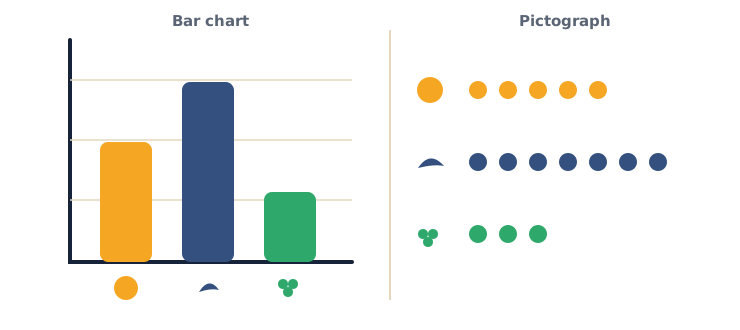
- Bar chart: the taller the bar, the more votes — super quick to compare.
- Pictograph: each little icon = one vote — just count the icons.
⚠ Watch out for the pictograph trap: it's easy to forget that one icon = one vote. If icons ever stand for more than one (say each icon = 2), counting icons the usual way gives the wrong total. For now, keep it one-to-one.
In one glance — which fruit is the winner? Did you even need the numbers? (Banana; no — the picture shows it instantly.)
Teach — Reading a chart like a pro
Here are the three questions to ask about any chart:
- What is it about? (the title)
- Which is the biggest? The smallest?
- How much bigger is the winner than the rest?
Try it on the fruit chart: it's about favourite fruit; banana is biggest, grapes smallest; banana beats grapes by 4 votes.
If a chart had no title, what would be hard about it? (You wouldn't know what the numbers are about.)
Activity — Chart your survey
Turn your Session 5 tally sheet into a chart.
- On paper: draw a line at the bottom. For each choice, colour in one box per vote to make bars.
- Or on the computer: open Google Sheets, type the choices and counts, select them, then Insert → Chart.
Check that your chart has a title and that the bars/icons match your tallies.
Now your data has a face — you can see the winner without reading a single number.
Check yourself
Try to answer these, then check yourself after the arrow.
- In a bar chart, what does a taller bar mean? → More — a bigger count.
- In a pictograph, what does one icon usually mean? → One of something (one vote / one item).
- Why do we use charts at all? → To understand data fast — a picture is quicker than a list of numbers.
Wrap-up
- Which do you find easier, a bar chart or a pictograph — and why?
- Try this at home — One-glance race: make two charts of your survey data (a bar chart and a pictograph). Then ask someone to flash a chart at you for just 2 seconds and shout the winner — proof that charts are fast! Bring both charts to Session 7.
Tips & extra challenges
- Watch out: it's easy to think "you always still need the numbers." A well-made chart shows the biggest and smallest at a glance — that's the whole point.
- Want more? Try this: learn cleaning — real data has mistakes, so hunt for empty answers, spelling slips (
bananavsBanana), and doubles. Then ask the data questions with Sheets formulas — this is called Exploratory Data Analysis (EDA):
=SUM(B2:B4)      → the total votes
=MAX(B2:B4)      → the biggest count
=AVERAGE(B2:B4)  → the average
Mini-challenge: find the most common answer and the average, then make the chart lie on purpose — start the bar chart's axis at 5 instead of 0 and watch how the bars suddenly look wildly different even though the numbers didn't change. Fix it back to 0 and write one sentence about why the starting number of the axis matters and one sentence about what you notice in the real data. This is your first taste of spotting a misleading chart.
Vocabulary
| Term | Meaning |
|---|---|
| Chart / Graph | A picture of data |
| Bar chart | Bars — taller means more |
| Pictograph | Icons — each icon = one |
| Axis | The line at the side/bottom |
| Compare | See which is more or less |
Resources
- Google Sheets — type data, then Insert → Chart.
- Our World in Data — beautiful real charts to explore.
- Kids' Zone — Create a Graph — a free, fun graph maker.
Practice set
Practise on your own — these build from easy to hard on reading and making charts, and the answer comes after the arrow.
- Read the bars. A bar chart shows cats 8, dogs 6, fish 2. Which pet is most popular, and which is least? → Cats most (8), fish least (2).
- Count the icons. A pictograph has for apple and for banana, where each icon = one vote. How many votes each? → Apple 3, banana 5.
- What's missing? A classmate shows you a bar chart with colourful bars but no words at the top. What one thing does it need, and why? → A title — without it you can't tell what the chart is about.
- Turn tally into a chart. Reading =
||||(4), Sport =|||| ||(7), Music =||(2). Sketch the bar heights in order from tallest to shortest. → Sport (7) → Reading (4) → Music (2). - Spreadsheet task. In Google Sheets, type the three counts above in cells B2:B4. What does
=SUM(B2:B4)give, and what does=MAX(B2:B4)give? →=SUM→ 13;=MAX→ 7. - The doubled icon (hard). A pictograph says each icon = 2 votes and shows 4 icons for pizza. How many votes is that, and why might someone get it wrong? → 8 votes (4 × 2); people who assume one icon = one vote would wrongly say 4.
Going deeper (optional)
Optional — for a strong challenge. The same data can be honest or sneaky depending on how you draw it, so a good reader checks the chart, not just the shape. Take the fruit data (apple 5, banana 7, grapes 3) and make two bar charts in Google Sheets. In the first, let the bottom of the bars start at 0 — banana looks a bit taller than apple. In the second, start the axis at 4 — now banana's bar looks three times the size of grapes even though banana only has a bit more than double. Nothing about the real numbers changed; only the starting line moved. Go through it slowly and land the rule: always check where the bottom of a bar chart starts. This is exactly the trick used in adverts and clickbait — and it's fun to catch a chart in a lie. Keep it to bar charts you can build yourself — no new tools needed.
Common mistakes & fixes
- Mistake: making a chart with no title, so no one can tell what it shows. → Fix: make "give it a title" the first step, before colouring any bars — the title is what makes a chart readable.
- Mistake: in a pictograph, counting icons when each icon stands for more than one. → Fix: always read the key first (one icon = ? votes), then multiply; for now keep your own pictographs one-to-one.
- Mistake: drawing bars of uneven width or with gaps of different sizes so heights are hard to compare. → Fix: keep bars the same width and evenly spaced — only the height should carry the meaning.
- Mistake: bar heights that don't match the tallies (colouring 6 boxes for a count of 7). → Fix: count one box per vote out loud against the tally sheet before moving to the next bar.
- Mistake: thinking you still need to read the numbers to find the winner. → Fix: that's the whole point of a chart — the tallest bar or most icons shows the winner at a glance.
What's next
Session 7 — Data Solves Problems: you use data to make real decisions and design a simple solution.