
Session 17 — Levels & Challenge
Duration: 60 min · Format: live online
What you'll learn: by the end, you can use if/then decisions, detect collisions with the "touching" block, and give a game real win and lose conditions.
Soft skill focus — Resilience
Today you'll also grow Resilience. Building win and lose conditions means things break first — a runaway score, a message that never shows — and makers keep going until it works.
Try this: when your score explodes or your "You Win!" never appears, tell yourself "that's a bug every game-maker hits" — then try one fix at a time (add the respawn line, then re-test) instead of giving up or starting over.
Think about: What broke in your game today, and how did you keep going until you fixed it?
What you'll need
- Open Scratch and click Create — or open your Session 16 project so you can extend it.
- An idea to aim for: the "catch" game from Session 16, upgraded so that when the basket touches the apple the score goes up, and if the apple touches the floor you lose a life.
Hook
Think about these questions:
- How does a game know when you caught the coin, or fell in the pit?
- What makes a game feel too easy or too hard?
- How does the screen decide to show "You Win!" or "Game Over"?
Here's the big idea: today your game learns to make decisions. It will check "is this touching that?" and then choose what to do — score, lose a life, win, or end.
Teach — If/then makes decisions
Here's how decisions work:
- An
if / thenblock (Control) is a decision: if something is true, then do these blocks. If it's not true, it skips them. - The diamond-shaped slot at the top holds a question that is true or false — for example, "is the apple touching the basket?"
Build this in Scratch:
- Build
if <touching [Basket]?> then→change [Score] by 1. Drop it inside aforeverloop so the game keeps checking. - Run it and drag the apple onto the basket — the score jumps. The loop asks the question many times a second; when the answer becomes true, the
thenblocks run.
⚠ Watch for a runaway score: because the loop checks constantly, one touch can add hundreds of points. Fix it by adding, right after scoring, a reset —
go to x: 0 y: 150(send the apple back to the top) so it's no longer touching.
Quick question: the diamond slot needs a question that is true or false. Is "the apple" a good fit for it? What about "the apple is touching the basket"? (Answer: the second — it can be true or false.)
Teach — Touching, collisions, win & lose
The touching [ ]? block (Sensing) is how a game notices collisions — two things bumping into each other. It's the heart of catching, hitting, and dodging.
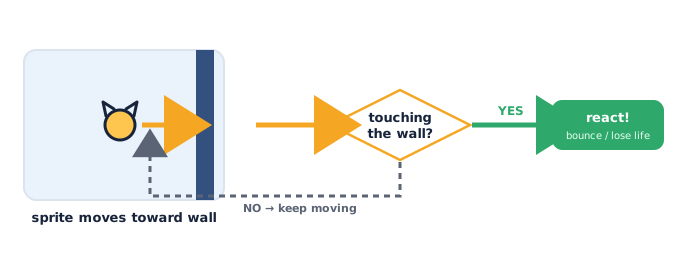
Picture the collision logic: if touching the wall, react; otherwise keep moving.
Build this in Scratch:
- Scoring collision: in the apple's
foreverloop, addif <touching [Basket]?> then→change [Score] by 1,play sound [Pop],go to x: (pick random -200 to 200) y: 150(respawn somewhere new). - Losing collision: add
if <touching [floor]?> then→change [Lives] by -1and reset the apple to the top. (Use a floor sprite or checkif y < -150.) - Lose condition: somewhere in a loop, add
if <Lives = 0> then→broadcast [game over]→stop [all]. Add a sprite withwhen I receive [game over]→say [Game Over!]. - Win condition: add
if <Score = 10> then→broadcast [you win]→stop [all], with a sprite that says "You Win!"
Now try making it harder (levels):
- A game gets harder by speeding up or adding more. Change
change y by -5so the-5is a variable Speed, andchange [Speed] by -1every 10 points so falling gets faster.
Key idea: if/then + touching lets a game react — that's what turns moving sprites into a real, winnable, losable game.
Try it: to make the game harder, should the apple fall faster or slower? What block changes that? (Answer: faster; change the
change y bynumber to a bigger negative.)
Activity
Now upgrade your catch game.
Build this, step by step:
- On the falling sprite: wrap the fall in
forever→change y by -5. - Inside the loop, add
if <touching [your catcher sprite]?> then→change [Score] by 1,play sound [Pop],go to x: (pick random -200 to 200) y: 150. - Add
if <y < -150> then→change [Lives] by -1→go to x: (pick random -200 to 200) y: 150(missed it — reset). - Make sure Lives starts at 3 and Score starts at 0 on the green flag.
- Add a lose check:
if <Lives = 0> then→broadcast [game over]→stop [all]. - Add a win check:
if <Score = 10> then→broadcast [you win]→stop [all]. - Add a sprite that shows "Game Over!" on
when I receive [game over]and "You Win!" onwhen I receive [you win]. - Test: catch apples to win, miss three to lose.
If something's not working, check:
- Scores that shoot up by hundreds — the caught sprite isn't resetting, so it stays touching. Add the respawn line.
- The
if/thenis outside a loop, so it only checks once — move it inside theforeverloop. - Win/lose messages that never show — check the
broadcastandwhen I receivenames match, and thatstop allisn't stopping the message sprite before it can say anything (put thesaybeforestop allif needed).
Tip: change the win score or starting lives to tune how hard your game feels.
Check yourself
Try these — answers are after the arrow.
- What does an if/then block do? → It checks a true-or-false question; if it's true, it runs the blocks inside; if not, it skips them.
- Which block lets a game notice two sprites bumping into each other? → The
touching [ ]?block (Sensing) — it detects a collision. - How could you make a "You Win!" message appear when the score reaches 10? →
if <Score = 10> then→broadcast [you win]; a sprite withwhen I receive [you win]says "You Win!".
Wrap-up
- In your own words, describe one win condition and one lose condition in your game.
- Try this at home — Tune the Challenge: change one thing to adjust the difficulty — the falling speed, the number of lives, or the score needed to win — and decide whether it made the game better. Bring it to Session 18.
Tips & extra challenges
- Watch out: it's easy to think "if/then only runs once when I click it." Alone it checks a single time; games put if/then inside a forever loop so the question is asked continuously. Try both so you feel the difference.
- Want more? Try this: add a second level — when
Scorereaches 5,broadcast [level 2], switch the backdrop, speed up the falling sprite, and maybe add a second falling object to dodge. Challenge: add an enemy you must avoid:if <touching [enemy]?> then change [Lives] by -1. This is real level design in miniature.
Vocabulary
| Term | Meaning |
|---|---|
| If/then | A decision: if a question is true, do these blocks |
| Condition | The true-or-false question inside an if/then |
| Touching | A sensing block that detects a collision |
| Collision | When two sprites bump into each other |
| Win / lose condition | The rule that decides when the game is won or over |
Resources
- Scratch — free, in your browser, no install (main tool).
- Scratch Wiki: If ... Then — friendly reference on decisions.
- Scratch Wiki: Touching — how collision detection works.
- Scratch Ideas page — starter guides for catch, maze, and dodge games.
Practice set
Practise on your own. Answers are after the arrow.
- Make the score go up only when the falling sprite touches the catcher. → Inside a
foreverloop:if <touching [catcher]?> then change [Score] by 1. - Stop one touch from scoring hundreds of points. → After scoring, move the sprite away so it isn't touching anymore:
go to x: (pick random -200 to 200) y: 150. - Take away a life when the sprite reaches the bottom of the screen. →
if <y < -150> then change [Lives] by -1then reset its position to the top. - End the game when lives reach 0. →
if <Lives = 0> then broadcast [game over]→stop [all]; a sprite says "Game Over!" onwhen I receive [game over]. - Show "You Win!" when the score reaches 10. →
if <Score = 10> then broadcast [you win]→stop [all]; a sprite says "You Win!". - Make the game get harder as the player scores. → Store the fall speed in a
Speedvariable andchange [Speed] by -1every few points, so the sprite falls faster over time.
Going deeper (optional)
- True/false questions can be combined. Look at the green operator blocks:
and,or,not. Build something likeif <(touching [catcher]?) and (Score < 10)> then …. Invent a rule that needs two things to be true at once (for example, "touching the door and you have the key"). This deepens what a "condition" really is. - Random makes replaying fun. Use
pick random -200 to 200for where the apple appears, andpick random 1 to 3to choose which of three objects falls next. Why does a game feel more fun when it isn't exactly the same every time? This connects a small code trick to good game feel.
Common mistakes & fixes
If it's not working, check these common mix-ups:
- Mistake: the if/then is outside the forever loop, so the game only checks once at the start. → Fix: drag the
if/theninside theforeverloop so the question is asked continuously. - Mistake: the score explodes because the sprites stay touching for many frames. → Fix: after scoring, move the sprite away (reset its position) so it stops touching.
- Mistake: the
touching [ ]?dropdown points at the wrong sprite (or the edge), so collisions never register. → Fix: click the dropdown and pick the exact sprite to collide with. - Mistake:
stop allruns before the "You Win!" sprite can speak, so no message shows. → Fix: put thesayblock beforestop all, or add a shortwaitso the message appears first. - Mistake: using
=when you mean "reached or passed," e.g.if Score = 10but the score jumped from 9 to 11. → Fix: use>—if <Score > 9>catches it whether it lands on 10 or skips past.
What's next
Session 18 — Design & Showcase Your Game: you'll plan your own small game, build it using everything from this unit, playtest it with a partner, and present it to the class — the unit's build project.