
Session 15 — Make Your First Game
Duration: 60 min · Format: live online
What you'll learn: by the end, you can open Scratch, add a sprite, and use key-press events to make it move and react on the stage.
Soft skill focus — Problem-solving
Today you'll also grow Problem-solving. Making a sprite move is really a stack of small problems — add a sprite, pick an event, snap on a motion block — solved one at a time.
Try this: when your sprite won't move, don't fix everything at once — ask yourself "what is the very next small thing that needs to happen?" (usually: snap the event to the motion block), then check just that one thing.
Think about: What was one small step you had to get right before your sprite would move?
What you'll need
- Open Scratch in a browser and click Create — a blank project, ready to build. No install needed.
- Your sound turned on, so you can hear your sprite meow.
- A quick idea to aim for: a cat that walks left and right with the arrow keys and "meows" when you press the space bar.
Hook
Think about these questions:
- What is your favourite game, and what do you do in it — jump, run, shoot, collect?
- When you press a key or tap the screen, something happens. Who tells the game to do that?
- Could you be the person who decides what happens when a key is pressed?
Here's the big idea: today you become the boss of the game. You'll tell a character exactly what to do when you press a key — and you'll build it yourself in Scratch.
Teach — The stage, sprites, and blocks
Here are the parts of the Scratch screen:
- The stage is the big white area on the right — it's where the game happens, like a theatre stage.
- A sprite is a character or object that lives on the stage — the cat is a sprite. You can have many sprites.
- Blocks are the coloured puzzle pieces in the middle — you snap them together to give a sprite instructions.
- The sprite list (under the stage) shows every sprite in your project. Click a sprite to give it its own blocks.
Use this diagram to find your way around the Scratch screen — the blocks palette, the script area, and the stage:
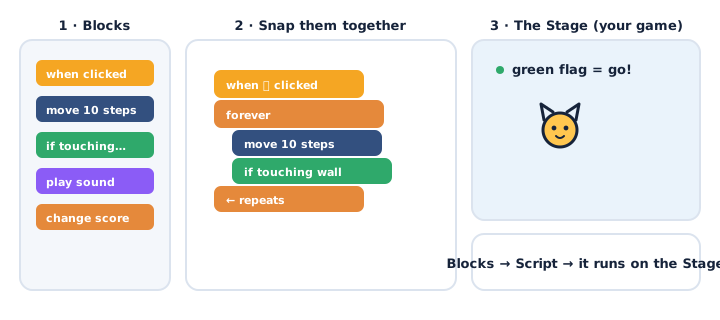
Try it in Scratch: drag a move 10 steps block (blue, Motion) into the code area and click it. The cat scoots across the stage. Click it again — it keeps going.
⚠ Watch for the mix-up between "stage" and "sprite": it's easy to think the whole screen is the sprite. Remember: the cat is the sprite; the white area is the stage it stands on.
Quick question: if you want a second character in your game, what do you add — a new stage or a new sprite? (Answer: a new sprite.)
Teach — Events make things happen
A game has to wait for the player. In Scratch, the yellow Events blocks are the "listeners" — they wait for something to happen, then run the blocks under them.
Build this in Scratch:
- Drag out
when [space] key pressed(yellow, Events). - Snap
play sound [Meow](pink, Sound) underneath it. - Press the space bar. The cat meows! The event listened, then ran the block.
Now add movement with events:
- Add
when [right arrow] key pressedand snapchange x by 10under it (Motion). - Add
when [left arrow] key pressedand snapchange x by -10under it. - Press the arrow keys. The cat slides left and right.
Key idea: an event block starts the action. Without an event, your blocks just sit there — nothing tells them when to run.
Try it: the
change x by 10block moves the cat right. What number would move it left? (Answer: a negative number, like -10.)
Activity
Now build it in your own Scratch project.
Build this, step by step:
- Keep the cat sprite (or click the sprite icon to pick a different one).
- Add
when [right arrow] key pressed→change x by 10. - Add
when [left arrow] key pressed→change x by -10. - Add
when [up arrow] key pressed→change y by 10, andwhen [down arrow] key pressed→change y by -10. - Add
when [space] key pressed→play sound [Meow](or any sound). - Test all four arrows and the space bar.
If something's not working, check:
- Sprite won't move — usually the event block is not snapped to the motion block (there's a gap).
- You press keys but nothing happens — check the block is under the right key in the dropdown.
- The cat flies off the edge — that's fine! You'll learn to control it next session.
Tip: rename your project (top-left box) something like "My First Game."
Check yourself
Try these — answers are after the arrow.
- What is the difference between a sprite and the stage? → A sprite is a character or object; the stage is the background area where sprites live and the game happens.
- What kind of block do you need so a key press makes the cat move? → An event block, like
when [right arrow] key pressed— it listens for the key, then runs the blocks under it. - To move the cat left, do you use
change x by 10orchange x by -10? →change x by -10— the negative number moves it left.
Wrap-up
- Finish this sentence: "An event block is like a…" (a listener / a helper that waits for the player).
- Try this at home — Add a Trick: add one new thing your sprite does when a key is pressed — say something with
say [Hi!], change colour, or play a different sound. Bring it to Session 16.
Tips & extra challenges
- Watch out: it's easy to think "the blocks run in order, all by themselves." In Scratch, a stack of blocks does nothing until an event (or a click) starts it. Keep an eye on the yellow "hat" blocks.
- Want more? Try this: build a mini keyboard piano — add several
when [key] pressedblocks, each playing a different sound (Scratch has drum and note sounds). Then make the sprite change costume on one key so it looks like it's moving its mouth or legs while a sound plays. Can you explain out loud which event triggers which action?
Vocabulary
| Term | Meaning |
|---|---|
| Sprite | A character or object that lives on the stage |
| Stage | The background area where the game happens |
| Block | A puzzle piece that gives a sprite an instruction |
| Event | A block that waits for something (like a key press) then runs |
| Motion | The blue blocks that move a sprite around |
Resources
- Scratch — free, in your browser, no install (main tool).
- Scratch Starter Cards — printable idea cards for quick projects.
- Scratch Tutorials — the built-in "Getting Started" walkthrough inside Scratch.
- Scratch Ideas page — starter guides and inspiration for young game-makers.
Practice set
Practise on your own. Answers are after the arrow.
- Add a sprite and make it move right when you press the right arrow key. → Use
when [right arrow] key pressedsnapped tochange x by 10. Test by pressing the key. - Make the same sprite move left, up, and down with the other three arrow keys. → Three more event blocks: left →
change x by -10, up →change y by 10, down →change y by -10. - Make your sprite play a sound when you press the space bar. →
when [space] key pressed→play sound [Meow](or any sound from the Sound tab). - Change the "10" to a bigger number, like 50. What happens? → The sprite jumps a bigger distance each press — it moves faster/further across the stage.
- Add a second sprite and give it its own key to move (for example, "d" to go right). → Click the sprite, add
when [d] key pressed→change x by 10. Each sprite has its own blocks. - Make your sprite say "Ouch!" when it reaches the edge — for now, just make it say "Ouch!" on a key press. →
when [key] pressed→say [Ouch!] for 1 seconds. (Real edge-detection comes in Session 17.)
Going deeper (optional)
- What do x and y really mean? Show the stage's hidden grid: x is left–right (across), y is up–down. Drag the sprite and watch the x and y numbers change in its info box. If x gets bigger, which way does the cat go? (Right.) This plants the idea of coordinates without any maths lecture — you see it move.
move 10 stepsvschange x by 10. Both can move a sprite.movegoes in the direction the sprite is pointing, whilechange xalways goes sideways. Turn the sprite withpoint in directionand watch howmovenow goes a different way. This previews steering, which makes games feel alive.
Common mistakes & fixes
If it's not working, check these common mix-ups:
- Mistake: blocks are placed near each other but not actually snapped, so nothing runs. → Fix: watch for the white shadow that appears when blocks are about to connect; drag until you see it, then drop. Wiggle the top block — the whole stack should move together.
- Mistake: the event block has the wrong key in the dropdown (e.g. set to "up" but you press "right"). → Fix: click the little dropdown arrow on the event block and pick the exact key you want.
- Mistake: adding motion blocks to the stage instead of a sprite. → Fix: click the sprite in the sprite list first; the stage can't move.
- Mistake: expecting the sprite to move when you click the green flag, but only key-press events were added. → Fix: the green flag runs
when green flag clickedblocks; key-press blocks need the key to be pressed. - Mistake: using
set x to 10and wondering why the sprite jumps to one spot every time. → Fix:set xputs it at an exact position; usechange xto add movement each press.
What's next
Session 16 — Score & Loops: you'll add a score with a variable, use forever loops to keep the game running, and send messages between sprites with broadcasts.