
Session 18 — Ship It
Duration: 75 min · Format: live online
What you'll learn: by the end, your quiz app is live on the internet at a real URL you can share, and you've presented it to the class. This session is the unit's build project.
Soft skill focus — Confidence & presenting
Today you'll also grow Confidence & presenting. Shipping a real app to a public URL and standing behind it is how technologists get their work seen and taken seriously.
Try this: in the showcase, give a crisp 60-second demo — what your quiz is, one thing you styled, and the hardest bug you beat. Deliver it calmly, and cheer on every other presenter.
Think about: what is one thing you'll do to present your next project even better?
What you'll need
- Your finished quiz Pen from Session 17. If it's unfinished, the reference quiz from Session 17 works as a stand-in.
- Netlify Drop and GitHub open in tabs. You'll deploy with one of them — Netlify Drop is fastest (drag a folder, no account needed to get a link); GitHub Pages is more "real" and permanent.
- The shared doc or chat channel where you'll paste your live link for the showcase.
Hook
Think about these questions:
- Your quiz works in CodePen — but could you send it to your grandma and have her play it?
- What's the difference between code that runs on your screen and an app that's live for anyone in the world?
Here's the idea: a CodePen is your workshop; deploying is opening the shop. Today you turn your project into a real website with its own address that works on any phone, anywhere — for free. This is the moment your app becomes real.
Teach — From three panels to one real file
CodePen splits your code into three tidy panels, but a real website is files. The whole quiz fits in one file named index.html — the special name every web server looks for first. The CSS goes inside a <style> tag, and the JavaScript goes inside a <script> tag, all wrapped in the page skeleton CodePen was hiding for you.
Here's the shape of the single file (paste your quiz's real CSS and JS where marked):
<!doctype html>
<html lang="en">
<head>
  <meta charset="utf-8">
  <meta name="viewport" content="width=device-width, initial-scale=1">
  <title>My Quiz App</title>
  <style>
    /* paste your CSS panel here */
  </style>
</head>
<body>
  <div id="quiz">
    <h1 id="question">Question goes here</h1>
    <div id="options"></div>
    <p id="score">Score: 0</p>
  </div>

  <script>
    /* paste your JavaScript panel here */
  </script>
</body>
</html>
Read the skeleton: <head> holds settings (the <title> on the tab, the viewport line that makes it work on phones); <body> holds what you see; <style> and <script> bring in the other two layers. The HTML panel's content goes in the <body>.
⚠ Watch for the #1 gotcha: the file must be named exactly
index.html(all lowercase, no spaces). A server looks forindex.htmlas the home page —Index.htmlorquiz.htmlwon't load automatically.
The fast path in CodePen: Export → Export to ZIP downloads a folder that already contains a correct index.html with everything assembled. That's the folder you'll deploy.
Ask yourself: why put the <script> at the bottom of the <body>, after the elements? (So the elements exist before the JavaScript tries to getElementById them.)
Teach — Put it on the internet
A host is a computer that serves your files to the world. You'll use a free one. Here are two paths.
Picture what deploying does: your files go to a free host, which gives them a live web address.
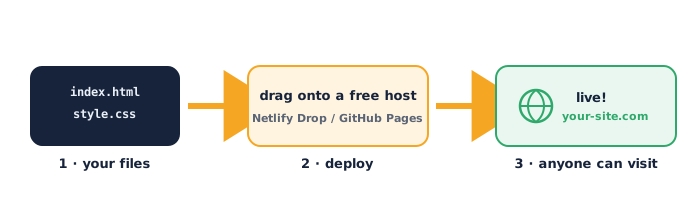
Path A — Netlify Drop (fastest).
- Go to Netlify Drop.
- Drag the exported folder (the one with
index.htmlinside) onto the page. - Wait a few seconds — it gives you a live URL like
https://silly-name-1234.netlify.app. Open it. It's live worldwide.
Path B — GitHub Pages (more permanent).
- On GitHub, create a new repository (public), tick Add a README.
- Add file → Upload files, drop in your
index.html, and Commit. - Go to Settings → Pages, set Source: Deploy from a branch, pick the
mainbranch and/root, Save. - Wait a minute, refresh, and GitHub shows your live URL:
https://yourname.github.io/your-repo/.
⚠ Watch for: deploys aren't instant — GitHub Pages can take a minute or two to go live, and updates take time to appear. If you change your code, you re-deploy (re-drag the folder on Netlify, or re-upload/commit the file on GitHub). The old version can also be cached — a hard refresh (Ctrl+Shift+R) helps.
Ask yourself: once it's live, what do you need to send someone so they can play your quiz? (Just the URL — nothing installed, works in any browser.)
Build project — Deploy and present
This is the unit's build project: you ship your quiz and show it live.
Part 1 — Deploy (≈13 min).
- Open your Session 17 quiz Pen and Export → Export to ZIP, then unzip it.
- Deploy via Netlify Drop (drag the folder) or GitHub Pages (upload
index.html). - Open the live URL on your phone to prove it works off your computer.
- Paste the live link in the shared chat/doc.
Watch out for the three blockers nearly everyone hits — a file not named index.html, dragging the ZIP instead of the unzipped folder, and expecting the link to work before the deploy finishes.
Part 2 — Showcase (≈10 min). Give a 60-second demo. Share your live URL (drop it in chat so others can play) and answer three quick prompts:
- What is your quiz about, and how many questions?
- Show one thing you styled or changed to make it yours.
- What was the hardest bug, and how did you fix it?
Take a moment: you didn't just write code — you shipped a product to the whole internet. That's exactly what a professional web developer does.
Check yourself
Can you answer these? The answer follows each arrow.
- What must the home page file be named, and why? →
index.html— a web server automatically serves that file as the site's home page. - Where do the CSS and JavaScript go when you combine everything into one file? → CSS inside a
<style>tag in the<head>; JavaScript inside a<script>tag, usually at the end of the<body>. - You changed your quiz after deploying — how do people see the new version? → Re-deploy (re-drag the folder on Netlify, or re-upload/commit on GitHub), then hard-refresh; the update isn't automatic.
Wrap-up
- Finish the sentence: "Deploying a website means…"
- Try this at home — Share and polish: send your live link to two people and watch them play (note anything confusing). Then make one improvement — a new question, a colour tweak, or a "Play again" button — and re-deploy so the live version updates. This live URL is the headline piece of your portfolio.
Tips & extra challenges
- Watch out: putting a site online doesn't have to cost money or need a server you manage. Static sites like this are free to host and need no server admin — Netlify and GitHub serve the files for you.
- Common blockers: the file isn't named
index.html; you drag the ZIP instead of the unzipped folder into Netlify; GitHub Pages "isn't working" because you refreshed before the minute-long deploy finished; CSS/JS didn't come across because it was pasted outside the<style>/<script>tags. The CodePen ZIP export avoids most of these by assembling the file correctly. - Want more? Try this — make it findable and shareable: set a real
<title>(shows on the browser tab and in search results) and add a one-line description and social preview with meta tags in the<head>. Then, if you're on GitHub, a second commit re-deploys automatically — the professional workflow of "edit → commit → live". Challenge: register a free custom subdomain in Netlify's site settings so your URL is memorable.
<title>Sara's Football Quiz</title>
<meta name="description" content="A 5-question quiz about football. Can you beat it?">
Vocabulary
| Term | Meaning |
|---|---|
| Deploy | Put your files on a host so anyone can visit them |
| Host | A computer that serves your website to the internet |
index.html |
The default home-page file a server looks for |
| URL | The web address people use to reach your site |
| Re-deploy | Upload the new version so the live site updates |
Resources
- Netlify Drop — drag a folder, get a live URL in seconds (free).
- GitHub Pages — free, permanent hosting straight from a repository.
- CodePen — Export — how to export a Pen to a ready-to-deploy ZIP.
- MDN — Publishing your website — the concepts behind hosting.
Practice set
Practise on your own — these reinforce single-file structure and deployment, from easy to hard.
1. Predict the result: you deploy a folder whose home page is named Quiz.html, not index.html. What happens when you visit the site root? → It won't load automatically — the server looks for index.html. You'd get a "not found" or a file listing.
2. Name the parts: in a single-file page, which tag holds the CSS and which holds the JavaScript? → CSS goes in <style>; JavaScript goes in <script>.
3. Fix the bug: this page shows no styling. Why? → The CSS is outside the <style> tag (it's loose text in the <head>). Wrap it: put the rules inside <style> … </style>.
<head>
  h1 { color: red; }
</head>
4. Fix the bug: the JavaScript errors with "cannot read property of null" when the page loads. The <script> is in the <head>. What's the likely fix? → The script runs before the <body> elements exist. Move the <script> to the end of the <body> so the elements are there first.
5. Write it: write the one line that sets the browser-tab title to "My App". → <title>My App</title> (inside the <head>).
6. Explain it: a classmate says "I updated my code in the editor but the live site still shows the old quiz." What did they forget? → To re-deploy — the live site only changes when you upload the new files again (and they may need a hard refresh).
7. Trace it (hard): you deploy via Netlify Drop and get happy-cat-42.netlify.app. Then you fix a bug and drag the updated folder again. What happens to the URL and the old version? → The same URL updates to the new version (Netlify replaces the deploy); the old version is gone. The link you shared keeps working and now shows the fix.
Going deeper (optional)
Ready for more? Meet the real developer loop — version control — which you just touched by using GitHub. Each commit is a labelled snapshot of your project, so you can see its history and undo mistakes:
edit index.html  →  commit "add 5th question"  →  GitHub Pages auto-redeploys
edit index.html  →  commit "fix scoring bug"   →  live site updates again
Here's the idea: professionals never overwrite files blindly — they commit small, described changes, and the host redeploys automatically. That history is a safety net and a record of exactly what you built and when. Challenge yourself to make three separate commits (each a small improvement) and read your own commit list like a changelog. This is the workflow behind essentially every software team.
Common mistakes & fixes
If it's not working, check these:
- Mistake: the home file isn't named
index.html. → Fix: rename it to exactlyindex.html, all lowercase, no spaces — that's the file a server serves by default. - Mistake: dragging the ZIP into Netlify Drop instead of the unzipped folder. → Fix: unzip first, then drag the folder that contains
index.html. - Mistake: "GitHub Pages is broken" right after enabling it. → Fix: wait 1–2 minutes for the first deploy, then refresh; it isn't instant.
- Mistake: CSS or JS didn't carry over because it was pasted outside
<style>/<script>. → Fix: put CSS inside<style>and JS inside<script>— or just use CodePen's ZIP export, which assembles it correctly. - Mistake: editing the code but the live site shows the old version. → Fix: you must re-deploy after any change, then hard-refresh (Ctrl+Shift+R) to clear the cache.
What's next
Session 19 — How Machines See (Unit 5 — Deeper AI): you move from building apps to teaching computers to understand images — the start of a deeper dive into how modern AI works.