
Session 17 — Build a Real App
Duration: 75 min · Format: live online
What you'll learn: by the end, you'll have built a complete, working quiz app in CodePen — questions, answer buttons, score tracking, and a final result — combining all three layers.
Soft skill focus — Creativity
Today you'll also grow Creativity. Everyone builds the same quiz engine, but the questions, topic, and look are wide open — that is where your version becomes yours and not a copy of the demo.
Try this: when you reach the "make it theirs" step, take two minutes to brainstorm a topic you actually care about before you change a single question. Go for the boldest, most personal choice over a safe copy of the sample.
Think about: what did you change to make this quiz unmistakably yours?
What you'll need
- Open CodePen → Create → Pen, signed into a free account so you can save. You'll build the full quiz across all three panels.
- This app is what you'll deploy to the real internet in Session 18, so save often.
Hook
Think about these questions:
- You've learned structure, style, and behaviour. What's the smallest real app you could build with just those?
- Think of a quiz you've taken online — what does it need to remember as you go? (Which question you're on, and your score.)
Here's the idea: an app is just the three layers working together, plus a bit of memory — state — that changes as you use it. Today you build a full quiz: it asks questions, checks answers, keeps score, and shows a result. Same skills as any app you've used.
Teach — Plan the app and store the questions
Plan before you type. Sketch the app out:
- Show a question and some answer buttons.
- When an answer is clicked, check if it's right, update the score, and move to the next question.
- At the end, show the final score.
Picture the quiz-app flow: show a question, pick an answer, score it, loop to the next, then show the result.
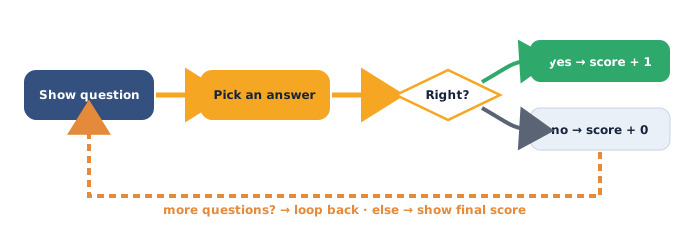
Instead of writing each question into the HTML by hand, we store them as data — an array (an ordered list) of objects (each a question with its answer). This is the same idea as a dataset from Unit 1.
Type and run this in CodePen (in the JS panel):
const questions = [
  { text: "What does HTML build?", options: ["Structure", "Coffee"], answer: "Structure" },
  { text: "What does CSS add?", options: ["Style", "Sound"], answer: "Style" },
  { text: "What makes a page interactive?", options: ["JavaScript", "Magic"], answer: "JavaScript" }
];

let current = 0;
let score = 0;

console.log("Total questions:", questions.length);
Look at the shape: questions is an array (square brackets [ ]); each item is an object (curly braces { }) with a text, an options list, and the correct answer. current tracks which question you're on; score counts correct answers. These two variables are the app's state.
⚠ Watch for the #1 confusion: arrays are counted from 0, not 1.
questions[0]is the first question.currentstarts at 0 for exactly this reason.
Teach — Show a question and react to a click
You need one function that draws the current question, and a click handler that checks the answer. First the HTML shell and some style:
Type and run this in CodePen (HTML):
<div id="quiz">
  <h1 id="question">Question goes here</h1>
  <div id="options"></div>
  <p id="score">Score: 0</p>
</div>
#quiz {
  max-width: 400px;
  margin: 40px auto;
  font-family: sans-serif;
  text-align: center;
}

button {
  display: block;
  width: 100%;
  margin: 8px 0;
  padding: 12px;
  border: none;
  border-radius: 8px;
  background-color: #16233A;
  color: white;
  font-size: 16px;
  cursor: pointer;
}
Now the function that shows a question (JS):
const questionEl = document.getElementById("question");
const optionsEl = document.getElementById("options");
const scoreEl = document.getElementById("score");

function showQuestion() {
  const q = questions[current];
  questionEl.textContent = q.text;
  optionsEl.innerHTML = "";
  for (const option of q.options) {
    const btn = document.createElement("button");
    btn.textContent = option;
    btn.addEventListener("click", function () {
      checkAnswer(option);
    });
    optionsEl.appendChild(btn);
  }
}
Read it slowly: you read the current question, set its text, clear the old buttons, then loop over the options and build a fresh button for each — wiring each one to checkAnswer.
Ask yourself: why do we clear optionsEl.innerHTML before adding buttons? (Otherwise the previous question's buttons pile up on screen.)
Activity — Build the quiz end to end
Work in your own Pen. Add the two remaining functions, then start the quiz.
Type and run this in CodePen (JS — add below showQuestion):
function checkAnswer(choice) {
  if (choice === questions[current].answer) {
    score = score + 1;
  }
  current = current + 1;
  if (current < questions.length) {
    scoreEl.textContent = "Score: " + score;
    showQuestion();
  } else {
    showResult();
  }
}

function showResult() {
  questionEl.textContent = "Done! You scored " + score + " / " + questions.length;
  optionsEl.innerHTML = "";
  scoreEl.textContent = "";
}

showQuestion();
Run the whole quiz — click through all three questions to the result screen. Notice the final line: showQuestion() starts everything by drawing the first question.
Then make it theirs: change the questions to your own topic (football, music, science), add a fourth question to the array, and restyle the buttons with your colours from Session 15.
Watch out for the two errors nearly everyone hits — forgetting the final showQuestion(); call (so the app loads blank), and comparing with = instead of === inside the if.
Debug Game. Here's a broken check — can you spot two mistakes before you read the fix?
function checkAnswer(choice) {
  if (choice = questions[current].answer) {
    score + 1;
  }
  current = current + 1;
}
The score never goes up and the answer always counts as right — why? Here's the fix:
if (choice = ...)uses a single=(which assigns, always truthy). Use===to compare:if (choice === questions[current].answer).score + 1computes a value but throws it away — you must store it:score = score + 1;.
Check yourself
Can you answer these? The answer follows each arrow.
- What is "state" in this app, and which variables hold it? → The app's changing memory —
current(which question) andscore(how many right). - Why do we use
===and not=inside anif? →===compares two values; a single=assigns and would always run the branch. - What does
questions.lengthgive, and why do we comparecurrentto it? → The number of questions (here 3); whencurrentreaches it, there are no questions left, so we show the result.
Wrap-up
- Finish the sentence: "An app's 'state' is…"
- Try this at home — Finish and personalise your quiz: make sure your quiz runs start to finish, then give it at least 5 questions on a topic you love and restyle it so it looks like yours. Save the Pen — in Session 18 you put this exact app on the live internet and present it. Bring the working link.
Tips & extra challenges
- Watch out: you don't need a big framework or a server to build a real app. This whole quiz is three files' worth of code running in the browser. Frameworks come later; the fundamentals here are the same ones underneath them.
- Common errors: forgetting the starting
showQuestion();call,=vs===, not clearingoptionsEl.innerHTML(buttons pile up), a mismatch between an option's text and theanswerstring (so a correct click scores 0), and anidtypo between HTML and JS. The Console names the failing line. - Want more? Try this — add colour feedback and a restart: make the clicked button flash green if right and red if wrong before moving on, using
btn.style.backgroundColor. Then add a "Play again" button on the result screen that resetscurrent = 0andscore = 0and callsshowQuestion(). This is the idea of a full app lifecycle — start, play, finish, reset — which every game and quiz app has.
function restart() {
  current = 0;
  score = 0;
  scoreEl.textContent = "Score: 0";
  showQuestion();
}
Vocabulary
| Term | Meaning |
|---|---|
| Array | An ordered list of values, in [ ], counted from 0 |
| Object | A bundle of named values, in { } (like a record) |
| State | The app's changing memory, e.g. current and score |
Loop (for … of) |
Repeats an action once per item in a list |
=== |
Compares two values for exact equality |
Resources
- CodePen — build and run the full app in your browser (free).
- MDN — Arrays — how lists of data work in JavaScript.
- MDN — Manipulating documents (DOM) — creating and updating elements.
- JavaScript.info — Arrays — clear examples and exercises.
Practice set
Practise on your own — these reinforce arrays, loops, comparisons, and state, from easy to hard.
1. Predict the output: what prints? → 3. length counts the items in the array.
const fruits = ["apple", "banana", "mango"];
console.log(fruits.length);
2. Predict the output: what is fruits[0] and fruits[2]? → "apple" and "mango" — arrays count from 0, so index 2 is the third item.
3. Predict the output: how many lines print, and what are they? → Three lines: apple, banana, mango — the loop runs once per item.
for (const f of fruits) {
  console.log(f);
}
4. Fix the bug: the score never increases. Find the two problems. → Use === to compare, and store the result: if (choice === answer) { score = score + 1; }.
if (choice = answer) {
  score + 1;
}
5. Write it: write an array colors holding "red", "green", "blue", then log how many there are. → const colors = ["red", "green", "blue"]; then console.log(colors.length);.
6. Write it: write an object for one quiz question with a text, an options array, and the correct answer. → e.g. { text: "2 + 2?", options: ["4", "5"], answer: "4" }.
7. Trace it (hard): with current = 0 and score = 0, the user answers Q1 right and Q2 wrong (2 questions total). Trace score and current after each answer, and what showResult prints. → After Q1: score = 1, current = 1. After Q2: score stays 1, current = 2; since 2 === length, it shows "Done! You scored 1 / 2".
Going deeper (optional)
Ready for more? The questions could come from outside the app — the first step toward a data-driven app. Real apps fetch their data instead of hard-coding it. Here's the shape of that idea safely, with a local array plus a shuffle:
function shuffle(list) {
  for (let i = list.length - 1; i > 0; i--) {
    const j = Math.floor(Math.random() * (i + 1));
    [list[i], list[j]] = [list[j], list[i]];  // swap
  }
}

shuffle(questions);
showQuestion();
Here's the idea: because the questions are data, not hard-coded HTML, you can shuffle them, add more, or one day load them from a file — without touching the quiz logic at all. This "separate the data from the code" habit is what makes an app easy to grow. Challenge yourself to also shuffle each question's options so the right answer isn't always in the same spot.
Common mistakes & fixes
If it's not working, check these:
- Mistake: forgetting the final
showQuestion();call, so the app loads blank. → Fix: something has to start the app — callshowQuestion()once at the bottom of the code. - Mistake: using
=instead of===in theif. → Fix:===compares; a single=assigns and makes the branch always run. - Mistake:
score + 1on its own line, expecting the score to change. → Fix: store the result:score = score + 1;. - Mistake: the option text doesn't exactly match the
answerstring (a stray space or capital). → Fix: make the correct option identical toanswer, or the right click will score 0. - Mistake: not clearing old buttons, so options from earlier questions stack up. → Fix: set
optionsEl.innerHTML = ""at the start ofshowQuestion()before adding new buttons.
What's next
Session 18 — Ship It: you'll put this quiz app on the live internet with free hosting, then present it — the unit's build project.