Session 16 — Make It Interactive
Duration: 75 min · Format: live online
What you'll learn: by the end, you can write a JavaScript function, run it on a button click, and change what the page shows by reading and updating the DOM.
Soft skill focus — Problem-solving
Today you'll also grow Problem-solving. Wiring a button to the DOM breaks in small, findable ways — a mismatched id, a missing textContent — and the skill is calmly tracing the cause instead of guessing.
Try this: during the Debug Game, don't jump to the fix. Narrate your reasoning aloud — "the click fires, but the number never changes, so the problem is in the update, not the listener" — before you touch the code.
Think about: when your code didn't work, what was the first thing you checked, and why?
What you'll need
- Open CodePen → Create → Pen. You'll type in all three panels — HTML, CSS, and JS.
- Turn on CodePen's console: the bottom-left Console button. You'll use
console.log(...)to watch values as your code runs. - Have last session's profile-card Pen handy — you might build on it.
Hook
Think about these questions:
- Last session you made a button. Click it — what happens? (Nothing. It just sits there.)
- On a real app, tapping a button does something — a like appears, a score goes up. What's the missing ingredient?
Here's the idea: HTML and CSS make a page that looks right but can't react. The missing layer is JavaScript — the language that runs in every browser and makes pages do things. Today your button finally comes alive.
Teach — Variables and functions
JavaScript stores values in variables, just like Python did — but you declare them with the word let (a value that can change) or const (a value that won't). Every statement ends in a semicolon.
Type and run this in CodePen (in the JS panel, with the console open):
let score = 0;
const playerName = "Sara";

console.log(playerName, "has", score, "points");
Run it and look at the console output: Sara has 0 points. Notice the differences from Python: let/const in front, and semicolons at the end.
A function is a named set of instructions you can call (run) whenever you want, as many times as you want.
Type and run this in CodePen:
function greet(name) {
  console.log("Hello, " + name + "!");
}

greet("Sara");
greet("Omar");
Look at the parts: function names it, (name) is an input (a parameter), and calling greet("Sara") runs the body with name set to "Sara". It printed twice because you called it twice.
⚠ Watch for the #1 confusion: defining a function doesn't run it — it just teaches the browser the recipe. Nothing happens until you call it with
greet("Sara"). It's easy to write a function and wonder why nothing appears.
Teach — Events and the DOM
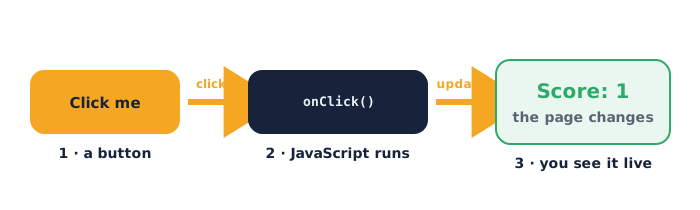
Two big ideas here. The DOM (Document Object Model) is the page as JavaScript sees it — every element is an object it can read and change. An event is something the user does — a click, a key press — that you can listen for and respond to.
This diagram shows how a click fires a JavaScript function that reads and updates the page (the DOM):
Type and run this in CodePen. First the HTML and CSS:
<h1 id="title">0</h1>
<button id="addBtn">Add one</button>
#title {
  font-size: 64px;
  text-align: center;
  font-family: sans-serif;
}
Then the JavaScript that wires it up:
let count = 0;
const title = document.getElementById("title");
const button = document.getElementById("addBtn");

button.addEventListener("click", function () {
  count = count + 1;
  title.textContent = count;
});
Click the button and watch the big number climb. Here are the three moves:
document.getElementById("title")grabs the element (using itsidfrom the HTML).addEventListener("click", ...)says "when this button is clicked, run this function."title.textContent = countupdates the page with the new value.
⚠ Watch for: you select elements by
idin the HTML (id="title") withgetElementById("title")— no#, no dot. Theidmust match exactly, and eachidshould be unique on the page.
Ask yourself: where does the number live — in the HTML or in the JavaScript? (The real value lives in the count variable; the HTML just shows whatever you last wrote into it with textContent.)
Activity — Build a click counter
Open your own CodePen → Create → Pen, then build a counter with buttons.
Type and run this in CodePen (HTML):
<h1 id="display">0</h1>
<button id="up">+1</button>
<button id="down">-1</button>
<button id="reset">Reset</button>
Then the JavaScript:
let count = 0;
const display = document.getElementById("display");

document.getElementById("up").addEventListener("click", function () {
  count = count + 1;
  display.textContent = count;
});

document.getElementById("down").addEventListener("click", function () {
  count = count - 1;
  display.textContent = count;
});

document.getElementById("reset").addEventListener("click", function () {
  count = 0;
  display.textContent = count;
});
Then extend it: add a bit of CSS to colour the display green when positive and red when negative (try an if inside the update), or add a +10 button.
Watch out for the two errors nearly everyone hits — an id in the HTML that doesn't match the getElementById string, and forgetting to write the new value back with textContent (so count changes but the page never updates).
Debug Game. Here's some broken code — can you spot two mistakes before you read the fix?
let count = 0
const btn = document.getElementById("addButton");

btn.addEventListener("click", function () {
  count = count + 1;
});
The button seems to do nothing on screen — what's wrong? Here's the fix:
- The first line is missing its semicolon (
let count = 0;) — and check the HTML actually hasid="addButton". - The click handler updates
countbut never writes it to the page — adddisplay.textContent = count;(with a matchingdisplayelement).
Check yourself
Can you answer these? The answer follows each arrow.
- What's the difference between
letandconst? →letis for a value you'll change later;constis for one that stays the same. - What does
addEventListener("click", …)do? → It listens for a click on that element and runs the given function each time it happens. - After
count = count + 1, why doesn't the page change on its own? → The variable changed, but the page only updates when you write the value into an element, e.g.title.textContent = count.
Wrap-up
- Finish the sentence: "An event listener is…"
- Try this at home — Mood Button: build a Pen with one button and one heading. Each click should change the heading's
textContentto a different mood word ("Happy!", "Focused!", "Coding!"). Use a variable to keep track, andconsole.logthe count of clicks. Save the Pen and bring the link to Session 17 — next time you build a full app.
Tips & extra challenges
- Watch out: the page does not update automatically when a variable changes. JavaScript and the visible page are separate; you must push the new value into the DOM with
textContent(or similar) every time. - Common errors: mismatched
idstrings, forgettingtextContent, missing semicolons, writinggetElementById(".title")or("#title")with the punctuation (it takes the plain id, no symbol), and defining a function but never calling it. CodePen's Console prints red errors that name the exact line. - Want more? Try this — read from an input box: here's how apps take typed input. Add
<input id="nameBox">and a button; on click, readdocument.getElementById("nameBox").valueinto a variable and show"Hello, " + namein a heading. This is the same "read → process → show" loop behind every form on the web. Challenge: make the greeting refuse to show if the box is empty (anifonname === "").
const name = document.getElementById("nameBox").value;
document.getElementById("out").textContent = "Hello, " + name;
Vocabulary
| Term | Meaning |
|---|---|
| JavaScript | The language that makes web pages interactive |
Variable (let/const) |
A named store for a value; const can't be reassigned |
| Function | A named set of instructions you can call to run |
| Event | Something the user does, like a click, that code can react to |
| DOM | The page as objects JavaScript can read and change |
Resources
- CodePen — HTML, CSS, and JS with live preview and a console (free).
- MDN — JavaScript first steps — clear, beginner-friendly.
- JavaScript.info — a thorough, free modern tutorial.
- MDN — Introduction to events — how clicks and listeners work.
Practice set
Practise on your own — these reinforce variables, functions, events, and the DOM, from easy to hard.
1. Predict the output: what prints to the console? → 10. The function adds its two inputs and we log the result.
function add(a, b) {
  return a + b;
}
console.log(add(4, 6));
2. Predict the output: how many times does "Hi" print, and why? → Zero times. The function is defined but never called.
function sayHi() {
  console.log("Hi");
}
3. Name the parts: in button.addEventListener("click", handleClick), what is "click" and what is handleClick? → "click" is the event to listen for; handleClick is the function to run when it happens.
4. Fix the bug: clicking does nothing on screen. The HTML has <h1 id="score">0</h1>. Find the problem. → The code updates points but never writes it to the page. Add document.getElementById("score").textContent = points; inside the listener.
let points = 0;
document.getElementById("btn").addEventListener("click", function () {
  points = points + 1;
});
5. Write it: write a variable age set to 13 that you won't change, then log "Age: 13". → const age = 13; then console.log("Age:", age);.
6. Write it: grab an element with id="msg" and set its text to "Done!". → document.getElementById("msg").textContent = "Done!";.
7. Trace it (hard): the button is clicked three times. What number shows on screen at the end, and what's in count? → 6. Each click adds 2, and textContent shows the latest count, so 0 → 2 → 4 → 6.
let count = 0;
document.getElementById("go").addEventListener("click", function () {
  count = count + 2;
  document.getElementById("out").textContent = count;
});
Going deeper (optional)
Ready for more? A listener can run any logic, including an if, so the same click can do different things:
let count = 0;
const out = document.getElementById("out");

document.getElementById("go").addEventListener("click", function () {
  count = count + 1;
  if (count % 2 === 0) {
    out.textContent = count + " (even)";
  } else {
    out.textContent = count + " (odd)";
  }
});
Notice % (the remainder) and === (JavaScript's "exactly equal"). Here's the idea: this "on an event, run some logic, then update the DOM" pattern is the whole job of front-end code — everything from a like button to a shopping cart is just a bigger version of it. Challenge yourself to make the heading turn red on odd clicks and green on even ones by setting out.style.color inside each branch.
Common mistakes & fixes
If it's not working, check these:
- Mistake: the
idin the HTML doesn't match the string ingetElementById. → Fix: make them identical, including capitals.id="Score"needsgetElementById("Score"). - Mistake: changing a variable but never updating the page. → Fix: after changing the value, write it in with
element.textContent = value;every time. - Mistake: putting a
#or.insidegetElementById, e.g.getElementById("#title"). → Fix: pass the plain id with no symbol:getElementById("title"). - Mistake: defining a function but never calling it, then wondering why nothing runs. → Fix: call it by name with parentheses, e.g.
greet("Sara");, or attach it to an event. - Mistake: forgetting semicolons and getting confusing errors. → Fix: end each statement with
;. When something breaks, open the Console — it names the line.
What's next
Session 17 — Build a Real App: you'll combine HTML, CSS, and JavaScript to build a complete, working quiz app from scratch.