
Session 15 — The Web Stack
Duration: 75 min · Format: live online
What you'll learn: by the end, you can build a page's structure with HTML, style it with CSS, and explain how the two layers work together in a real editor.
Soft skill focus — Problem-solving
Today you'll also grow problem-solving. A broken page is a puzzle — a missing semicolon or a mismatched class name is found by narrowing down, not by guessing.
Try this: during the Debug Game, locate each mistake before it gets fixed, reading the broken live preview as a clue to where your last change went wrong.
Think about: how did you track down what broke your page instead of just guessing?
What you'll need
- Open CodePen → Create → Pen (you don't need an account to start, but a free account lets you save). You'll type live in the HTML and CSS panels.
- Have a familiar website open in another tab (a news site, a school site) — you'll right-click and Inspect it in the hook.
- You only need a browser today. No installs. Open your own Pen with the CodePen link.
Hook
Think for a moment (share your answers in chat or unmute):
- When you open a website, what do you think is actually arriving on your screen — pictures, magic, or something simpler?
- Could you build the site you visit every day? What would you even need?
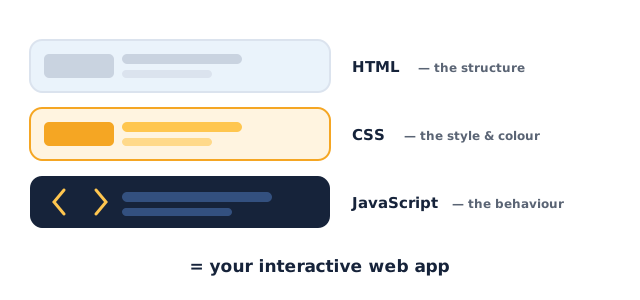
Now see it for yourself: right-click any page → Inspect (or View Source). Look at the wall of tags. Here's the big idea: every website is just text files the browser reads — three layers, always the same. HTML is the structure, CSS is the style, JavaScript is the behaviour. Today you build the first two layers yourself, and by Session 18 your own app is live on the internet.
Teach — HTML is the structure
HTML (HyperText Markup Language) is the skeleton of a page. You mark up your content with tags so the browser knows what each piece is — a heading, a paragraph, a button. A tag usually comes in a pair that wraps content: an opening tag <p> and a closing tag </p>. Together with the content between them, that's an element.
This diagram shows the three layers of the web working together — HTML for structure, CSS for style, and JavaScript for behaviour:
Type and run this in CodePen (in the HTML panel):
<h1>My First Web Page</h1>
<p>Hello! I am learning to build websites.</p>
<button>Click me</button>
Watch the three parts as the preview updates live: <h1> is a big heading, <p> is a paragraph, <button> is a clickable button. The browser draws each one differently because the tag tells it what the content is.
⚠ Watch for the #1 confusion: in CodePen's HTML panel you do not write
<html>,<head>, or<body>— CodePen wraps your code in those for you. Just write the content tags. (In a real file you'd add them; you'll see that in Session 18.)
Tags can go inside other tags, like boxes inside boxes. This is called nesting. A <div> is a generic container that groups things.
Type and run this in CodePen:
<div>
  <h2>About Me</h2>
  <ul>
    <li>I like football</li>
    <li>I like coding</li>
  </ul>
</div>
Why does the <li> text appear indented with bullet points? Because <ul> means unordered list, and each <li> is a list item — the browser draws them as bullets automatically.
Teach — CSS is the styling
HTML gives you a plain, grey page. CSS (Cascading Style Sheets) is the clothing — colours, fonts, spacing, layout. You write a rule: a selector (which elements to style) plus a block of properties (what to change).
Type and run this in CodePen (in the CSS panel, keeping the HTML from before):
h1 {
  color: darkblue;
  font-family: sans-serif;
}

p {
  color: gray;
  font-size: 18px;
}
Look at the anatomy: h1 is the selector, then inside { } each line is property: value;. Notice that color changed the text and font-size made it bigger — the preview updated the instant you typed.
⚠ Watch for: every CSS line ends in a semicolon
;and every rule needs its curly braces{ }. A missing;or}silently breaks everything after it. Colours can be a name (red), or a hex code (#F5A623).
To style one specific element, give it a class in the HTML and target it with a dot in the CSS.
Type and run this in CodePen:
<button class="cta">Click me</button>
.cta {
  background-color: #F5A623;
  color: white;
  padding: 12px 20px;
  border: none;
  border-radius: 8px;
}
How did the CSS know to style only this button and not every button? The class="cta" label in the HTML, matched by .cta in the CSS — the dot means "class".
Activity — Build a profile card
Open your own CodePen → Create → Pen, then build a profile card.
Type and run this in CodePen (HTML panel):
<div class="card">
  <h2>Sara A.</h2>
  <p class="role">Future web developer</p>
  <p>I am 13 and I love building things in the browser.</p>
  <button class="cta">Follow</button>
</div>
Then style it (CSS panel):
.card {
  max-width: 300px;
  margin: 40px auto;
  padding: 20px;
  background-color: white;
  border-radius: 12px;
  box-shadow: 0 4px 12px rgba(0, 0, 0, 0.15);
  font-family: sans-serif;
  text-align: center;
}

.role {
  color: #F5A623;
  font-weight: bold;
}
Now make it yours: change the name, role, and colours; try a different background-color on .card, a different border-radius, or a new font-size.
Watch for the two errors nearly everyone hits — forgetting a closing } in CSS, and mismatching the class name (class="card" in HTML but .crd in CSS, so nothing styles).
The Debug Game. Here's some broken code — spot two mistakes before you fix it:
.card {
  color: blue
  background-color white;
}
What are the two problems? Then fix it:
- The first line is missing its semicolon:
color: blue;. - The second line is missing the colon between property and value:
background-color: white;.
Check yourself
Try these on your own — then check your answers.
- What are the three layers of the web, and what does each do? → HTML = structure, CSS = style, JavaScript = behaviour.
- In the rule
p { color: red; }, name the selector, the property, and the value. → Selectorp, propertycolor, valuered. - How do you style just one element instead of all of them? → Give it a class in the HTML (
class="cta") and target it with a dot selector in the CSS (.cta).
Wrap-up
- Finish the sentence: "HTML is the structure and CSS is…"
- Try this at home — Style Your Card: take the profile card from class and make it your own — your name, a short bio, and at least three CSS changes (a new colour, a new font size, and something with spacing like
paddingormargin). Save the Pen (free account) and bring the link to Session 16 — you'll make it interactive.
Tips & extra challenges
- Watch out: "HTML is a programming language" is a common mix-up. It isn't — it's a markup language that labels content. It has no logic, no decisions; that job belongs to JavaScript (Session 16).
- Common errors to catch: unclosed tags (
<p>with no</p>), missing;or}in CSS, a class name that doesn't match between HTML and CSS, and typing CSS into the HTML panel by accident. When CodePen's live preview breaks, that's itself a clue about where your last change went wrong. - Want more? Try this — Flexbox row of cards: this is how real sites lay out cards side by side. Wrap two
.carddivs in a<div class="row">and add.row { display: flex; gap: 16px; justify-content: center; }. Predict what happens, then add a third card. This previews layout, the thing that makes pages look professional. Challenge: make the cards change to a stacked column on narrow screens by working out whatflex-direction: columnwould do.
.row {
  display: flex;
  gap: 16px;
  justify-content: center;
}
Vocabulary
| Term | Meaning |
|---|---|
| HTML | The markup that gives a page its structure |
| Tag / Element | A label like <p>…</p> that says what content is |
| CSS | The rules that style a page (colour, font, spacing) |
| Selector | The part of a CSS rule that picks which elements to style |
| Class | A reusable label on an element, targeted with .name in CSS |
Resources
- CodePen — write HTML, CSS, and JS in your browser with live preview (free).
- MDN — HTML basics — the reference professionals actually use.
- MDN — CSS basics — clear, beginner-friendly.
- W3Schools — HTML & CSS — quick reference with "Try it" buttons.
Practice set
Practise on your own with these extra exercises on HTML tags and CSS rules — easy to hard.
1. Predict the output: what will the browser show for this HTML? → A big heading "Menu", then a bulleted list with "Pizza" and "Salad".
<h1>Menu</h1>
<ul>
  <li>Pizza</li>
  <li>Salad</li>
</ul>
2. Name the parts of this rule: h2 { font-size: 24px; }. → Selector h2, property font-size, value 24px.
3. Fix the bug: this CSS does nothing to the button. Why, and how do you fix it? → The HTML class is save but the CSS selector is .saev (typo) — they must match. Change the selector to .save.
<button class="save">Save</button>
.saev {
  color: green;
}
4. Fix the bug: this rule breaks the whole stylesheet. Find the two problems. → Missing colon on line 2 and missing semicolon on line 1: color: white; then background-color: navy;.
.box {
  color white
  background-color: navy;
}
5. Write it: write the HTML for a paragraph that says "Welcome!" and give it a class of intro. → <p class="intro">Welcome!</p>.
6. Write it: write a CSS rule that makes every <h1> centred and orange. → h1 { text-align: center; color: orange; }.
7. Trace it (hard): two rules both target the same paragraph — p { color: blue; } then later .note { color: red; } with <p class="note">Hi</p>. What colour is the text, and why? → Red — a class selector is more specific than a plain tag selector, so .note wins (this is the "Cascading" in CSS).
Going deeper (optional)
If you're flying through this, meet the box model — the idea that every element is a box with content, padding (space inside), a border, and margin (space outside). No new tools needed:
.card {
  padding: 20px;          /* space inside the box, around the content */
  border: 2px solid #16233A;  /* the box's edge */
  margin: 30px;           /* space outside the box, pushing others away */
}
Change one value at a time and watch the card breathe. Here's the point: almost all "why is my layout cramped / why is there a weird gap" questions come down to padding vs margin. Try making a card with lots of inside space but no outside space, then the reverse, and describe the difference in your own words.
Common mistakes & fixes
If it's not working, check these:
- Mistake: forgetting the closing tag, e.g.
<p>Hellowith no</p>. → Fix: most tags come in pairs — every<p>needs a</p>. Unclosed tags make later content behave strangely. - Mistake: class name mismatch —
class="card"in HTML but.crdin CSS. → Fix: the names must match exactly, including capitals. Copy-paste the name to be sure. - Mistake: missing semicolons or braces in CSS. → Fix: every declaration ends in
;and every rule is wrapped in{ }. A missing one silently breaks everything after it. - Mistake: writing CSS in the HTML panel (or vice versa). → Fix: structure goes in the HTML panel, style goes in the CSS panel — they're separate on purpose.
- Mistake: expecting the
.in.ctato appear in the HTML too. → Fix: in HTML you writeclass="cta"(no dot); the dot is only in the CSS selector.cta.
What's next
Session 16 — Make It Interactive: you add the third layer, JavaScript, so buttons actually do something — reading and updating the page in response to clicks.