
Session 11 — Tell an Animated Story
Duration: 60 min · Format: live online
What you'll learn: by the end, you'll have planned a 3-scene story and built it — a sprite that looks alive by switching costumes, characters that talk with
say … for … seconds, and abroadcast [next scene]message that flips the backdrop and moves every sprite into the next scene together.
Soft skill focus — Creativity
Today you'll also grow Creativity. A 3-scene story is a blank page — the characters, the scenes and what they say are entirely yours to invent.
- Try this: while you plan on paper, push past your first idea — ask "what's a surprising place my character could end up?" before you lock in the three scenes.
- Think about: where did an idea for your story come from, and how did you make it your own?
What you'll need
- Scratch open in a tab (signed in so you can save).
- A sprite with two or more costumes (the cat, or Cake, Ballerina, Dinosaur1 all have several) so you can try the costume switch.
- Two or more backdrops from the backdrop library (e.g. a room and a park) so you can change scenes.
- The diagram below to look at (costumes make a sprite move, a broadcast changes the scene).
Hook
Let's think about this:
- When you flip the pages of a flip-book really fast, the drawing seems to move. Why?
Here's the idea: each page is a tiny bit different, and flipping fast tricks your eyes into seeing movement. A Scratch sprite has costumes — its own little flip-book pages. Today you'll switch costumes to make a character walk and talk, then change the whole scene to tell a real story from beginning to end.
Teach — Animate a sprite with costumes
Look at this diagram and find each idea as it's named:
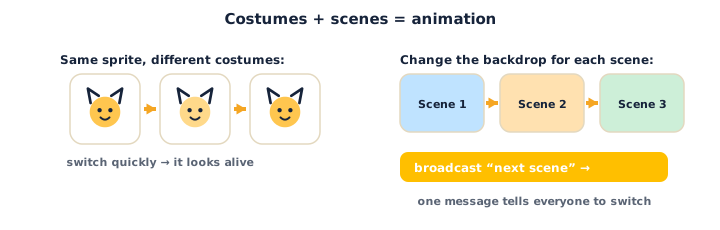
Every sprite has a Costumes tab (top-left, next to Code). A costume is one picture of the sprite. Switching between them quickly makes it look alive — walking, flapping, chomping.
Build this. Pick a sprite with two costumes and build:
1. From Events (yellow), drag out when green flag clicked.
2. From Control (orange), snap forever under it.
3. From Looks (purple), drop next costume inside the forever loop.
4. Still inside the loop, add wait 0.3 seconds from Control so it's not a blur.
Your script reads:
when green flag clicked
forever
  next costume
  wait 0.3 seconds
Press the green flag. The sprite flips between its costumes on the spot — it looks like it's walking or dancing. That's animation!
Think about it: what would happen if you deleted the wait 0.3 seconds? (The costumes flip too fast to see — a flickering blur. The wait sets the speed.)
Teach — Scenes: backdrops + broadcast
A story has scenes — the bedroom, then the park, then the beach. In Scratch the scene is the backdrop (bottom-right, next to the sprite list — the Stage has its own backdrops). To move to the next scene you don't just change the backdrop by hand — you send a message so everyone changes at once.
A broadcast is a shout everyone can hear. One sprite (or the stage) broadcasts a message like next scene; every sprite with a matching when I receive [next scene] hat block wakes up and does its part. That's how the backdrop, the cat, and the dog all switch scenes together — in sync.
Build this. First, on the Stage, add a "scene changer":
1. Click the Stage (bottom-right). On its Code tab, from Events drag when I receive [next scene] (choose New message → type next scene).
2. Under it, from Looks, snap switch backdrop to [park].
Now make a sprite trigger it. Click your sprite and build:
3. From Events, drag when green flag clicked.
4. From Looks, add say [Let's go to the park!] for 2 seconds.
5. From Events, snap broadcast [next scene] under it.
The stage's script reads:
when I receive next scene
switch backdrop to park
And the sprite's script reads:
when green flag clicked
say "Let's go to the park!" for 2 seconds
broadcast next scene
Press the green flag. The sprite talks, then the broadcast fires and the backdrop flips to the park. Notice: the sprite sent the message, the stage heard it.
⚠ Watch out for the mixed-up message name:
broadcastandwhen I receivemust use the exact same message. If you broadcastnext scenebut the stage is listening forScene 2, nothing happens. Pick the message from the dropdown — don't retype it — so they always match.
Think about it: the dog sprite should also move when you reach the park. How does the dog know it's time? (Give the dog its own when I receive [next scene] hat block — everyone listening reacts.)
Activity — Plan & build a 3-scene story
Plan first, then build. Planning on paper for 3 minutes makes the build go far smoother — don't skip it.
Plan (3 min, on paper). Write three scenes in one line each:
- Scene 1: where are we, who's here, what do they say?
- Scene 2: the backdrop changes — what happens next?
- Scene 3: how does the story end?
Build (the rest):
- Open a new project at Scratch. Add 3 backdrops (one per scene) and at least one sprite with 2+ costumes.
- Animate your sprite:
when green flag clicked → forever → next costume → wait 0.3 seconds. - Scene 1: give the sprite a
say [ … ] for 2 seconds, thenbroadcast [scene 2]. - On the Stage, add
when I receive [scene 2] → switch backdrop to [your scene-2 backdrop]. Have a spritesayits scene-2 line, thenbroadcast [scene 3]. - On the Stage, add
when I receive [scene 3] → switch backdrop to [your scene-3 backdrop]and a final line. - Make it yours: add a second character that talks back, or a sound in one scene.
As you build, ask yourself: which sprite sends the message to change scenes? Who is listening for it?
Check yourself
Try these:
- How do you make a sprite look like it's walking on the spot? → Switch its costumes in a loop —
forever → next costume → wait a little. - You want the backdrop AND three sprites to change scene at the same moment. What block sends the signal? →
broadcast— every sprite (and the stage) with a matchingwhen I receivereacts together. - You broadcast
scene 2but nothing changes. What's the most likely reason? → The listener's message name doesn't match (or nothing has awhen I receive [scene 2]hat). Make the names identical using the dropdown.
Wrap-up
- In one sentence, explain what a broadcast does.
- Try this at home — Finish your story: make sure all 3 scenes play from the green flag, each with at least one line of dialogue and one costume animation. Screenshot it for your portfolio.
Tips & extra challenges
- Watch out: changing the backdrop does not move the sprites too. The backdrop and each sprite are separate. A broadcast is what keeps them in sync: the stage switches the backdrop and each sprite runs its own
when I receivescript. If a sprite is stuck in the wrong scene, it's missing its own listener. - Want more? Try this: add
hideandshowso a character only appears in the scenes it belongs to —when I receive [scene 2] → show, and hide it again in another scene. This is exactly how real cutscenes bring characters on and off "stage."
Vocabulary
| Term | Meaning |
|---|---|
| Costume | One picture of a sprite; switching them makes it move |
| Animation | Making something look alive by flipping costumes quickly |
| Backdrop | The picture behind everything — the scene the story is in |
| Broadcast | A message one script sends that any script can hear |
| when I receive | The hat block that runs when a matching message arrives |
Resources
- Scratch editor — where you build (free, in the browser).
- Scratch Ideas page — official tutorials, including "Make It Fly" and animation starter cards.
- Animate a Name (Scratch tutorial) — a gentle starter on costumes and looks.
Practice set
Practise on your own with these tasks to explore costumes, backdrops and broadcasts. Work them easy → hard. Answers follow each arrow.
1. Name that tab. Where do you find a sprite's different pictures? → The Costumes tab (top-left, next to Code).
2. Colour clue. Which colour block switches to the next costume? → Purple — Looks.
3. Fix it (spot the bug). A sprite's costumes flip so fast it's just a blur. What's missing? → A wait block inside the loop — add wait 0.3 seconds after next costume to slow it down.
4. Predict. A sprite runs say "Bye!" for 2 seconds → broadcast [scene 3], and the stage has when I receive [scene 3] → switch backdrop to [beach]. What happens? → The sprite says "Bye!", then the backdrop switches to the beach.
5. Make it (build task). Build a script so a sprite walks in place: keeps switching costumes forever with a short wait between. → when green flag clicked → forever → next costume → wait 0.3 seconds.
6. Two sprites, one signal (harder). A cat says its line, then the scene should change AND a dog should appear. Put the blocks with the right owner: broadcast [scene 2], when I receive [scene 2] → show, switch backdrop to [park]. → The cat ends with broadcast [scene 2]; the stage has when I receive [scene 2] → switch backdrop to [park]; the dog has when I receive [scene 2] → show. One broadcast, three listeners.
Going deeper (optional)
Optional — for when you have a story playing and want to make it feel like a real film.
Why broadcasts instead of just switching the backdrop? You could switch the backdrop by hand, but then every sprite would have to somehow know the scene changed. A broadcast is a single announcement that anything can listen to — the stage, the cat, the dog, a sound. Add one more listener and it joins the scene with zero changes to the sender. Real programs work this way too: one event, many reactions, all loosely connected. It's the same events idea from Unit 1, grown up.
Wait until a scene is done. If two things need to happen in order across sprites, use broadcast [next scene] and wait instead of plain broadcast. The sender pauses until every listener finishes, then carries on — perfect for "let this character finish talking before the next one starts."
Common mistakes & fixes
If it's not working, check these:
- Mistake: Broadcasting one message but listening for a different name, so nothing happens. → Fix: always pick the message from the dropdown in both blocks so the names match exactly.
- Mistake: A sprite appears in every scene because it never hides. → Fix: add
hide/showinside the rightwhen I receivescripts so it only appears where it belongs. - Mistake: The costume loop never stops, so the sprite keeps flipping even during dialogue. → Fix: that's usually fine, but if it looks wrong, put the animation in its own script or use
switch costume tofor a still pose while talking. - Mistake: Editing the backdrop scripts on a sprite instead of the Stage. → Fix: click the Stage thumbnail (bottom-right) first — backdrop switches live there.
- Mistake: All scenes fire at once because every broadcast is sent at the green flag. → Fix: chain them — Scene 1 broadcasts
scene 2after its dialogue; Scene 2's listener broadcastsscene 3, and so on.
What's next
Session 12 — Design & Showcase Your Game: you'll design your own game from a one-sentence idea, build and polish it, playtest it with a partner, fix the weakest part, and showcase it with pride.