
Session 10 — Escape the Maze
Duration: 60 min · Format: live online
What you'll learn: by the end, you'll have built a playable maze game — a player you steer with the arrow keys, walls you cannot walk through, and a goal that says "You win!" and stops the game.
Soft skill focus — Teamwork
Today you'll also grow Teamwork. The fastest way to find out if a maze is fair is to let someone else try to escape it.
- Try this: once your maze works, pair up and swap projects to playtest each other's maze — give "two stars and a wish" (two things you liked, one idea to make it better). Keep your notes kind and specific.
- Think about: what did playing a partner's maze teach you about your own?
What you'll need
- Scratch open in a tab (signed in so you can save).
- A simple maze backdrop: Stage → Backdrops → paint thick walls all in one bold colour (e.g. blue). Leave a clear path from a start corner to a goal corner.
- A small Player sprite (a ball or dot) and a Goal sprite (a star or flag) at the end of the path. Delete the cat.
- The diagram below to look at.
Hook
Let's think about this:
- In a maze game, what stops you from just walking straight through the walls to the exit?
Here's the plan: today we build Escape the Maze. You'll steer a player with the arrow keys — but the moment you touch a wall, the game pushes you back, so the only way out is the real path. Reach the goal and it shouts "You win!"
Teach — The plan: backdrop, player, walls, goal
Look at this diagram and find each part as it's named:
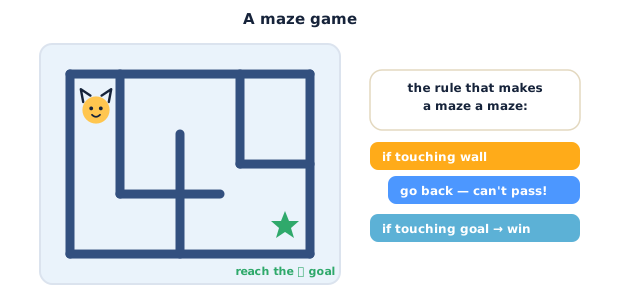
Here's the plan — a maze game is a small pile of familiar rules:
- A backdrop with walls all painted in one colour (say blue). The colour is what your code will "feel."
- A Player sprite you steer with the arrow keys (just like the basket last week).
- A Goal sprite at the end of the path.
- Two rules you'll build on the Player:
- 1 · Walls block you —
if touching color [blue]? thenundo the move you just made, so you can't pass. - 2 · You win —
if touching [Goal]? thensay "You win!" andstop [all].
Think about it: why must every wall be the same colour? (Because one touching color? block can only check one colour at a time.)
Teach — The "bounce off the wall" trick
The clever idea is that a wall doesn't have to stop you — it just has to push you back. If a move lands you in a wall, you immediately take a step the opposite way, so you never actually get through. Build the "up arrow" rule on the Player sprite.
Build this (on the Player):
1. From Events, add when green flag clicked, then send the player to the start: go to x: (-200) y: (-150) (adjust to your start corner).
2. Add a forever loop.
3. Inside it, add if <key [up arrow] pressed?> then. Inside that put change y by (5) to step up, then another if right under it: if <touching color [blue]?> then → change y by (-5) — that second block undoes the step if you hit a wall.
Your Player script so far reads:
when green flag clicked
go to x: -200 y: -150
forever
  if key [up arrow] pressed? then
    change y by 5
    if touching color [blue]? then
      change y by -5
Press the green flag and hold up into a wall — the player presses against it but can't pass. That's the whole trick: move, then undo if you're in a wall.
⚠ Watch out for the wrong colour: the
touching color?block only works if the colour in the block exactly matches your wall paint. Click the colour swatch in the block, use the eyedropper, and click right on a wall to grab the exact colour. A near-miss colour means walls do nothing.
Think about it: the up rule moves +5 then checks the wall. If you hit a wall, which block sends you back? (change y by -5 — the opposite step.)
Activity — Build the maze game step by step
You've done the up arrow; now add the other three directions and the win rule.
Part A — set up:
- If you don't have it: Stage → Backdrops → paint a maze with thick one-colour walls and a clear path. Add a small Player sprite at the start and a Goal sprite at the end. Delete the cat.
- On the Player, build the start blocks:
when green flag clicked → go to x: -200 y: -150 → forever.
Part B — steer with all four arrows (inside the forever loop):
- Add the up rule from the Teach:
if key [up arrow] pressed? then → change y by 5 → if touching color [blue]? then → change y by -5. - Right-click that whole
ifblock and duplicate it three times. Change each copy to make down, right, and left:
The four steering rules read:
if key [up arrow] pressed? then
  change y by 5
  if touching color [blue]? then
    change y by -5
if key [down arrow] pressed? then
  change y by -5
  if touching color [blue]? then
    change y by 5
if key [right arrow] pressed? then
  change x by 5
  if touching color [blue]? then
    change x by -5
if key [left arrow] pressed? then
  change x by -5
  if touching color [blue]? then
    change x by 5
- Press the green flag and drive around — you can follow the path but the walls block you on every side.
Part C — reach the goal and win (inside the same forever loop, below the arrows):
- Still inside the
forever, add one moreif <> then. In its hexagon drop Sensing →touching [Goal]?. - Inside it, add Looks →
say [You win!] for (2) seconds, then Control →stop [all]to end the game.
The finished Player script reads:
when green flag clicked
go to x: -200 y: -150
forever
  if key [up arrow] pressed? then
    change y by 5
    if touching color [blue]? then
      change y by -5
  if key [down arrow] pressed? then
    change y by -5
    if touching color [blue]? then
      change y by 5
  if key [right arrow] pressed? then
    change x by 5
    if touching color [blue]? then
      change x by -5
  if key [left arrow] pressed? then
    change x by -5
    if touching color [blue]? then
      change x by 5
  if touching [Goal]? then
    say [You win!] for 2 seconds
    stop all
- Press the green flag and play! Steer from the start to the goal — touch it and the game says "You win!" and stops.
- Make it yours: shrink the player (
set size to 60 %) so it fits tighter paths, paint a harder maze, or add aplay sound [Cheer]before the win message.
As you build, find the block that stops you passing a wall. What colour did you eyedrop?
Check yourself
Try these:
- How does a wall stop the player if
touching color?can't actually block movement? → You move, thenif touching color [wall]?you take the opposite step to undo it — so the player never ends up inside a wall. - Why must all the walls be one colour? →
touching color?checks a single colour; walls of mixed colours would let the player pass through the ones you didn't check. - Which block ends the game when you reach the goal? →
stop [all](Control), inside theif touching [Goal]?rule, after the "You win!" message.
Wrap-up
- In one sentence, explain the "move then undo" trick for walls.
- Try this at home — Design a harder maze: repaint the backdrop with a longer, twistier path (same wall colour!), and add a
say [You win!]message in your own words. Save and screenshot it for your portfolio.
Tips & extra challenges
- Watch out: the wall does not push the player back on its own. The backdrop is just a picture — it has no code. Your
if touching color?rule does the pushing by undoing the step. If the player walks through walls, that undoifis missing or the colour is wrong. - Want more? Try this: add a coin sprite you must grab first (
if touching [Coin]? then hide → change [score] by 1), or a timer that ends the game with "Too slow!" usingstop [all]. Or add a trap colour (red) that sends the player back to the start withgo to x: -200 y: -150.
Vocabulary
| Term | Meaning |
|---|---|
| Backdrop | The picture behind the sprites — here, the maze with its walls |
touching color? |
A Sensing block that is true when the sprite touches a chosen colour |
| Eyedropper | The tool that picks an exact colour from the stage for a colour block |
| Undo (a move) | Taking the opposite step (e.g. change y by -5 after +5) to cancel it |
stop [all] |
A Control block that ends every running script — used to finish the game |
Resources
- Scratch editor — where you build (free, in the browser).
- Scratch Ideas — Make It Fly / Maze starter cards — official starter cards, including maze-style movement.
- Scratch Coding Cards (PDF) — printable recipes including "touching color" wall detection.
Practice set
Practise on your own with these tasks to sharpen the maze game. Work them easy → hard. Answers follow each arrow.
1. Colour clue. Which block family holds touching color? and touching [Goal]?? → Sensing (cyan).
2. Predict. The player has change y by 5 for the up arrow but no if touching color [blue]? check after it. What happens? → The player walks straight through walls — nothing pushes it back.
3. Direction. For the right arrow you move change x by 5. If that lands you in a wall, which block undoes it? → change x by -5 (the opposite step).
4. Fix it (spot the bug). Your walls don't stop the player, even though the touching color? blocks are there. What's the likely cause? → The colour in the block doesn't match the wall paint. Fix: click the colour swatch, use the eyedropper, and click directly on a wall.
5. Make it (build task). Add a rule so touching the goal plays a sound before the win message. → Inside if touching [Goal]? then, add Sound → play sound [Cheer] before say [You win!] for 2 seconds.
6. Two rules (harder). Write the pseudo-code for a trap rule: if the player touches red, send it back to the start. → if touching color [red]? then → go to x: -200 y: -150.
Going deeper (optional)
Optional — for when you have a working maze and want to understand collision.
Why "move then undo" beats "check then move." You could try to look ahead before moving, but that's hard — Scratch can't easily "peek" one step forward. Moving first and undoing if you're in a wall is simpler and always correct: the player may flicker at a wall for a frame, but never gets stuck inside it. Many real games use this same "move, test, resolve" pattern every frame.
Colour collision vs sprite collision. You used two kinds of sensing today: touching color? for the walls (a painted backdrop) and touching [Goal]? for the goal (a whole sprite). Notice the choice — walls are part of the picture, so you sense the colour; the goal is its own object, so you sense the sprite. Picking the right sensing block for the right thing is a real design decision.
Common mistakes & fixes
If it's not working, check these:
- Mistake: The wall colour in
touching color?doesn't match the paint, so walls do nothing. → Fix: use the eyedropper in the colour swatch and click right on a wall. - Mistake: Walls are painted in several colours. → Fix: repaint every wall in one colour so a single
touching color?catches them all. - Mistake: The undo block moves the same way as the step (e.g.
+5then+5), flinging the player deeper into the wall. → Fix: the undo must be the opposite sign of the move. - Mistake: The win rule uses
stop [this script](or nothing), so the game keeps running after "You win!". → Fix: usestop [all]to end everything. - Mistake: The steering
ifblocks sit outside theforeverloop, so the player moves once or not at all. → Fix: put all four arrow rules and the goal rule inside theforever.
What's next
Session 11 — Tell an Animated Story: you'll switch from games to storytelling — using costumes, say, wait and broadcast to make two sprites talk, take turns and act out a scene.