
Session 3 — Costumes, Looks & Sound
Duration: 60 min · Format: live online
What you'll learn: by the end, you can make a sprite talk, change size and colour, animate by flipping between costumes, and play a sound — using the purple Looks blocks and the pink Sound blocks.
Soft skill focus — Creativity
Today you'll also grow Creativity. Costumes, colours, size and sound are the paint box for bringing a character to life — your sprite doesn't have to look or sound like anyone else's.
- Try this: while you bring your sprite to life, don't copy one "right" answer. Give your sprite a personality — its own words to say, its own colour, its own sound. The weird and wonderful ones are the best!
- Think about: What did you do to make your sprite different from everyone else's?
What you'll need
- Open Scratch in a tab (sign in if you can, so you can save your work).
- The story scenes / costumes diagram below to look at as you go.
- Pick a sprite with two costumes (the cat has
costume1andcostume2) and open the Costumes tab so you can see them.
Hook
Try a quick "flip-book" trick. On a sticky note or two little drawings, draw a stick figure with arms down, then arms up. Flip between them fast — look, it's waving! But it's just two pictures swapped quickly.
That's exactly how cartoons and games work — and how your sprite will walk today. You'll also make it talk, grow, shrink, change colour and play a sound. Let's open the purple Looks blocks.
Teach — Looks blocks: say, size & colour
Look at this diagram — swapping costumes is what makes a sprite look alive:
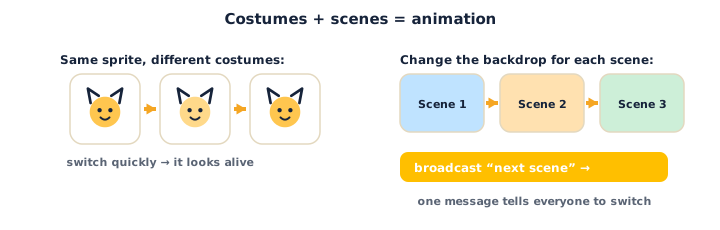
The Looks blocks are all purple — they change how a sprite looks and what it says. Build these as you go.
Build this:
1. From Events (yellow), drag when green flag clicked.
2. From Looks (purple), snap say [Hello!] for 2 seconds. Press the flag — a speech bubble pops up. Swap it for think [Hmm…] for 2 seconds and run again — now it's a thought bubble.
3. Add change size by 10 and run a few times — the sprite grows. Then try change size by -10 to shrink it. Use set size to 100 % to snap it back to normal.
4. Add change color effect by 25 and press the flag several times — the sprite cycles through colours. Use clear graphic effects to reset it.
when green flag clicked
say "Hello!" for 2 seconds
change size by 20
change color effect by 25
Try show and hide too. From Looks, hide makes the sprite vanish; show brings it back. Great for making a character appear or disappear in a story.
Watch out for the invisible sprite: if your sprite disappears and won't come back, you probably ran a
hide(or set size to a tiny number). Fix it with ashowblock andset size to 100 %. A sprite you can't see is usually hidden, not deleted.
Which block makes a thought bubble instead of a speech bubble? (Answer: think.)
Teach — Costumes = animation + Sound blocks
Here's the big idea: switching costumes quickly = animation. Open the Costumes tab (top-left) and look — the cat has two costumes, costume1 and costume2, with the legs in different positions.
Build this:
1. Start with when green flag clicked.
2. From Looks, add next costume inside a repeat so it flips back and forth. Add a tiny wait so you can see it:
when green flag clicked
forever
next costume
wait 0.2 seconds
Press the flag — the cat's legs move: it's walking on the spot! next costume just flips to the next picture; doing it fast, over and over, is animation. (Don't worry about forever — that's Session 4; it means "keep doing this.")
3. Try switch costume to [costume1] — this jumps to one exact costume by name, instead of just the next one. Useful when you want a specific pose.
Now add sound. Open the Sound palette — these blocks are pink. Build:
1. From Sound, add play sound Meow until done — the program waits for the whole sound to finish before moving on.
2. Compare with start sound Meow — this starts the sound and keeps going straight away (no waiting).
3. Try change volume by -10 and set volume to 100 % to make sounds quieter or louder.
Here's the key difference: play sound … until done waits for the sound; start sound … doesn't wait and lets the next block run right away.
You want the cat to meow and keep walking at the same time — which sound block? (Answer: start sound — it doesn't wait.)
Activity — Bring your sprite to life
Now you make a sprite talk, animate and make a sound.
- Open a new project at Scratch.
- Talk: build
when green flag clicked → say "Hi, I'm [name]!" for 2 seconds → think "What should I do?" for 2 seconds. - Animate: add
forever → next costume → wait 0.2 secondsso the sprite looks like it's moving. Try differentwaitnumbers — faster or slower. - Change looks: add
change size by 20andchange color effect by 25. Run it a few times. - Add sound: from the Sound palette, add
start sound Meow(or choose another sound from the sound library). - Make it yours: change the words, the costume speed, the size and the colour until your sprite feels alive.
Ask yourself: which block makes it walk? What's the difference between your say and your think?
Check yourself
Try these — the answers are right after each arrow so you can check:
- What makes a sprite look animated — like it's walking? → Switching costumes quickly (e.g.
next costumeover and over). Fast picture-swapping = animation. - What's the difference between
sayandthink? →saymakes a speech bubble;thinkmakes a thought bubble. Both show your words above the sprite. - What's the difference between
play sound … until doneandstart sound …? →play sound … until donewaits for the sound to finish before the next block runs;start sound …doesn't wait — the next block runs right away.
Wrap-up
- Can you explain, in one sentence, why switching costumes quickly makes a sprite look alive?
- Try this at home — Make it alive: make your sprite say something, switch costumes to walk, and play a sound, then press the green flag. Screenshot it for your portfolio.
Tips & extra challenges
- Watch out:
next costumedoes not move the sprite. It only changes the picture, not the position. The sprite looks like it's walking but stays in one spot unless you also add a Motion block (move/glide). Animation (Looks) and movement (Motion) are two different jobs; real walking uses both together. - Want more? Try this: combine this session with Session 2 — a sprite that moves across the stage
andswitches costumes so it actually walks:forever → move 10 steps → next costume → wait 0.1 seconds → if on edge, bounce. Then add asaythat changes with a second costume.
Vocabulary
| Term | Meaning |
|---|---|
| Looks blocks | The purple blocks that change how a sprite looks or what it says |
| Costume | One of a sprite's pictures; switching them makes animation |
| Animation | Making something look alive by swapping pictures quickly |
| say / think | Show a speech bubble or a thought bubble above the sprite |
| Sound blocks | The pink blocks that play and control sounds |
Resources
- Scratch editor — where you build (free, in the browser).
- Scratch Ideas page — official tutorials, including "Animate a Character" and "Make Music".
- Scratch Starter Guide (PDF) — a one-page getting-started sheet.
Practice set
Practise on your own — extra tasks to explore Looks and Sound. Work them easy → hard. Answers follow each arrow.
1. Colour clue. You want your sprite to grow. Which palette and colour do you look for? → Looks — purple.
2. Bubble type. Which block gives a thought bubble: say or think? → think.
3. Grow or shrink. Which makes the sprite smaller: change size by 20 or change size by -20? → change size by -20 — a negative number shrinks it.
4. Predict. The script is when green flag clicked → forever → next costume → wait 0.2 seconds. What does the sprite look like? → It looks animated — it flips between costumes, like walking or wiggling on the spot.
5. Make it (build task). Build a script so the sprite says "Watch me!", then plays a sound, then changes colour. → when green flag clicked → say "Watch me!" for 2 seconds → start sound Meow → change color effect by 25.
6. Fix it (harder). Your sprite has vanished and won't come back, even after pressing the green flag. What two blocks bring it back? → show (it was hidden) and set size to 100 % (in case it was shrunk to nothing).
Going deeper (optional)
Optional — for when you're animating a sprite and want to know how real animation works.
Frames per second. Cartoons and games flash many pictures every second — often 24 or more — and your eye blends them into smooth motion. In Scratch, each costume is one frame, and the wait block controls the speed: a smaller wait means more flips per second and smoother movement. Experiment with wait 0.05 vs wait 0.5 and describe the difference.
Effects are temporary tricks. change color effect and change size don't repaint the costume — they put a filter over it, like sunglasses. That's why clear graphic effects and set size to 100 % snap everything back instantly. Understanding that effects sit on top of the real costume helps you reset a project that's gone weird.
Common mistakes & fixes
If it's not working, check here:
- Mistake: Expecting
next costumeto move the sprite across the stage. → Fix: it only changes the picture; add a Motion block (move/glide) for real movement. - Mistake: The sprite disappears and won't come back. → Fix: it was probably
hide-den or shrunk — addshowandset size to 100 %. - Mistake: Costumes flip so fast you can't see them (no wait). → Fix: add a
wait 0.2 secondsbetween switches to slow the animation down. - Mistake: A sound "won't play." → Fix: check it was added from the Sound tab first, and that the volume isn't set to 0; try
play sound … until done. - Mistake: The next block runs before a sound finishes and cuts it off. → Fix: use
play sound … until donewhen you need the whole sound before moving on.
What's next
Session 4 — Events & Loops: you'll learn the two ideas every program needs — an event that starts code (green flag, key press, sprite click) and a loop that repeats it (forever, repeat 10). Together they make the "game loop" that powers every game.