
Session 6 — Keep Score with Variables
Duration: 60 min · Format: live online
What you'll learn: by the end, you can make a variable, show it on the stage, and use
setandchangeso that clicking a target makes the score go up — the first real ingredient of a game with rules.
Soft skill focus — Problem-solving
Today you'll also grow Problem-solving. Making a score actually count up — and not get stuck at 1 — means working out which block does which job and fixing it when the number misbehaves.
- Try this: if your score sticks at 1 (the classic
set … to 1bug), don't just swap blocks at random. Ask yourself "is that block replacing the number or adding to it?" and reason your way to swappingsetforchange. Test after each small change. - Think about: When your score didn't work the way you wanted, how did you figure out which block to change?
What you'll need
- Open Scratch in a tab (sign in if you can, so you can save your work).
- The diagram below (the score variable) to look at as you go.
- Add a target sprite (like an apple or a ball) so you can click it as you build.
Hook
Let's think for a second:
- "When you play a game and you score a point, a little number goes up on the screen. How do you think the game remembers your score from one point to the next?"
The game keeps your score in a labelled box in its memory. Every time you score, it opens the box, takes out the number, adds one, and puts it back. Today you build that box — it's called a variable — and make your own score go up.
Teach — Make a variable & show it
Look at this diagram and read it out:
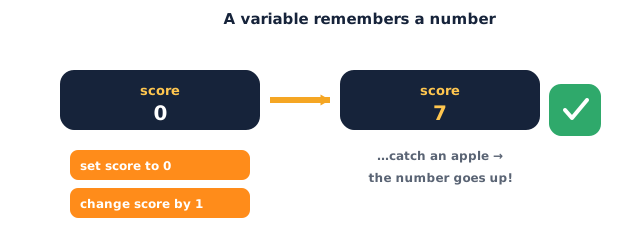
Here's how it works:
- A variable is a labelled box that remembers a number. The label is its name (like
score); the number inside can change while the game runs. - Variables live in the Variables (orange-red) palette.
Build this:
1. Click the Variables (orange-red) category, then click Make a Variable.
2. Type the name score and click OK. (Pick a name that says what's inside — score, not x.)
3. Look at the palette — new blocks appeared: score, set [score] to 0, change [score] by 1, plus show and hide.
4. Look at the stage — a little score readout appeared in the top-left corner. That's the box showing its number to the player.
Tick the checkbox next to the score block to show or hide it on the stage.
What should you call a variable that counts how many lives you have left? (Answer: something clear like lives — the label should describe what's in the box.)
Teach — set to 0 and change by 1
Two blocks do almost all the work with a score:
set [score] to 0— puts an exact number in the box, throwing away whatever was there. Use this at the start of a game to reset the score to zero.change [score] by 1— adds to whatever is already in the box.change by 1means "add one." (You can alsochange by -1to subtract.)
Build this:
1. From Events (yellow), drag out when green flag clicked.
2. From Variables, snap set [score] to 0 under it — the game always starts at zero.
Now click your target sprite (the apple/ball) in the sprite list so you're adding code to it.
3. From Events, drag out when this sprite clicked.
4. From Variables, snap change [score] by 1 under it.
Now you have two little scripts:
when green flag clicked
set [score] to 0
when this sprite clicked
change [score] by 1
Press the green flag (score shows 0), then click the target a few times — watch the number on the stage climb: 1, 2, 3… You just kept score!
Watch out for set vs change:
set [score] to 1does not mean "add one" — it forces the score to 1 no matter how high it was. To count up, usechange [score] by 1. Mixing these up is the #1 score bug.
Which block resets the score to zero at the start — set or change? Which one adds a point? (set [score] to 0 resets; change [score] by 1 adds.)
Activity — Build a click-for-points game
Now you build your own scoring game.
- Open a new project at Scratch and Make a Variable called
score. - On the stage/background script:
when green flag clicked → set [score] to 0. - On the target sprite:
when this sprite clicked → change [score] by 1. Press the flag, then click the target — the score should go up. - Make it move so it's a real game: on the target, add
when green flag clicked → forever → go to [random position](from Motion) so it jumps around and you have to chase it with your clicks. - Extra: add a reward —
when this sprite clicked → change [score] by 1 → play sound [pop] → say "+1". Or add a second variable calledmisses.
Ask yourself: which block resets your score? Which block adds a point? What's the difference?
Check yourself
Try these — the answers are right after each arrow so you can check:
- What is a variable, in your own words? → A labelled box that remembers a number while the program runs; the label is its name and the number inside can change.
- What does
set [score] to 0do, and when do we use it? → It puts the exact number 0 in the box, wiping out whatever was there. Use it at the start to reset the score. - You want the score to go UP by one each click. Which block —
setorchange? →change [score] by 1— it adds to what's already there.setwould force it to one fixed number instead.
Wrap-up
- Can you explain, in one sentence, what a variable is?
- Try this at home — Score points: make a project where clicking a sprite adds to a
scoreshown on the stage, and the green flag resets it to 0. Screenshot your two scripts for your portfolio.
Tips & extra challenges
- Watch out:
set [score] to 1does not add a point —setreplaces the number, so the score would get stuck at 1 no matter how many clicks. Adding ischange. Picture a box:set= empty the box and put this number in;change= add to what's already in the box. - Want more? Try this: add a second variable (
timerorlives) and usechange [lives] by -1to subtract. Or make a "you win" moment:if <score = 10> then → say "You win!" → stop all.
Vocabulary
| Term | Meaning |
|---|---|
| Variable | A labelled box that remembers a number |
| Make a Variable | The button that creates a new variable and its name |
| set | Put an exact number into the box (replaces what was there) |
| change by | Add an amount to the number already in the box |
| Stage readout | The little box on the stage that shows a variable's number |
Resources
- Scratch editor — where you build (free, in the browser).
- Scratch Ideas page — official tutorials and starter cards.
- Variables blocks reference (Scratch Wiki) — a plain-language list of every variable block.
Practice set
Practise on your own — extra tasks to explore variables and scoring. Work them easy → hard. Answers follow each arrow.
1. Name it. What do we call a labelled box that remembers a number? → A variable.
2. Colour clue. You want to make a score. Which palette do you open, and what do you click first? → The Variables (orange-red) palette, then Make a Variable.
3. True or false. change [score] by 1 replaces the score with the number 1. → False — change by 1 adds one to what's already there. set is the one that replaces.
4. Predict. The score is showing 5. You run set [score] to 0. What does the stage show now? → 0 — set wipes the box and puts 0 in, so the 5 is gone.
5. Fix it (spot the bug). You click your target ten times but the score stays at 1. Your click script is when this sprite clicked → set [score] to 1. What's wrong? → You used set … to 1, which forces it to 1 every click. Swap it for change [score] by 1 to count up.
6. Make it (harder). Build a game where the green flag resets score to 0, clicking the target adds a point, and reaching 3 points makes it say "Nice!" → Stage: when green flag clicked → set [score] to 0. Target: when this sprite clicked → change [score] by 1 → if <score = 3> then → say "Nice!".
Going deeper (optional)
Optional — for when you've kept a score and want to know how far variables go.
Variables hold more than scores. A variable can remember any number the program needs to keep track of — a timer counting down, how many lives are left, the player's speed, the level number. Later, variables can even hold words (like a player's name from an "ask" block, coming in Session 8). The box doesn't care what you keep in it; you decide what the label means.
Why the name matters. Programmers name variables carefully — score, lives, speed — because in a big project you might have ten boxes, and a name like x tells you nothing. A good name is a note-to-self: it says what belongs in the box. This is a habit real developers live by, and starting it now with score instead of a makes every future project easier to read.
Common mistakes & fixes
If it's not working, check here:
- Mistake: Using
set [score] to 1to add a point, so the score sticks at 1. → Fix: usechange [score] by 1—setreplaces,changeadds. - Mistake: Forgetting
set [score] to 0at the start, so the score keeps last game's number. → Fix: addwhen green flag clicked → set [score] to 0so every game starts fresh. - Mistake: The score isn't visible — the box is hidden. → Fix: in the Variables palette, tick the checkbox next to the
scoreblock (or use theshow variableblock). - Mistake: Putting the
changeblock underwhen green flag clickedinstead ofwhen this sprite clicked, so it adds once at the start and never on clicks. → Fix: move thechangeunder the click hat, and make sure you're coding the target sprite, not the stage. - Mistake: Making a new variable for every point instead of reusing one box. → Fix: one variable named
scoreholds the whole count — you only ever need one box for one number.
What's next
Session 7 — The X–Y Grid: students learn how the stage is a grid of x (left–right) and y (up–down) numbers, and use go to x: y: and glide to place and move sprites to exact spots — the maths behind aiming and moving in games.