
Session 9 — Catch the Falling Apples
Duration: 60 min · Format: live online
What you'll learn: by the end, you'll have built a complete, playable catch game — a basket you steer with the arrow keys, an apple that falls from the top and respawns at a random spot, and a score that goes up by one every time you catch it.
Soft skill focus — Resilience
Today you'll also grow Resilience. Building the catch game means hitting bugs on purpose — the apple falls off the screen, the score races up — and staying calm while you fix each one.
- Try this: when the apple first drops off the bottom, don't panic — that's an expected step, the bug you fix next. A broken run is progress, not failure.
- Think about: what bug did you push through today, and how did it feel to finally fix it?
What you'll need
- Scratch open in a tab (signed in so you can save).
- Two sprites: a Basket (Costumes → paint a simple bowl, or choose "Bowl") and an Apple. Delete the cat.
- The diagram below to look at.
- Everything today reuses Units 1–2: events, loops, if–then, variables, and the x–y grid — those block names will come back.
Hook
Let's think about this:
- You've made sprites move, keep score, and make decisions. What if we put all of it together into one real game you can actually play?
Here's the plan: today we build Catch the Falling Apples. You steer a basket, apples drop from the sky, and every apple you catch is +1. By the end of class it's a game you can send to your family tonight.
Teach — The plan: two sprites, three rules
Look at this diagram and find each part as it's named:
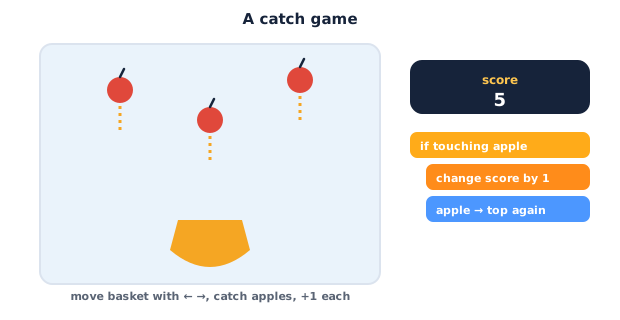
Here's the plan — a game is just a few simple rules running at once:
- Two sprites: a Basket (you steer it) and an Apple (it falls).
- One variable:
score, starting at 0. - Three rules you'll build:
- 1 · Steer — arrow keys move the basket left and right.
- 2 · Fall — the apple keeps dropping; if it reaches the bottom, it jumps back to the top at a random spot.
- 3 · Catch — if the apple is
touching [Basket]?, add 1 toscoreand send the apple back to the top.
Think about it: which rule keeps the score, and which one needs a variable? (The catch rule; the variable is score.)
Make the score variable now: Variables → Make a Variable → score, check its box so it shows on the stage.
Teach — Steer the basket with arrow keys
To move on key presses you don't use one big loop that waits — you use a forever loop that checks the keys every moment. Build this on the Basket sprite.
Build this (on the Basket):
1. From Events (yellow), drag out when green flag clicked.
2. From Control (orange), snap a forever loop under it.
3. Inside the loop, add an if <> then. In its hexagon slot, drop Sensing → key [space] pressed? and change the dropdown to right arrow. Inside, put Motion → change x by (10).
4. Add a second if <> then below it for left arrow, with change x by (-10) inside.
Your Basket script now reads:
when green flag clicked
forever
  if key [right arrow] pressed? then
    change x by 10
  if key [left arrow] pressed? then
    change x by -10
Press the green flag and tap the arrow keys — the basket slides left and right. The player is alive!
⚠ Watch out for the "one press, one step" trap: if you use
when [right arrow] key pressed(an Events hat) instead of aforever+ifcheck, the basket lurches once and stops. Theforeverloop is what makes it move smoothly while you hold the key.
Think about it: why does change x by -10 move the basket left? (Negative x = toward the left edge — that's the x–y grid from Unit 2.)
Activity — Build the catch game step by step
You've already done the basket; now add the apple's fall and catch rules.
Part A — set up:
- If you don't have them yet: delete the cat, add a Basket sprite and an Apple sprite, and make the
scorevariable. - Click the Basket and build the steer script from the Teach above (
when green flag clicked → forever → twoif key pressedchecks).
Part B — make the apple fall (on the Apple sprite):
- Click the Apple sprite. From Events, add
when green flag clicked. - Set the score to zero and send the apple to the top: Variables →
set [score] to (0), then Motion →go to x: (pick random -200 to 200) y: (160). (pick randomis in Operators — green.) - Add a
foreverloop. Inside it, addchange y by (-5)so the apple drips downward each moment.
The Apple script so far reads:
when green flag clicked
set [score] to 0
go to x: (pick random -200 to 200) y: 160
forever
  change y by -5
Press the green flag — the apple falls straight down and disappears off the bottom. That's the bug you fix next.
Part C — reset at the bottom (inside the same forever loop):
- Still inside the
forever, underchange y by -5, add Control →if <> then. In the hexagon put Operators →( ) < ( ), and inside it drop Motion →y positionon the left and type-160on the right, so it readsy position < -160. - Inside that
if, putgo to x: (pick random -200 to 200) y: (160)— the apple jumps back to a new random spot at the top.
Part D — catch it! (still inside the forever loop):
- Add one more
if <> theninside the loop. In its hexagon drop Sensing →touching [Basket]?. - Inside it, add
change [score] by (1)and thengo to x: (pick random -200 to 200) y: (160)so a caught apple flies back to the top.
The finished Apple script reads:
when green flag clicked
set [score] to 0
go to x: (pick random -200 to 200) y: 160
forever
  change y by -5
  if y position < -160 then
    go to x: (pick random -200 to 200) y: 160
  if touching [Basket]? then
    change [score] by 1
    go to x: (pick random -200 to 200) y: 160
- Press the green flag and play! Steer with the arrows and catch apples — the score should climb by 1 each catch.
- Make it yours: speed up the fall (
change y by -8), add a Soundplay sound [Pop]inside the catchif, or paint a nicer basket costume.
As you build, find the block that adds to your score. What happens if you make the apple fall faster?
Check yourself
Try these:
- Why do the arrow-key checks go inside a
foreverloop? → So Scratch checks the keys over and over, letting the basket glide while you hold the key instead of moving once. - Which block detects a catch, and where does it belong? →
touching [Basket]?(Sensing), inside anif–thenin the apple'sforeverloop. - After the score goes up, why do we send the apple back to
y: 160? → So a new apple starts falling from the top — otherwise the same apple keeps touching the basket and the score races up.
Wrap-up
- In one sentence, name the three rules of the game (steer, fall, catch).
- Try this at home — Make it harder: speed up the apple, add a second apple sprite (right-click → duplicate), or add a
say (score)when you reach 10. Save and screenshot it for your portfolio.
Tips & extra challenges
- Watch out: the apple does not reset by itself when it's off-screen. Nothing in Scratch happens on its own — you wrote the
if y position < -160rule that sends it back. If the apple vanishes forever, that rule is missing or is outside theforeverloop. - Want more? Try this: add a "miss" penalty — inside the bottom-reset
if, addchange [score] by (-1)so dropping an apple costs a point. Or add a timer:set [time] to 30, then a second script that waits and counts down, andstop [all]at zero for a real 30-second challenge.
Vocabulary
| Term | Meaning |
|---|---|
key pressed? |
A Sensing block that is true while a key is held down |
forever |
A loop that repeats its blocks endlessly, so rules keep checking |
touching [sprite]? |
A Sensing block that is true when two sprites overlap |
pick random |
An Operator that gives a different number each time — used for a random x |
| Variable | A named box that stores a value, like score, that can change while the game runs |
Resources
- Scratch editor — where you build (free, in the browser).
- Scratch Ideas — Catch Game starter card — official starter cards for catch-style games.
- Scratch Coding Cards (PDF) — printable cards including "catch" and "keep score" recipes.
Practice set
Practise on your own with these tasks to sharpen the catch game. Work them easy → hard. Answers follow each arrow.
1. Colour clue. Which block family holds touching [Basket]?? → Sensing (cyan).
2. Predict. The apple has change y by -5 but no if y position < -160 rule. What happens when you run it? → The apple falls off the bottom and never comes back — there's no rule to reset it.
3. Direction. You want a hard mode where the apple falls twice as fast. Which block do you change, and to what? → change y by (-5) → make it change y by (-10) (more negative = faster down).
4. Fix it (spot the bug). Your score jumps from 0 to 50 in a flash on one catch. Why? → The catch if has no go to … y: 160 after change [score] by 1, so the apple keeps touching the basket every loop. Fix: send the apple back to the top inside the catch if.
5. Make it (build task). Add a rule so catching an apple also plays a sound. → Inside the if touching [Basket]? then, add Sound → play sound [Pop] next to change [score] by 1.
6. Two rules (harder). Write the pseudo-code for a miss rule: when the apple reaches the bottom, reset it and lose a point. → if y position < -160 then → change [score] by -1 → go to x: (pick random -200 to 200) y: 160.
Going deeper (optional)
Optional — for when you have a working game and want to know why it feels alive.
Why forever and not a big list of moves? A game needs to react right now — the instant a key is held or two sprites touch. A forever loop checks every rule many times a second, so the game responds to you in real time. This "check everything, every frame" idea is exactly how professional game engines work under the hood.
Collision is just overlap. touching [Basket]? doesn't know about "catching" — it only knows two sprites' pictures overlap. You gave that overlap meaning by choosing to add a point. If the apple looks bigger than its picture, catches feel unfair — the block reads the costume shape, not the drawing you imagined.
Common mistakes & fixes
If it's not working, check these:
- Mistake: Using a
when [right arrow] key pressedhat block, so the basket jumps once and stops. → Fix: steer with aforeverloop containingif key … pressed?checks — that's what makes it move while held. - Mistake: The
change y by -5or theifrules are placed after (below) theforeverloop, so they run once or never. → Fix: the fall, reset and catch rules all go inside theforeverloop. - Mistake: Score shoots up on a single catch. → Fix: add
go to … y: 160inside the catchifso the apple leaves the basket after scoring. - Mistake:
set [score] to 0is missing, so the score keeps last game's number. → Fix: putset [score] to 0right afterwhen green flag clickedon the apple. - Mistake: Basket flies off the edge and can't come back. → Fix: add
if key … pressed?guards, or clamp withif x position > 240 then set x to 240.
What's next
Session 10 — Escape the Maze: you'll build a maze game — steer a sprite with the arrow keys, use touching color? so walls block the player, and reach a goal that says "You win!"