
Session 8 — Ask, Answer & Build a Quiz
Duration: 60 min · Format: live online
What you'll learn: by the end, you can make a sprite ask a question and wait, read the player's typed answer, check it with an if block, and use a score variable to build a working 3-question quiz — tying together the two big ideas of Unit 2: decisions and variables.
Soft skill focus — Communication
Today you'll also grow Communication. A quiz only works if the sprite's question is worded so clearly the player knows exactly how to answer.
- Try this: as you write your three questions, read one aloud to a neighbour and ask "would you know how to answer that?" — then tighten any wording that confused them.
- Think about: how did you make your quiz question clear and easy to understand?
What you'll need
- Scratch open in a tab (signed in if you can, so you can save).
- The quiz-flow diagram below to look at.
- To know where the pieces live:
ask [ ] and waitand theanswerreporter are in Sensing (cyan);if … thenis in Control (orange);=is in Operators (green); a variable is made in Variables (orange-red) with Make a Variable.
Hook
Let's think about this:
- Every program so far has done all the talking. What if the sprite could ask you something and actually wait for your reply? What would you want it to ask?
Here's what's coming: today your sprite gets ears. It will ask a question, wait while you type, then check if you're right — and keep a score. By the end of the hour you'll have a real quiz game anyone can play.
Teach — Ask, wait, and the answer reporter
Look at this diagram and follow the arrows from "ask" to "answer" to "check":
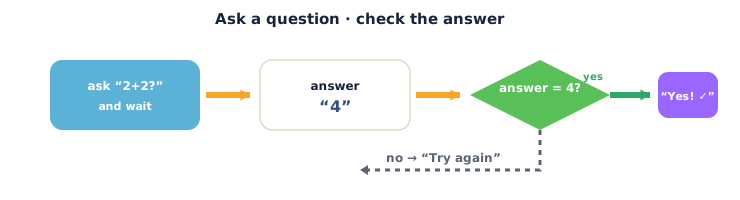
Here's how it works:
ask [ ] and wait(Sensing, cyan) makes the sprite pop up a question with a text box at the bottom of the stage. The script pauses — that's the and wait part — until the player types something and presses Enter.answer(Sensing, cyan) is a reporter — a little rounded block that holds whatever the player just typed. You can drop it inside other blocks or tick its checkbox to show it on the stage.
Build this:
1. From Sensing (cyan), drag out ask [What is your name?] and wait and click it. A text box appears on the stage — type a name and press Enter.
2. From Sensing, tick the checkbox next to answer — it appears on the stage showing exactly what you typed. That's where the player's reply is stored.
3. From Looks (purple), build say (answer) for 2 seconds — drag the rounded answer block into the say block's white slot. Run it: ask, type, and the sprite repeats your answer back.
Now your script reads:
when green flag clicked
ask "What is your name?" and wait
say answer for 2 seconds
⚠ Watch out:
answeronly holds the most recent reply. As soon as the nextaskruns, the old answer is replaced. If you need to keep something, check it (or save it) before the nextask.
Think about it: after you type your name, where does Scratch keep it? (In the answer reporter.) And what does and wait mean? (The script pauses until the player replies.)
Teach — Check the answer and keep score
Asking is only half a quiz — now you check the answer and reward a right one. This is where Unit 2's two ideas meet: a decision (if) and a variable (score).
Build this:
1. In Variables (orange-red), click Make a Variable, name it score, and drag out set score to 0 for the top of the script — every game starts at zero.
2. From Sensing, add ask [What is 2 + 2?] and wait.
3. From Control (orange), drag out if … then. From Operators (green), drop ( ) = ( ) into its hexagon slot. Into the left side drop the answer reporter; type 4 on the right. It now reads if <answer = 4> then.
4. Inside the if, put change score by 1 (Variables) and say [Correct!] for 1 seconds (Looks).
Now your script reads:
when green flag clicked
set score to 0
ask "What is 2 + 2?" and wait
if <answer = 4> then
  change score by 1
  say "Correct!" for 1 seconds
Press the green flag. Type 4 → the sprite says Correct! and the score jumps to 1. Run again and type 5 → nothing happens (the if was false).
Add the "wrong" path. Swap the if for if … then … else and put say [Not quite!] for 1 seconds in the else part, so every answer gets a reply. Now the sprite reacts to both right and wrong.
Think about it: where does the answer go in the check? (Into one side of the green = block.) What makes the score go up only when they're right? (The change score by 1 sits inside the if — it runs only when the check is true.)
Activity — Build a 3-question quiz
Build a real, playable quiz. Do the first question, then add two more.
- Open a new project at Scratch. Start the script with
when green flag clicked→set score to 0. - Question 1: add
ask [ ] and waitwith your own question, then anif <answer = [ ]> then … elsethat doeschange score by 1+say "Correct!"on the true side andsay "Not quite!"on the else side. - Questions 2 and 3: snap on two more ask + if–else pairs, each with a new question and its own correct answer.
- Show the final score: at the very end add
say (join [You scored ] (score)) for 3 seconds(thejoinblock is in Operators, green) — or just tick thescorecheckbox so it shows on the stage. - Make it yours: pick a theme (animals, football, maths), swap the backdrop, and have the sprite
say "Ready?"before the first question.
As you build, check: is the score block inside the if? What happens if you spell the answer differently — does it still count?
Check yourself
Try these:
- What does
ask [ ] and waitdo? → It shows a question with a text box and pauses the script until the player types a reply and presses Enter. - Where is the player's reply kept? → In the
answerreporter (Sensing) — it holds the most recent thing typed. - Why does
change score by 1go inside theif? → So the score only goes up when the check is true — i.e. when the answer is correct.
Wrap-up
- In one sentence, explain how the sprite "knows" the player got it right.
- Try this at home — Finish your quiz: make sure your quiz has 3 questions, gives Correct/Not quite feedback each time, and says the final score at the end. Screenshot the script for your portfolio.
Tips & extra challenges
- Watch out: the sprite does not understand what you type — it only checks whether
answerexactly matches the value in the=block.4with a space, orfourinstead of4, will read as wrong. That's why programmers must think about every way a player might reply. - Want more? Try this: add a
joinso the sprite says the player's name in every reply (say (join [Nice work, ] (name)) …), or a final message that changes with the score using one moreif–else("You're a champion!" vs "Try again!").
Vocabulary
| Term | Meaning |
|---|---|
| ask … and wait | Sensing block that asks a question and pauses for a typed reply |
| answer | A reporter holding the player's most recent typed reply |
| = (equals) | An Operator that checks whether two things are the same |
| if … then | A Control block that runs its blocks only when a check is true |
| Variable | A named box that remembers a value, like score |
Resources
- Scratch editor — where you build (free, in the browser).
- Sensing blocks reference (Scratch Wiki) — explains
ask [ ] and waitand theanswerreporter. - Scratch Ideas page — official tutorials and starter cards, including quiz-style projects.
Practice set
Practise on your own with these tasks to build up a quiz. Work them easy → hard. Answers follow each arrow.
1. Name that block. Which block makes the sprite ask a question and wait for a typed reply? → ask [ ] and wait (Sensing, cyan).
2. Where's the reply? After the player types, which block holds what they typed? → The answer reporter (Sensing).
3. Colour clue. You need the = block to compare the answer. Which colour palette is it in? → Green — Operators.
4. Predict. The check is if <answer = 4> then → say "Yes!". The player types five. What happens? → Nothing — five does not equal 4, so the if is false and say doesn't run.
5. Make it (build task). Build a script that asks "What colour is the sky?" and says "Correct!" only if the answer is blue. → ask "What colour is the sky?" and wait → if <answer = blue> then → say "Correct!" for 1 seconds.
6. Keep score (harder). Add scoring so a correct answer makes score go up by 1, starting from 0. Where must set score to 0 go, and where must change score by 1 go? → set score to 0 goes at the top (before the questions); change score by 1 goes inside the if, so it only runs when the answer is correct.
Going deeper (optional)
Optional — for when you have a working quiz and want to make it fairer and smarter.
Exact matching is strict. Because answer = 4 needs an exact match, real quizzes get tripped up by spaces and capital letters — Blue, blue and BLUE all look "wrong" to a strict check. Programmers fix this by cleaning the answer first (lowercasing it, trimming spaces) or by accepting a few spellings with or. Even just knowing this trap exists makes you a better tester of your own game.
One answer box, reused. There is only one answer reporter for the whole project, and every ask overwrites it. That's why you must check each answer right after its question, before the next ask wipes it. If you wanted to remember all three replies, you'd copy each into its own variable — a neat link back to last session's work on variables.
Common mistakes & fixes
If it's not working, check these:
- Mistake:
change score by 1placed below theifinstead of inside it, so the score goes up every time. → Fix: drag it inside theif's mouth so it only runs on a correct answer. - Mistake: Forgetting
set score to 0at the start, so the score keeps climbing between plays. → Fix: addset score to 0at the top, right after the green-flag hat. - Mistake: The check never comes true because of a space or capital letter (
4orBlue). → Fix: make sure the value in the=block exactly matches the expected reply — no extra spaces. - Mistake: Dropping
answerinto the wrong slot, or typing the word "answer" instead of using the reporter block. → Fix: drag the roundedanswerblock from Sensing into the=; typed text won't work. - Mistake: Checking an answer after the next
askhas already run, soanswerwas overwritten. → Fix: put eachifright after its own question, before the followingask.
What's next
Session 9 — Catch the Falling Apples: the start of Unit 3 — Build Real Games. You'll put decisions, variables and the x–y grid together to build your first full game — apples fall from the top of the stage and you move a basket to catch them for points.