
Session 7 — The X–Y Grid
Duration: 60 min · Format: live online
What you'll learn: by the end, you can read the stage as a coordinate grid — x across, y up/down, centre at x:0 y:0 — and place a sprite at an exact spot with
go to x: y:, glide it smoothly withglide … secs to x: y:, and nudge it withchange x byandset x to.
Soft skill focus — Curiosity
Today you'll also grow Curiosity. The x–y grid rewards you for asking "what happens if I try this number?" as you hunt for exact spots.
- Try this: during the coordinate treasure hunt, guess an address before you type it, then run it to see how close you got. The wondering matters as much as the right answer.
- Think about: what is one thing about the grid you wanted to try out and test today?
What you'll need
- Scratch open in a tab (signed in if you can, so you can save).
- The x–y grid diagram below to look at. It helps to remember the four corner numbers: top-right is about x:240 y:180, bottom-left about x:−240 y:−180.
- The mouse-position readout: as you move the mouse over the stage, Scratch shows the x and y under the pointer at the bottom-right of the stage — you'll use this all lesson.
Hook
Let's think about this:
- If I told a friend to "meet me at the park", that's fuzzy. How could you tell them the exact spot so you land in the same place every time?
You might say "give directions" or "use a map." Here's the secret: computers hate "over there". The Scratch stage has a hidden map of numbers — every single point has an address. Today you'll learn that address language, and you'll be able to send your sprite to any exact spot on the screen.
Teach — The stage is a grid: x, y and the centre
Look at this diagram and trace the two arrows with your finger:
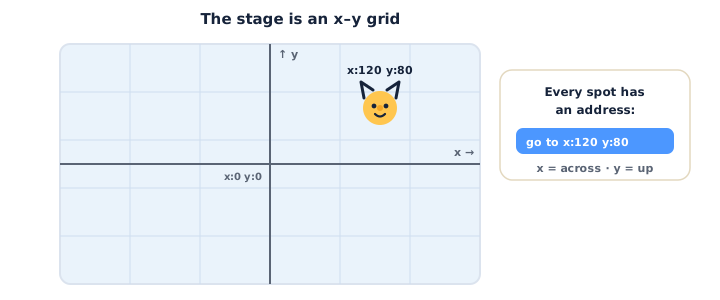
Here's how it works:
- x is the across number. It counts left to right. The far left edge is about −240, the far right edge is about 240. Bigger x = further right; negative x = left.
- y is the up-and-down number. It counts bottom to top. The bottom edge is about −180, the top edge is about 180. Bigger y = further up; negative y = down.
- The centre is x:0 y:0. That's the exact middle of the stage. Every point on the screen has its own pair of numbers — an address — written x first, then y.
Now make it real. Slowly slide your mouse across the stage and watch the x and y readout at the bottom-right: as you go right the x number grows… as you go up the y number grows… right in the middle it's near zero, zero.
Quick question: to go to the top-right corner, do you want x and y to be big-positive or big-negative? (Both big-positive — like x:240 y:180.) And the bottom-left? (Both big-negative — x:−240 y:−180.)
⚠ Watch out: x and y get swapped all the time. Keep repeating the rule: x = aCROSS, y = up (the tall letter y stands up). Always say the numbers in order: x first, then y.
Teach — go to, glide, change x, set x
Now that the stage has addresses, Motion gives you blocks that use them. Build these and run each one so you see the sprite jump or glide.
Build this:
1. From Motion (blue), drag out go to x: 0 y: 0 and click it — the sprite snaps instantly to the centre. Change it to go to x: 200 y: 0 and click — it teleports to the right. go to is instant, like blinking to a spot.
2. Swap in glide 1 secs to x: -200 y: 0 and click — this time the sprite slides smoothly across. glide is the same idea but it takes time, so you see it travel. Change the seconds to 2 to make it slower.
3. From Motion, try change x by 50 and click it a few times — the sprite steps to the right 50 each click, without touching y. change x by means "add to where you already are."
4. Now set x to 0 and click — it jumps to the middle line (x:0) but keeps its height. set means "make it exactly this," change means "add on."
Put it together into one short script:
when green flag clicked
go to x: 0 y: 0
glide 1 secs to x: 200 y: 100
change x by -100
Press the green flag. The sprite starts in the middle, glides up to the right, then hops back left. Try to predict the last position before you run it.
Optional taste of Pen — draw a line. If you have time, add the Pen extension (bottom-left Add Extension button → Pen). Build: go to x: -150 y: 0 → pen down → glide 1 secs to x: 150 y: 0 → pen up. Run it — the sprite draws a straight line across the stage as it glides. The pen leaves a trail wherever the sprite moves.
Think about the differences: go to vs glide (go to = instant/teleport; glide = smooth over time), and set x to vs change x by (set = exact value; change = add on to what's there).
Activity — Send your sprite on a coordinate treasure hunt
Place and move a sprite by its address. Here's how to go on the hunt.
- Open a new project at Scratch. Move your mouse over the stage and watch the x/y readout at the bottom-right.
- Build
when green flag clicked→go to x: 0 y: 0so your sprite always starts in the centre. Press the flag. - Hit four corners: add four blocks in a row —
glide 1 secs to x: 200 y: 150, then… x: -200 y: 150, then… x: -200 y: -150, then… x: 200 y: -150. Run it — the sprite glides around the edge of the stage like a picture frame. - Make it yours: add
change x by 50and click it to walk the sprite sideways, andset y to 0to snap it back to the middle line. Try making the sprite spell a shape by gliding between spots. - Extra (Pen): add the Pen extension, put
pen downafter your firstgo to, and let the glides draw the frame as the sprite travels.pen upat the end.
As you build, ask yourself: "What address is my sprite at right now?" "Which number moves it up — x or y?"
Check yourself
Try these:
- What does the x number control, and what does y control? → x moves the sprite across (left–right); y moves it up and down.
- What is the address of the exact centre of the stage? → x:0 y:0.
- What's the difference between
go to x: y:andglide … secs to x: y:? →go toteleports the sprite instantly;glidemoves it smoothly over time so you see it travel.
Wrap-up
- In one sentence, say the rule for remembering x and y (x is across, y is up).
- Try this at home — Four-corner tour: make your sprite start at
x:0 y:0, then glide to visit all four corners of the stage and return to the centre. Screenshot the script for your portfolio.
Tips & extra challenges
- Watch out: you might think "bigger numbers always mean 'more to the right / higher up'." That's true for x and y separately, but don't forget the numbers can be negative — left and down are the negative side. Watch the readout as you drag left so you see x go below zero.
- Want more? Try this: make the sprite draw a square with the Pen using four glides that return to the start, then a triangle with three. Work out the corner addresses on paper before you build.
Vocabulary
| Term | Meaning |
|---|---|
| Coordinate | A number that says where something is |
| x | The across number (left–right), −240 to 240 |
| y | The up–down number, −180 to 180 |
| Centre (origin) | The exact middle of the stage, x:0 y:0 |
| Glide | Move smoothly to a spot over a set number of seconds |
Resources
- Scratch editor — where you build (free, in the browser).
- Motion blocks reference (Scratch Wiki) — every Motion block explained, including
go to x: y:andglide. - Scratch Ideas page — official tutorials and starter cards.
Practice set
Practise on your own with these tasks to explore the x–y grid. Work them easy → hard. Answers follow each arrow.
1. Read the address. A sprite is at the exact middle of the stage. What is its x and y? → x:0 y:0.
2. Which number? You want your sprite to move up. Do you change x or y? → y (the up–down number).
3. Corner clue. Which corner is roughly at x:−240 y:180? → The top-left corner (far left, near the top).
4. Predict. The script is go to x: 0 y: 0 → change x by 100. Where is the sprite now? → At x:100 y:0 — 100 to the right of centre, same height.
5. Make it (build task). Build a script so the sprite starts in the centre and glides to the top-right corner over 2 seconds. → when green flag clicked → go to x: 0 y: 0 → glide 2 secs to x: 200 y: 150.
6. Set vs change (harder). The sprite is at x:150 y:0. You run set x to 0. Then you run change x by 20. What is its x now? → 20. set x to 0 makes x exactly 0; change x by 20 then adds 20.
Going deeper (optional)
Optional — for when you can place a sprite by its address and want to know why coordinates matter.
This is the same map used everywhere. The x–y grid isn't a Scratch invention — it's how maps, graphs and every video game describe positions. When a game knows a player is at "x:340, y:88," it's using the exact idea you just learned. In Session 9 you'll use y to make apples fall down the screen — by making y get smaller and smaller.
Why is 0,0 in the middle, not the corner? In Scratch the centre is 0,0 so a sprite has room to go positive and negative in every direction — handy for symmetrical movement (glide to x:100, then x:-100, same distance each side). Other tools (and image files) often put 0,0 in a corner. There's no single "right" place for the origin — it's a choice the tool's makers make.
Common mistakes & fixes
If it's not working, check these:
- Mistake: Swapping x and y, so the sprite goes sideways when you wanted up. → Fix: repeat the rule x is across, y is up, and always read the address x first, then y.
- Mistake: Expecting
change x by 50to set the position, then confused it "keeps adding." → Fix:changeadds on each time; useset x towhen you want an exact spot. - Mistake: Typing a huge number like
x:900and the sprite "vanishes." → Fix: it glided off the edge — the stage only reaches about ±240 across and ±180 up/down; usego to x:0 y:0to bring it back. - Mistake: The Pen draws nothing. → Fix: you need
pen downbefore the sprite moves; check the Pen extension was added from the bottom-left button. - Mistake: Forgetting the sprite starts wherever it was left, so scripts "work differently each run." → Fix: begin the script with
go to x:0 y:0(or any fixed spot) so it always starts from the same address.
What's next
Session 8 — Ask, Answer & Build a Quiz: you'll make your project talk back — the sprite asks a question with ask [ ] and wait, reads the player's typed answer, checks it with an if block, and keeps score to build a real 3-question quiz.