
Session 5 — If–Then Decisions
Duration: 60 min · Format: live online
What you'll learn: by the end, you can drop a Sensing block into an
if <> thenblock to ask a yes/no question, and build a sprite that makes a decision — if it's touching the edge it bounces, otherwise it keeps moving.
Soft skill focus — Critical thinking
Today you'll also grow Critical thinking. An if–then block is pure reasoning: you have to decide exactly what yes/no question to ask and what should happen when the answer is true or false.
- Try this: before you press the flag on the
if … then … elsebuild, ask yourself "when the sprite is in the middle, istouching edge?true or false — so which mouth runs?" Say the condition out loud in plain words ("only if it's touching the edge") before you build it. - Think about: What was the exact yes/no question your sprite had to answer, and what did it do for each answer?
What you'll need
- Open Scratch in a tab (sign in if you can, so you can save your work).
- The diagram below (the if–then decision) to look at as you go.
- Drag a sprite near the edge of the stage so you can try "touching the edge" straight away.
Hook
Play "only if…" for one minute. Act out each rule:
- "Clap your hands only if you have shoes on."
- "Wave only if your name has the letter A in it."
- "Stand up only if it's raining outside right now."
Notice: sometimes you do the action, sometimes you don't — it depends on whether the rule is true for you. Today you teach your sprite to do that same thing — do something only if a question is true. In code we call it an if–then decision.
Teach — The if–then block & Sensing questions
Look at this diagram and read it left to right:
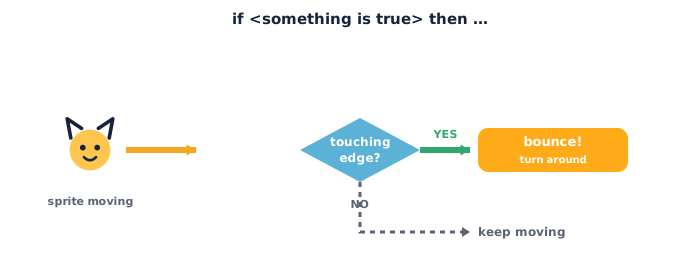
Here's how it works:
- The
if <> thenblock lives in Control (orange). It has a mouth — a gap where blocks go inside. - The blocks inside only run when the answer to the question is yes (true). If the answer is no, Scratch skips them.
- The diamond-shaped hole
< >is where the question goes. Questions come from Sensing (cyan).
Meet three Sensing questions — each one is a diamond block that answers yes or no:
touching [ ]?— is my sprite touching the edge, the mouse-pointer, or another sprite right now?key [ ] pressed?— is a key (like the space bar or an arrow) being held down?mouse down?— is the mouse button being clicked right now?
Build this:
1. From Control (orange), drag out if <> then.
2. From Sensing (cyan), drag touching [edge]? and drop it into the diamond hole. Watch it snap into the < > shape.
3. From Looks (purple), snap say [Ouch!] for 1 seconds inside the mouth.
Now your script reads:
if <touching [edge]?> then
  say "Ouch!" for 1 seconds
Drag the sprite so it touches the edge, run it, and it says "Ouch!" Drag it to the middle, run again — nothing happens, because the answer is now no.
Watch out for the empty diamond: an
if <> thenwith nothing in the diamond can never be true, so the inside blocks never run. Always fill the< >with a Sensing (or Operators) question first.
Which colour block gives you the question? Which block does the action? (Question = Sensing/cyan; action = whatever you snap inside, here Looks/purple.)
Teach — if–then–else: two paths
Sometimes you want one thing if yes, and a different thing if no. That's the if <> then … else block — also in Control (orange). It has two mouths: the top runs when the answer is yes, the bottom (else) runs when the answer is no.
Build this:
1. Start a fresh script with when green flag clicked (Events, yellow).
2. Add a forever loop (Control, orange) so the sprite keeps checking — you met forever in Session 4.
3. Inside forever, add move 10 steps (Motion, blue).
4. Under it, add if <> then … else. Drop touching [edge]? into the diamond.
5. In the top mouth (yes): turn ↻ 180 degrees — spin around.
6. In the else mouth (no): leave it empty for now, or add say [zooming!].
Now your script reads:
when green flag clicked
forever
  move 10 steps
  if <touching [edge]?> then
    turn cw 180 degrees
  else
    say "zooming!"
Press the green flag. The sprite zooms across, and the moment it touches the edge it turns around and heads back — then keeps zooming. It's making a decision every single loop.
When the sprite is in the middle of the stage, which mouth runs — the top or the else? (The else — because it's not touching the edge yet.)
Activity — Build a sprite that reacts
Now you build your own reacting sprite.
- Open a new project at Scratch.
- Build the bouncing script:
when green flag clicked → forever → move 10 steps → if <touching [edge]?> then → turn ↻ 180 degrees. Press the green flag — the sprite should ping-pong across the stage. - Add a key reaction: inside the same
forever, add a secondif <key [space] pressed?> then → say "Boing!". Now it talks back when you press space. - Try
else: swap oneiffor anif … elseand make the sprite do something different for no — likenext costumewhen it's not touching the edge. - Extra: use
if <mouse down?> then → go to [mouse-pointer]so the sprite jumps to your cursor while you hold the button.
Ask yourself: what's the question in your diamond? What runs when the answer is no?
Check yourself
Try these — the answers are right after each arrow so you can check:
- What does the
if <> thenblock do? → It runs the blocks inside it only when the question in the diamond is true (yes); if it's false, Scratch skips them. - Where do the yes/no questions like
touching [edge]?come from? → From Sensing (cyan) — they're the diamond-shaped blocks that fit the< >hole. - What's the difference between
if … thenandif … then … else? → Plainifruns its blocks only on yes and does nothing on no.if … elsehas two paths: the top runs on yes, theelsepart runs on no.
Wrap-up
- Can you explain, in one sentence, what the word "if" means in code?
- Try this at home — Make it react: build a sprite that bounces off the edge and does something when you press a key (
say,next costume, orplay sound). Screenshot your twoifblocks for your portfolio.
Tips & extra challenges
- Watch out: the
ifblock does not keep checking on its own. A plainifchecks its question once, at the moment the script reaches it — then moves on. To check again and again, you must put theifinside aforever(or repeat) loop. This is why the bouncing sprite needsforever— without it, it checks the edge one time and stops caring. - Want more? Try this: add a second question with the
and/orOperators (green) — e.g.if <touching [edge]?> and <key [space] pressed?>. Or nest anifinside anotherifand work out the order the sprite checks them.
Vocabulary
| Term | Meaning |
|---|---|
| Condition | The yes/no question a decision is based on |
| if–then | A block that runs its inside blocks only when the condition is true |
| else | The second path — runs when the condition is false |
| Sensing block | A cyan block that asks about the world (touching, key, mouse) |
| Boolean | A value that is only ever true or false (the diamond shape) |
Resources
- Scratch editor — where you build (free, in the browser).
- Scratch Ideas page — official tutorials and starter cards.
- Sensing blocks reference (Scratch Wiki) — a plain-language list of every question block.
Practice set
Practise on your own — extra tasks to explore decisions and Sensing. Work them easy → hard. Answers follow each arrow.
1. Colour clue. You want a yes/no question like "am I touching the mouse-pointer?" Which colour block do you look for? → Cyan — Sensing.
2. True or false. A sprite is sitting in the middle of the stage. Is touching [edge]? true or false right now? → False — it's not touching the edge, so an if using it would be skipped.
3. Fix it (spot the bug). An if <> then → say "Hi!" never says anything, even though the block is snapped in fine. What's wrong? → The diamond is empty — there's no question, so it can never be true. Drop a Sensing block into the < >.
4. Predict. The script is forever → if <key [space] pressed?> then → next costume. What happens when you hold the space bar? → The sprite flips through its costumes over and over (animates) for as long as space is held; when you let go, it stops.
5. Make it (build task). Build a script so that when you click and hold the mouse, the sprite says "You clicked me!" → forever → if <mouse down?> then → say "You clicked me!".
6. Two paths (harder). Make a sprite that moves, and turns around at the edge but changes colour everywhere else. → when green flag clicked → forever → move 10 steps → if <touching [edge]?> then → turn cw 180 degrees → else → change color effect by 5. The else runs on every loop where it's not at the edge.
Going deeper (optional)
Optional — for when you've built a reacting sprite and want to know why decisions matter.
Every game is just decisions. Every video game you've ever played is thousands of if blocks running very fast: if the player touches a coin, add a point; if health is zero, game over; if the down arrow is pressed, crouch. The diamond questions are the game's senses, and the if blocks are its brain. Once you see this, you start spotting "that's an if–then!" in games you play — which is exactly the programmer's habit of mind.
The diamond shape is a promise. Notice that Sensing and Operators blocks are pointy diamonds, and the if hole is the same pointy shape — so only a true/false block will fit. Scratch is using shape to teach a rule: a decision needs a yes/no question, not a number or a word. That true-or-false idea has a real name programmers use everywhere — a Boolean.
Common mistakes & fixes
If it's not working, check here:
- Mistake: An
ifwith an empty diamond, so the inside blocks never run. → Fix: drop a Sensing (or Operators) question into the< >first — a decision needs a question. - Mistake: The
ifis not inside a loop, so it only checks once and the sprite never reacts again. → Fix: put theifinside aforever(orrepeat) so it keeps checking. - Mistake: Action blocks placed below the
ifinstead of inside its mouth, so they always run instead of only on yes. → Fix: drag them into the C-shaped gap until the shadow appears inside the mouth. - Mistake: Expecting the
elsepart to run at the same time as the top part. → Fix: only one path ever runs each time — top on yes,elseon no, never both. - Mistake: The sprite sticks to the edge and spins forever. → Fix: add a small
move 10 stepsafter the turn, or use the built-inif on edge, bounceblock so it steps away from the edge.
What's next
Session 6 — Keep Score with Variables: students make a variable — a labelled box that remembers a number — and use set and change to keep score, so clicking a target makes the score go up on the stage.