
Session 4 — Events & Loops
Duration: 60 min · Format: live online
What you'll learn: by the end, you can use event blocks to start code in three ways and loop blocks to repeat it — and explain the "game loop" that keeps a program running.
Soft skill focus — Critical thinking
Today you'll also grow Critical thinking. Events and loops make you stop and reason: what starts this code, and what makes it repeat — the exact thinking behind the "game loop."
- Try this: before you press the green flag on each build, guess how many times a
repeat 10or aforeverwill run and why. When you changeforevertorepeat 3, look closely and explain the difference you see rather than just watching it. - Think about: How can you tell whether some code should run once, a set number of times, or forever?
What you'll need
- Open Scratch in a tab (sign in if you can, so you can save your work).
- The events and loops diagram below to look at as you go.
- A sprite on the stage in the middle, ready to move.
Hook
Play "start and repeat." When someone says GO, clap your hands over and over until they say STOP. Try it. Then ask: what was the GO? What was the repeat?
Here are the two big ideas: GO was an event — it starts the action. Clapping over and over was a loop — it repeats the action. Every game you've ever played is built from exactly these two things: something starts the code, and a loop keeps it running. Today you build both.
Teach — Events: three ways to START code
Look at this diagram — it shows what an event and a loop each do:
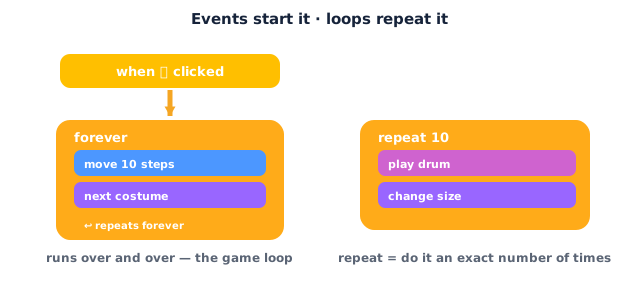
Event blocks are the yellow "hat" blocks at the top of a script. They answer the question "when should this code start?" A script does nothing until its event happens. Build these — three different starts for the same sprite.
Build this:
1. when green flag clicked → say "The flag started me!" for 2 seconds. Press the green flag to run it.
2. when [space] key pressed → move 50 steps. Now press the space bar — the sprite jumps. Look at the little dropdown: you can pick any key (up arrow, a, etc.).
3. when this sprite clicked → play sound Meow. Now click the sprite on the stage — it meows.
when green flag clicked
say "The flag started me!" for 2 seconds

when space key pressed
move 50 steps

when this sprite clicked
play sound Meow
Here's the big idea: one sprite can have many scripts, each with its own event hat. They wait quietly until their event happens — flag, key, or click. This is how a game reacts to a player.
Watch out for the "nothing happens" trap: a stack with no hat block (or the wrong one) will never run. If pressing space does nothing, check the script actually starts with
when space key pressed— not just a loosemoveblock sitting by itself.
You want the sprite to jump when you press a key. Which event block? (Answer: when [space] key pressed.)
Teach — Loops: forever, repeat & wait
A loop repeats the blocks inside it, so you don't have to stack the same block a hundred times. Loops are orange Control blocks. Build these.
repeat 10 — a set number of times. It wraps around the blocks inside and runs them exactly that many times:
when green flag clicked
repeat 10
move 20 steps
wait 0.2 seconds
Press the flag — the sprite takes 10 steps across the stage, then stops. Change 10 to 4 and watch it do fewer.
forever — never stops. This loop repeats forever, until you press the red stop button:
when green flag clicked
forever
next costume
move 5 steps
if on edge, bounce
Press the flag — the sprite walks and animates non-stop. Notice forever has no notch at the bottom — nothing can snap below it, because nothing after it would ever run.
wait 1 seconds — a pause. Without a wait, loops run so fast you can barely see each step. Adding wait 0.2 seconds inside a loop slows it to human speed. Wait is how you control the pace.
Now here's the big idea — the game loop. Put an event on top of a forever loop:
when green flag clicked
forever
move 5 steps
if on edge, bounce
Say it out loud: "The event STARTS the code. The loop REPEATS it." That pattern — start once, then repeat forever — is called the game loop, and it runs under every video game in the world.
Which loop would you use to make a sprite walk non-stop? (Answer: forever.)
Activity — Event + loop = keep it moving
Now you combine an event and a loop.
- Open a new project at Scratch.
- Game loop: build
when green flag clicked → forever → move 5 steps → if on edge, bounce. Press the flag — the sprite paces non-stop. - Add a key event: on a second script, build
when [space] key pressed → repeat 10 → change color effect by 25 → wait 0.1 seconds. Press space and watch it flash. - Add a click event: on a third script, build
when this sprite clicked → say "Ouch!" for 1 seconds. - Make it yours: change the
repeatnumber, thewaittime, and which key starts the flash. Try swapping aforeverfor arepeat 10and notice the difference.
Ask yourself: which block starts this script? Which block repeats? What happens if you change forever to repeat 3?
Check yourself
Try these — the answers are right after each arrow so you can check:
- What does an event block do, and what colour is it? → It starts a script when something happens (flag, key, click). Events are yellow hat blocks.
- What's the difference between
repeat 10andforever? →repeat 10runs the inside blocks exactly 10 times, then stops;foreverruns them over and over until you press stop. - In one sentence, what is the "game loop"? → An event starts the code and a loop repeats it — start once, then keep going.
Wrap-up
- Can you explain, in one sentence, the difference between "start" and "repeat"?
- Try this at home — Start and repeat: make a sprite that starts with the green flag and walks forever with
if on edge, bounce, plus one thing that happens when you press a key. Screenshot it for your portfolio.
Tips & extra challenges
- Watch out: a loop does not run its blocks side by side, all at once. A loop runs the inside blocks top to bottom, then jumps back up and does them again. It's fast repetition of an order, not everything happening together. Trace one lap slowly with your finger so you see the path.
- Want more? Try this: nest ideas — a
foreverloop with arepeat 4inside it, or two different key events (up arrowanddown arrow) that move the sprite different ways. Guess whatrepeat 0does before you try it (answer: nothing — zero times).
Vocabulary
| Term | Meaning |
|---|---|
| Event | Something that STARTS a script (flag, key press, click) |
| Hat block | The yellow event block that sits on top of a script |
| Loop | A block that REPEATS the blocks inside it |
| forever / repeat | Repeat with no end / repeat a set number of times |
| Game loop | An event starts the code, a loop keeps it running |
Resources
- Scratch editor — where you build (free, in the browser).
- Scratch Ideas page — official tutorials, including "Make It Fly" and "Pong Game".
- Scratch Starter Guide (PDF) — a one-page getting-started sheet.
Practice set
Practise on your own — extra tasks to explore events and loops. Work them easy → hard. Answers follow each arrow.
1. Colour clue. Event hat blocks are which colour, and loop blocks are which colour? → Events are yellow; loops (Control) are orange.
2. Start it. Which block starts a script when you click the sprite? → when this sprite clicked.
3. Count or forever. Which loop stops on its own after a set number: repeat 10 or forever? → repeat 10 — it runs 10 times, then stops.
4. Predict. The script is when [space] key pressed → repeat 3 → move 20 steps. What happens when you tap space once? → The sprite moves 20 steps three times (60 steps total), then stops.
5. Make it (build task). Build a script so the sprite walks non-stop and bounces off edges when the green flag is clicked. → when green flag clicked → forever → move 5 steps → if on edge, bounce.
6. Fix it (harder). You built move 50 steps → wait 1 seconds but "it just runs once and never repeats." What one block would make it repeat forever, and where does it go? → Wrap the two blocks in a forever loop (drag forever around them); also add a hat like when green flag clicked on top so it can start.
Going deeper (optional)
Optional — for when you've got the game loop running and want to know why it matters.
Every game is a loop. Behind the scenes, a video game does the same tiny job dozens of times a second: check the controls, move things a little, draw the screen, repeat. That's a forever loop. When you build forever → move → if on edge, bounce, you're building the exact skeleton of a real game engine — just simpler. This one pattern will carry you all the way to the catch game and maze game in Unit 3.
Events make things happen "at the same time." Because each script has its own hat, a sprite can seem to do many things at once — walk forever and flash when you press space and talk when clicked. They aren't really simultaneous deep down, but Scratch runs them so fast it looks that way. This is how a game listens to a player while the action keeps going.
Common mistakes & fixes
If it's not working, check here:
- Mistake: A stack of blocks with no hat, so nothing ever runs. → Fix: add an event on top (
when green flag clicked,when [space] key pressed, orwhen this sprite clicked). - Mistake: Trying to snap a block under
foreverand finding it won't attach. → Fix:foreverhas no bottom notch on purpose — put those blocks inside the loop, or userepeat 10if you need code to run after. - Mistake: A loop runs so fast you can't see anything happen. → Fix: add a
wait(e.g.wait 0.2 seconds) inside the loop to slow it down. - Mistake: Pressing a key does nothing because the wrong key was chosen in the dropdown. → Fix: open the dropdown in
when [ ] key pressedand pick the key you're actually pressing. - Mistake: Using
foreverwhen the action should happen a set number of times. → Fix: swap inrepeat 10(or whatever count) so it stops on its own.
What's next
Session 5 — If–Then Decisions: the start of Unit 2 — Code That Thinks. Students learn to make their code decide — using if … then with Sensing blocks like touching — so a sprite can react differently depending on what's happening.