
Session 2 — Make It Move
Duration: 60 min · Format: live online
What you'll learn: by the end, you can make a sprite walk, spin and glide smoothly using the blue Motion blocks — and keep it from disappearing off the edge with
if on edge, bounce.
Soft skill focus — Problem-solving
Today you'll also grow Problem-solving. Getting a sprite to move exactly where you want — without spinning upside down or vanishing off the edge — is a real puzzle to work out step by step.
- Try this: when your cat flips sideways or glides off the stage, don't just undo everything. Ask yourself "what made it do that?" and try one fix —
point in direction 90, orif on edge, bounce— then test. Break the "walk, spin and glide" goal into one small problem at a time. - Think about: What was one movement problem you had, and what did you change to fix it?
What you'll need
- Open Scratch in a tab (sign in if you can, so you can save your work).
- The motion blocks diagram below to look at as you go.
- Drag the cat to the middle of the stage before you start, so you know where it begins.
Hook
Play "robot directions" with a friend or a grown-up. One of you is the robot. The other calls out orders — "forward!", "turn left!", "forward more!" — and the robot obeys exactly, like a machine, even if it bumps the wall.
A sprite is just like that robot — it only moves the way you tell it. Today you get a whole box of blue movement orders to give your cat: walk, spin, glide, and never fall off the screen. Let's open the blue blocks.
Teach — The Motion family: move & turn
Look at this diagram — each block has a name:
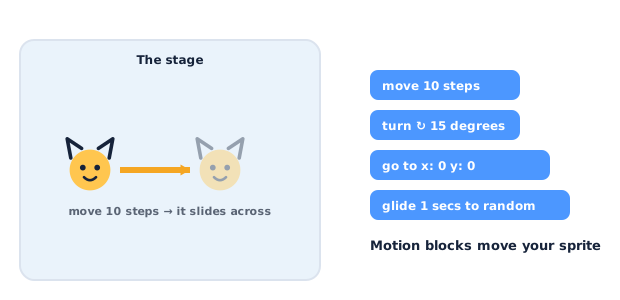
All the movement blocks are blue and live in the Motion palette. Build these slowly.
Build this:
1. From Events (yellow), drag out when green flag clicked — the hat that starts everything.
2. From Motion (blue), snap move 10 steps under it. Press the green flag — the cat slides forward a little. Change 10 to 100 and run again. Bigger number = bigger step.
Now try turning. Add a turn block:
3. From Motion, snap turn ↻ 15 degrees (the clockwise one). Press the flag a few times and watch the cat slowly rotate.
when green flag clicked
move 100 steps
turn ↻ 15 degrees
Here's what the two turn arrows do: turn ↻ spins the sprite clockwise (to its right), and turn ↺ spins it counter-clockwise (to its left). 15 degrees is a small nudge; 90 degrees is a quarter turn.
Watch out for the upside-down cat: after turning, the sprite can end up sideways or flipped. If that happens, click the sprite, find the direction number in the sprite panel, and set it back to 90 (pointing right) — or use
point in direction 90to snap it upright.
Which arrow turns the cat to its right? (Answer: turn ↻ — clockwise.)
Teach — Glide, point & bounce
Here's a big new idea: smooth vs. jumpy. move 10 steps makes the sprite jump instantly. glide makes it slide smoothly over time — much nicer to watch. Build this:
1. Start a fresh script with when green flag clicked.
2. From Motion, snap glide 1 secs to x: 100 y: 0. Press the flag — the cat slides to the right over one second instead of jumping.
3. Change the time to 2 secs and run again — now it glides slower. Time controls the speed of the slide.
when green flag clicked
glide 1 secs to x: 100 y: 0
glide 1 secs to x: -100 y: 0
Add a second glide back to x: -100 (as above) and press the flag — the cat glides right, then left. That's smooth motion.
Now try point in direction. A sprite always faces a direction: 90 is right, -90 is left, 0 is up, 180 is down. Add point in direction 90 at the top of a move script so the cat always starts facing the right way.
Finally, keep it on screen with if on edge, bounce. Build a little walking loop and watch what the bounce block fixes:
when green flag clicked
forever
move 10 steps
if on edge, bounce
Press the flag: the cat walks to the edge and bounces back instead of getting stuck. (Don't worry about forever yet — that's Session 4; for now it just means "keep doing this.")
What's the difference between move and glide? (Move = jump instantly; glide = slide smoothly over time.)
Activity — Walk, spin & glide
Now you make a sprite walk, spin and glide on your own.
- Open a new project at Scratch.
- Walk & bounce: build
when green flag clicked → forever → move 10 steps → if on edge, bounce. Press the flag and watch the cat pace across the stage. - Spin: add a
turn ↻ 15 degreesinside the loop. What happens now? Tryturn ↺instead. - Glide a path: on a second script, make the cat glide to three different spots — for example
glide 1 secs to x: 100 y: 100, thenx: -100 y: 100, thenx: 0 y: 0. - Make it yours: change the step size, the glide times, and the turn amount until the movement looks the way you want.
Ask yourself: which block makes it slide smoothly? What did you change to make it faster?
Check yourself
Try these — the answers are right after each arrow so you can check:
- Which colour are the movement blocks, and what palette are they in? → Blue, in the Motion palette.
- What's the difference between
move 10 stepsandglide 1 secs to …? →movemakes the sprite jump instantly;glidemakes it slide smoothly over the number of seconds you give. - Your sprite keeps walking off the edge of the stage. Which block keeps it on screen? →
if on edge, bounce— it turns the sprite around when it hits an edge.
Wrap-up
- Can you explain, in one sentence, what
glidedoes thatmovedoesn't? - Try this at home — Take the cat for a walk: make your sprite glide to three spots on the stage, then press the green flag. Screenshot it for your portfolio.
Tips & extra challenges
- Watch out:
turn 90does not mean "turn to face 90."turn ↻ 90 degreesadds 90 degrees to wherever the sprite is already pointing (it turns by 90). To face an exact direction, usepoint in direction 90, which sets the direction. Turn = by; point = to. - Want more? Try this: combine blocks into a "patrol":
forever → move 5 steps → if on edge, bounce, pluspoint in direction 90at the start so the cat stays upright. Then make the cat glide in a square using four glides to four corners.
Vocabulary
| Term | Meaning |
|---|---|
| Motion blocks | The blue blocks that move a sprite |
| move | Jump forward a number of steps, instantly |
| glide | Slide smoothly to a spot over a number of seconds |
| turn | Rotate the sprite by a number of degrees (↻ or ↺) |
| direction | The way a sprite faces: 90 right, -90 left, 0 up, 180 down |
Resources
- Scratch editor — where you build (free, in the browser).
- Scratch Ideas page — official tutorials, including "Animate a Character".
- Scratch Starter Guide (PDF) — a one-page getting-started sheet.
Practice set
Practise on your own — extra tasks to explore the Motion blocks. Work them easy → hard. Answers follow each arrow.
1. Colour clue. You want your sprite to move. Which palette and colour do you look for? → Motion — blue.
2. Big or small. Which moves the sprite further: move 10 steps or move 200 steps? → move 200 steps — bigger number, bigger jump.
3. Smooth or jumpy. Which block makes the sprite slide smoothly: move or glide? → glide — it slides over the seconds you set.
4. Predict. The script is when green flag clicked → glide 2 secs to x: 150 y: 0. What happens? → The sprite slides smoothly to the right over 2 seconds (to the spot 150 across, level with the middle).
5. Make it (build task). Build a script so the cat faces right, walks forever, and bounces off the edges. → when green flag clicked → point in direction 90 → forever → move 10 steps → if on edge, bounce.
6. Fix it (harder). A cat keeps ending up upside down after turning, and won't face right again. What one block fixes it? → Add point in direction 90 to reset it to face right (turning adds to the direction; pointing sets it).
Going deeper (optional)
Optional — for when you've got your sprite gliding and want to know how the movement really works.
Steps are tiny. One "step" in Scratch is one pixel — a single dot on the screen. That's why move 10 steps looks like a small hop and move 200 steps shoots across: the stage is only about 480 dots wide. Knowing this helps you predict how far a sprite will travel before you even press the flag.
Why glide feels alive. A move is one instant jump, so your eye sees a teleport. A glide breaks the same trip into hundreds of tiny moves spread over time, so your eye sees motion. Almost every animation in the whole course is really this trick — many small changes, fast — and you'll use it again in Session 3 when costumes make a sprite walk.
Common mistakes & fixes
If it's not working, check here:
- Mistake: The sprite ends up sideways or upside down after turning and stays that way. → Fix: add
point in direction 90to reset it, or set the direction to 90 in the sprite panel. - Mistake: Using
moveand the motion looks "jumpy" or "teleporty." → Fix: swap in aglide … secs to x: y:block for smooth movement. - Mistake: The sprite walks off the stage and disappears. → Fix: add
if on edge, bounce, orglide/go toback tox:0 y:0to bring it home. - Mistake: Confusing
turn ↻(clockwise) withturn ↺(counter-clockwise), so the sprite spins the wrong way. → Fix: read the arrow — ↻ turns right, ↺ turns left. - Mistake: Expecting
turn 90 degreesto point the sprite to 90. → Fix: turn adds degrees; usepoint in direction 90to face an exact way.
What's next
Session 3 — Costumes, Looks & Sound: you'll meet the purple Looks blocks and the pink Sound blocks — switching costumes to make a sprite walk, changing size and colour, and adding say, think and play sound to bring a character to life.