
Session 1 — Welcome to Scratch
Duration: 60 min · Format: live online
What you'll learn: by the end, you can name the three main parts of the Scratch screen, snap blocks into a script, and run your first program — a sprite that moves and says hello when the green flag is clicked.
Soft skill focus — Curiosity
Today you'll also grow Curiosity. Scratch is brand new, and the whole editor is full of colourful blocks just begging the question "what does this one do?"
- Try this: before you're told what the
moveandsayblocks do, drag a few blocks out and guess what each one does, then press the green flag to check. Whenever you wonder "what happens if I put 100 here?" — try it and see! - Think about: What is one block you want to figure out how to use next time?
What you'll need
- Open Scratch in a tab (sign in if you can, so you can save your work).
- The two diagrams below (the Scratch screen and the block families) to look at as you go.
Hook
Let's think for a second:
- "If you had a robot cat that did exactly what you told it — what's the first thing you'd make it do?"
Today you become the boss of a cat on the screen. The cat only does what you tell it — and you tell it with blocks instead of typing. Let's give it its first orders.
Teach — The three parts of the Scratch screen
Look at this diagram — each part has a name:
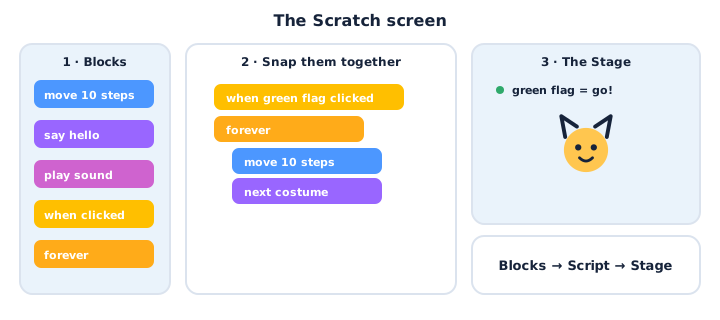
Here's how it works:
- 1 · The Blocks palette (left): a box of coloured command blocks — the "orders" you can give.
- 2 · The Script area (middle): where you drag blocks and snap them together to make a program.
- 3 · The Stage (right): where your sprite (the cat) actually does what the blocks say. The green flag ▶ above the stage means GO; the red stop sign means STOP.
The blocks come in colour-coded families. You don't need to memorise this — just know that colour tells you what a block does.
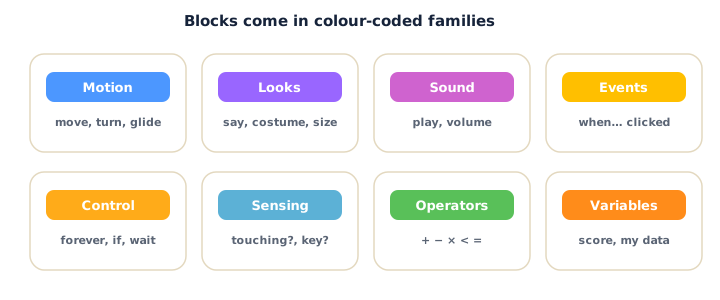
Quick question: if you want your cat to move, which colour of block should you look for? (Answer: blue — Motion.)
Teach — Snap blocks & press the green flag
A program is just blocks snapped together so they run top to bottom. Build this slowly and read each block as you add it.
Build this:
1. From Events (yellow), drag out when green flag clicked — this is a "hat" block; it starts the program.
2. From Motion (blue), snap move 10 steps under it. Watch the white shadow appear before you drop — that shadow means it will connect.
3. From Looks (purple), snap say [Hello!] for 2 seconds under that.
Now your script reads:
when green flag clicked
move 10 steps
say "Hello!" for 2 seconds
Press the green flag. The cat slides a little and a speech bubble pops up. Celebrate — that's a real program!
Watch out: the #1 beginner mistake is blocks placed near each other but not actually snapped. If nothing runs, wiggle the top block — the whole stack should move together. If a block gets left behind, it wasn't connected.
Which block made the cat talk? Which made it move? (Say = Looks/purple; move = Motion/blue.)
Activity — Make your sprite move & talk
Now you build your own first script.
- Open a new project at Scratch.
- Build the
when green flag clicked→move 10 steps→say "Hi, I'm [your name]!"script. Press the green flag. - Make it yours: change the number in
moveto a big number (like100) — what happens? Change the words insay. Add a secondsayblock. - Extra: from Looks, add
change color effect by 25and run it a few times. What happens to the cat?
Ask yourself: which block starts your program? What did you change?
Check yourself
Try these — the answers are right after each arrow so you can check:
- What are the three main parts of the Scratch screen? → The Blocks palette, the Script area, and the Stage.
- What does the green flag do? → It runs (starts) your program. The red button stops it.
- A block does nothing when you run it. What's the most likely reason? → It isn't snapped to the script — connect it under the
when green flag clickedstack.
Wrap-up
- Can you explain, in one sentence, what "snap blocks together" means?
- Try this at home — Teach the cat a trick: make the cat say two different things and move, then press the green flag. Screenshot it for your portfolio.
Tips & extra challenges
- Watch out: blocks don't run all by themselves. In Scratch, a stack does nothing until an event (like the green flag) starts it. Keep an eye on the yellow "hat" block.
- Want more? Try this: add a Sound block (
play sound Meow) and a secondsay, then make a tiny "hello routine": move, meow, say two lines. Can you say the order the blocks run in? (Top to bottom.)
Vocabulary
| Term | Meaning |
|---|---|
| Sprite | A character or object on the stage (the cat) |
| Block | One instruction you snap into a program |
| Script | Blocks snapped together that run in order |
| Stage | The screen where your sprite acts |
| Green flag | The button that runs your program |
Resources
- Scratch editor — where you build (free, in the browser).
- Scratch Starter Guide (PDF) — a one-page getting-started sheet.
- Scratch Ideas page — official tutorials and starter cards.
Practice set
Practise on your own — extra tasks to explore the Scratch screen and first blocks. Work them easy → hard. Answers follow each arrow.
1. Name that part. Where do you drag blocks to snap them together? → The Script area (the big middle space).
2. Colour clue. You want your sprite to say something. Which colour block do you look for? → Purple — Looks.
3. Fix it (spot the bug). A move 10 steps block is sitting next to the when green flag clicked block, not under it, and nothing moves. What's wrong? → It isn't snapped underneath — drag it until the white shadow appears, then drop.
4. Predict. The script is when green flag clicked → move 100 steps. What happens when you press the flag? → The sprite jumps a long way across the stage (100 is a big step).
5. Make it (build task). Build a script so the cat says "Ready?" for 1 second, then moves 50 steps. → when green flag clicked → say "Ready?" for 1 seconds → move 50 steps.
6. Two orders (harder). Put these in the right order so the cat greets, then moves: move 20 steps, when green flag clicked, say "Hi!". → when green flag clicked (top) → say "Hi!" → move 20 steps. The hat block is always on top.
Going deeper (optional)
Optional — for when you've snapped your first script and want to know why Scratch works the way it does.
Why blocks instead of typing? Real code (like Python) is typed, and one wrong letter breaks it. Scratch removes the spelling problem so you can focus on the thinking: what order should the steps happen in? The shapes of the blocks are a clue — a "hat" block is rounded on top so nothing can snap above it, and command blocks have a bump and a notch so they only fit one way. The shapes are teaching you the grammar of programming without a single word of it.
Sprites each have their own scripts. Add a second sprite (click the cat icon at the bottom-right → choose one). Click it, and notice the script area is now empty — because scripts belong to the sprite you've selected. This is a big idea you'll use all course: each character carries its own set of instructions.
Common mistakes & fixes
If it's not working, check here:
- Mistake: Blocks placed near each other but not snapped, so nothing runs. → Fix: drag until the white shadow appears, then drop; wiggle the top block to check the whole stack moves together.
- Mistake: Pressing keys or clicking the sprite and expecting it to run, when only a
when green flag clickedwas added. → Fix: press the green flag to run that script (other starts come in later sessions). - Mistake: Adding motion blocks but the sprite "won't move" — it already ran off the edge. → Fix: drag the sprite back to the middle of the stage, or add
go to x:0 y:0to reset it. - Mistake: Editing blocks on the Stage instead of a sprite. → Fix: click the sprite in the sprite list (bottom area) first — the stage can't move.
What's next
Session 2 — Make It Move: you'll meet the full family of Motion blocks — glide, turn, point — and make a sprite walk, spin and glide smoothly around the stage.