
Session 1 — Speak Python
Duration: 75 min · Format: live online
What you'll learn: by the end, you can open Google Colab, write and run Python, store values in variables, and use
print(), math, and the three basic data types.
Soft skill focus — Curiosity
Today you'll also grow Curiosity. Your first lines of Python are a sandbox — the fastest way to learn a language is to keep asking "what happens if I change this?"
- Try this: during the Colab activity, don't just run the given code — change a value, swap a math operator, or predict an output before you press Run, and treat every error as a clue to poke at rather than a failure.
- Think about: what's one thing you tried today just to see what it would do — and what did you learn from it?
What you'll need
- A Google account so you can open your own Colab notebook.
- Google Colab → New notebook, where you'll type and run Python live in a cell.
Hook
Think about these questions:
- "If a computer is so powerful, why can't it just figure out what you want?"
- "What happens if you skip a step in a recipe — does the cook improvise, or fail?"
Here's the idea: computers are powerful but not clever — they do exactly what you tell them, in order, step by step. Writing those steps in a language the computer understands is called coding. Today, that language is Python — the same language that powers apps, AI, and even space missions.
Teach — Code is instructions the computer runs
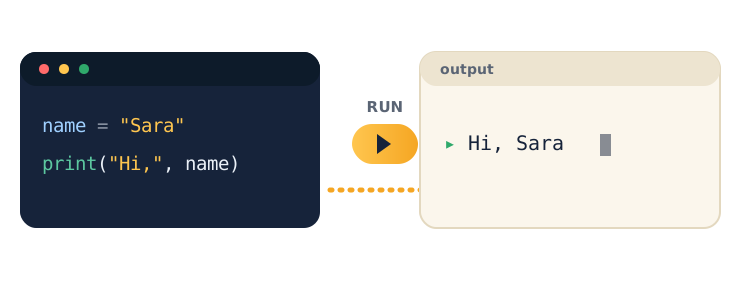
You write instructions, the computer runs them and shows the output. Nothing more magical than that.
Look at this diagram — notice the three parts: the code you write, the Run button, and the output that appears:
Type and run this in Colab:
name = "Sara"
print("Hi,", name)
Run it and watch the output appear: Hi, Sara.
Ask yourself: "The computer just obeyed an instruction — what exactly did I tell it to do?" (Answer: store the text Sara in name, then print Hi, followed by whatever is in name.)
⚠ Watch for the #1 confusion: it's tempting to expect the computer to "understand" the sentence. It doesn't — it only runs each line in order. If a line is wrong, it won't guess what you meant; it will error out.
Teach — Variables store information
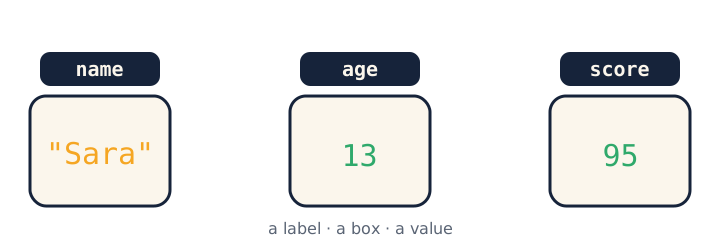
A variable is a labelled box that holds a value so you can use it again later.
Look at this diagram — each box has a label on the outside and a value inside:
Type and run this in Colab:
name = "Sara"     # text  (a string)
age = 13          # whole number (an integer)
is_student = True  # yes/no (a boolean)

print(name, "is", age, "years old.")
print("Next year:", age + 1)
Notice the three data types — text (a string), numbers (an integer), and True/False (a boolean). These are the building blocks of every program.
Ask yourself: "Why does age + 1 give 14, but if age were text it would break?" (Answer: you can do math on numbers, not on quoted text.)
⚠ Watch for: text needs quotes (
"Sara"), numbers don't (13). And=means "store this value", not "is equal to".
Activity — Your first real code
Open your own Google Colab → New notebook, then work through these steps.
Type and run this in Colab:
my_name = "type your name here"
my_age = 12
print("Hello, my name is", my_name)
print("In 5 years I will be", my_age + 5)
Then change the values and run again, and try the math operators: * (times), / (divide), - (minus).
Watch out for the two errors nearly everyone hits — forgetting the quotes around text, and gluing text together with a space instead of a comma.
Debug Game. Here's some broken code — can you spot two mistakes before you fix it?
city = Cairo
print("I live in " city)
What are the two problems? Here's the fix:
- Text needs quotes:
city = "Cairo". - You can't glue text together with a space — use a comma:
print("I live in", city).
Check yourself
Try these — then check your answers:
- What does
print(3 + 4)print? →7— no quotes, so Python does the math. (With quotes,print("3 + 4")would print3 + 4.) - Which data type is
True? → A boolean — it can only beTrueorFalse. - Why does
name = "Sara"use quotes butage = 13doesn't? →"Sara"is text (a string) and text needs quotes;13is a number and numbers don't.
Wrap-up
- Finish the sentence: "A variable is…"
- Try this at home — About Me program: write a tiny "About Me" program in Colab that stores your
name,age, andfavourite_subjectin variables, then prints a friendly sentence using all three. Screenshot it — it's the first snippet in your portfolio. Bring it to Session 2.
Tips & extra challenges
- Watch out: it's easy to assume "the computer understands what I mean." It doesn't — it runs each line literally. Think of coding as writing exact, ordered instructions.
- Common coding errors: missing quotes around text (
city = Cairo); using a space instead of a comma insideprint(); typing a capitalPrint; using=when you mean to compare. Python's error message points to the line that broke. - Want more? Try this — build a Profile Card program: you're heading into data science, so here's its main tool, Pandas, as a mini-project. Create a small
DataFrameof 4–5 classmates (anamecolumn and ascorecolumn), then print the whole table, its.shape, the average score withdf["score"].mean(), and the top scorer withdf["score"].max(). Add a third column (likeage) and a fifth person, so the "card" grows — this is exactly the table you'll load real data into next session.
import pandas as pd

data = {"name": ["Sara", "Omar", "Lina"], "score": [95, 88, 73]}
df = pd.DataFrame(data)

print(df)             # the whole table
print(df.shape)       # (rows, columns)
print(df["score"].mean())   # average score
df is a DataFrame — a table of data, like a smart spreadsheet. Add a 4th person, then print the highest score with df["score"].max(). Next session you load a real dataset into one of these.
- Also want more? make Python print a name 10 times in one line with
print("Sara\n" * 10)— what does\ndo? (a new line).
Vocabulary
| Term | Meaning |
|---|---|
| Code | Instructions written for a computer |
| Variable | A labelled box that stores a value |
| String | Text, always inside quotes |
| Integer | A whole number |
| Boolean | True or False |
Resources
- Google Colab — write and run Python in your browser (free).
- freeCodeCamp — Python — free, hands-on lessons.
- W3Schools Python — quick, clear reference with "Try it" buttons.
- Kaggle — Python (free course) — great next step for fast finishers.
Practice set
Practise on your own — extra exercises reinforcing variables, print(), math, and data types, easy to hard.
1. Predict the output: what does this print? → 10. No quotes, so Python does the math.
print(6 + 4)
2. Predict the output: what does this print, and why is it different from #1? → 6 + 4 (the literal text). Quotes make it a string, so no math happens.
print("6 + 4")
3. Name the data type of each value: "hello", 42, False, 3.5. → string, integer, boolean, and a float (a decimal number).
4. Fix the bug: this errors — find and fix two problems. → country needs quotes and print needs a comma: country = "Egypt" then print("I live in", country).
country = Egypt
print("I live in" country)
5. Write it: store your age in a variable age, then print how old you'll be in 10 years — as a number, not glued text. → e.g. age = 12 then print("In 10 years:", age + 10).
6. Write a rectangle calculator: store width = 8 and height = 3, then print the area. → use *: print("Area:", width * height) gives 24.
width = 8
height = 3
# print the area here
7. Trace it (hard): after these lines run, what does the final print show? → 20. x becomes 10, then x + x is 20 (the variable is re-read at print time).
x = 5
x = x + 5
print(x + x)
Going deeper (optional)
If you're flying through this, here's a bonus — a string is really a sequence of characters you can measure and combine, no new tools needed:
name = "Sara"
print(len(name))        # 4  — how many characters
print(name + " Ali")    # Sara Ali  — + joins (concatenates) strings
print(name * 3)         # SaraSaraSara  — * repeats a string
Notice the twist: + on numbers adds (3 + 4 → 7), but + on strings joins them ("3" + "4" → "34"). Same symbol, different job depending on the data type — a first taste of why keeping strings and numbers straight matters. Try building a full greeting by joining several strings, then measure its length with len().
Common mistakes & fixes
- Mistake: forgetting quotes around text, e.g.
city = Cairo. → Fix: text (strings) always needs quotes:city = "Cairo". Without them Python thinksCairois a variable name. - Mistake: using a space to separate items in
print, e.g.print("Hi" name). → Fix: separate arguments with a comma:print("Hi", name). - Mistake: capitalising the command, e.g.
Print("hi"). → Fix: Python is case-sensitive — it's lowercaseprint. - Mistake: treating
=as "is equal to", e.g. readingage = 13as a question. → Fix: a single=stores a value into a variable; it's an instruction, not a comparison. - Mistake: doing math on quoted numbers and expecting arithmetic, e.g.
"13" + 1. → Fix: remove the quotes so it's a real number (13 + 1), or convert withint("13") + 1.
What's next
Session 2 — Playing with Data: you'll use lists and loops (and Pandas, if you want more) to store and explore many values at once.