
Session 14 — Deploy Your AI
Duration: 75 min · Format: live online
What you'll learn: by the end, you can turn a model from a notebook into a real web app anyone can use — building the interface with Gradio and publishing it live on Hugging Face Spaces, so you walk away with a link you can put in a message, an email, or a portfolio.
Soft skill focus — Confidence & presenting
Today you'll also grow Confidence & presenting. There's a huge difference between "I trained a model" and "here — try it yourself" with a link. The moment strangers can click and use your work, you're no longer a student doing exercises; you're a builder who ships. That shift is mostly confidence — the willingness to put your work in front of the world.
- Try this: the instant your app goes live, send the link to one person outside this course — a friend, a parent, a teacher — with a single confident sentence: "I built and deployed this — try it." Watching someone else use your creation rewires how you see yourself.
- Think about: "What stops me from sharing my work — is it really 'not ready', or am I just nervous to be seen?"
What you'll need
- Google Colab open, with a trained model (last session's Titanic model, or reuse any model you like).
- A free Hugging Face account — sign up now if you don't have one; you'll need it to publish.
- The deploy diagram below open, to see where each piece fits.
Hook
Right now your model lives in a notebook. To use it, someone would have to open Colab, run every cell, and understand Python. That's not a product — that's a science experiment on your desk.
Deployment is the bridge from "it works on my machine" to "anyone can use it, anywhere". And here's the beautiful part: with modern tools, that bridge is about fifteen lines of code and one upload. Today you cross it — you turn your model into a website with buttons and boxes that your grandmother could use.
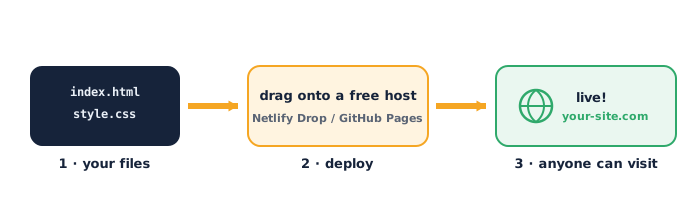
Teach — What deployment actually is
Deploying a model means three things come together and run somewhere other people can reach:
- The model — your trained thing (the weights) that turns inputs into predictions.
- The interface — the boxes, sliders and buttons a human uses to give inputs and see the answer, with no code.
- The host — a computer on the internet that runs it 24/7 so the app is always at a link.
In a company, teams spend serious effort on all three. For you, Gradio handles the interface in a few lines, and Hugging Face Spaces is a free host. That combination is genuinely how many real ML demos ship today.
Teach — Gradio in one idea
Gradio's whole trick is this: you write a normal Python function, and Gradio wraps a web UI around it automatically.
- You write a function that takes inputs (numbers, text, an image) and
returns an answer. - You tell Gradio what kind of input each argument is (a slider? a dropdown? an image box?) and what the output is.
- Gradio builds the web page, the input widgets, and a "Submit" button for you.
That's it. No HTML, no JavaScript, no web-server code. Your function is the app.
⚠ Watch out: the function you hand to Gradio must be self-contained — it has to load or hold the model and do everything needed to produce an answer from raw inputs. A common failure is a function that relies on a variable defined in some other notebook cell that won't exist on the host. Test it by imagining the function is the only thing that runs.
Activity — Build and deploy a live app
You'll wrap last session's survival model in a Gradio app, then publish it. Work in Colab first to test, then move to Spaces.
Step 1 — Install and import Gradio in your Colab:
!pip install gradio -q
import gradio as gr
Step 2 — Write the prediction function. It takes human-friendly inputs and returns a friendly answer (assumes model is your trained classifier from last session):
def predict_survival(pclass, sex, age, fare):
    sex_num = 0 if sex == "male" else 1
    features = [[pclass, sex_num, age, fare]]
    prob = model.predict_proba(features)[0][1]   # chance of survival
    return f"Survival chance: {prob:.0%}"
Step 3 — Describe the interface — one input per function argument, in order:
demo = gr.Interface(
    fn=predict_survival,
    inputs=[
        gr.Dropdown([1, 2, 3], label="Passenger class"),
        gr.Radio(["male", "female"], label="Sex"),
        gr.Slider(0, 80, value=30, label="Age"),
        gr.Slider(0, 300, value=30, label="Fare paid"),
    ],
    outputs="text",
    title="Titanic Survival Predictor",
    description="Enter passenger details to estimate survival chance.",
)

demo.launch()
Now try it:
- Run it. Gradio shows a working app right inside Colab — move the sliders, pick "female" vs "male", and watch the prediction change live.
- Set a young female first-class passenger, then an older male third-class one. Does the app reflect what your model learned last session?
Step 4 — Publish to the world. Go to huggingface.co/new-space, choose Gradio as the Space type, and create it. In the Space, add two files:
app.py            ← Steps 2–3 above, plus code that loads your saved model
requirements.txt  ← the libraries your app needs
Your requirements.txt is just a plain list:
gradio
scikit-learn
pandas
Save your trained model to a file first (import joblib; joblib.dump(model, "model.joblib")), upload that file to the Space too, and load it at the top of app.py with model = joblib.load("model.joblib"). Hugging Face builds it automatically — in a minute or two, your app is live at a public URL you can share with anyone.
Check yourself
- What three things must come together to deploy a model? → The model, an interface (the UI), and a host (a computer on the internet that runs it).
- What does Gradio do for you? → It wraps a web UI around a plain Python function — no HTML or JavaScript needed.
- Why must the model be saved to a file for Spaces? → Because the host runs
app.pyfresh; it can't see your Colab memory, so the model has to be saved and loaded from a file the Space can read.
Wrap-up
You just shipped. Your model went from cells only you could run to a website with a link anyone on Earth can open and use. That's the difference between a learner and a builder — and it's a link you can now put straight into your portfolio and university applications.
- Try this at home: change your app's
titleanddescription, add anexamples=list togr.Interface(a few pre-filled inputs users can click to try), and redeploy. Then send the live link to two people and note their first reaction.
Tips & extra challenges
- Watch out: Spaces builds can fail if
requirements.txtis missing a library yourapp.pyimports — read the build log, find theModuleNotFoundError, add that package, and it'll rebuild. This is normal; even professionals read build logs. - Want more? Try this: deploy something more visual. Wrap an image classifier (a pre-trained one from Session 7) in Gradio with
gr.Image()as the input andgr.Label()as the output — now people can drag a photo in and see predictions. Image demos are the ones that get shared.
Vocabulary
| Term | Meaning |
|---|---|
| Deployment | Making a model usable by others by running it on a reachable server |
| Gradio | A Python library that builds a web UI around a function automatically |
| Hugging Face Spaces | A free host that runs your app 24/7 at a public link |
requirements.txt |
A file listing the libraries your app needs so the host can install them |
| Interface | The buttons, sliders and boxes a human uses — no code required |
Resources
- Gradio — docs and a quickstart for building the interface.
- Hugging Face Spaces — browse live demos for inspiration, then create your own.
- Google Colab — build and test your Gradio app here before publishing.
Practice set
Practise on your own — work these easy → hard. Answers follow each arrow.
1. Name the piece. Sliders and a Submit button that a user clicks — which of the three deployment parts is that? → The interface (the UI).
2. Match the widget. A user needs to choose "male" or "female". Which Gradio input fits? → A gr.Radio (or gr.Dropdown) with those two choices.
3. Fix the file. Your Space crashes with ModuleNotFoundError: No module named 'sklearn'. What's missing? → scikit-learn is not in requirements.txt; add it and rebuild.
4. Explain the save. Why can't your Space just use the model variable from your Colab? → The host runs a fresh process with no access to Colab's memory; the model must be saved to a file and loaded in app.py.
5. Write the function (harder). Write a Gradio-ready function greet(name) that returns "Hello, <name>!". → def greet(name): return f"Hello, {name}!" (then gr.Interface(fn=greet, inputs="text", outputs="text").launch()).
6. Reason about hosting (harder). A friend says "my demo works in Colab, why deploy it?" Give one solid reason. → In Colab it only runs while your cell is running and only you can reach it; deployed on Spaces it runs 24/7 at a public link anyone can use.
Going deeper (optional)
Optional — for when you want your demo to feel like a real product.
Add a share link and cache examples. Two small touches make a big difference. First, demo.launch(share=True) in Colab gives you a temporary public URL instantly — handy for showing someone before you've published a full Space. Second, when you pass examples=, Gradio can pre-compute their outputs so the app feels instant on first load. Beyond Gradio, explore Streamlit (an alternative that gives you more control over page layout) — building the same demo in both and comparing teaches you a lot about the trade-off between "fast and automatic" (Gradio) and "flexible and custom" (Streamlit).
Common mistakes & fixes
- Mistake: The function relies on variables from other notebook cells. → Fix: make it self-contained — load the model and do all processing inside (or at the top of) the file the host runs.
- Mistake: Forgetting
requirements.txton the Space. → Fix: list every non-standard library yourapp.pyimports, one per line, so the host installs them. - Mistake: Input order in the function doesn't match the
inputs=list order. → Fix: Gradio passes inputs positionally — keep the function arguments and theinputslist in the same order. - Mistake: Passing raw human labels straight into the model. → Fix: convert them the same way you did in training (e.g.
"male"→0) inside the function, or the prediction will be wrong or error. - Mistake: Expecting the Space to be instant. → Fix: the first build takes a couple of minutes while it installs libraries; watch the build log and wait for "Running".
What's next
Session 15 — Your University-Ready Portfolio: you now have deployed work worth showing off. Next you'll build the place that shows it off — a clean GitHub with strong READMEs and a sharp write-up of each project, so a university admissions officer or employer instantly sees what you can do.